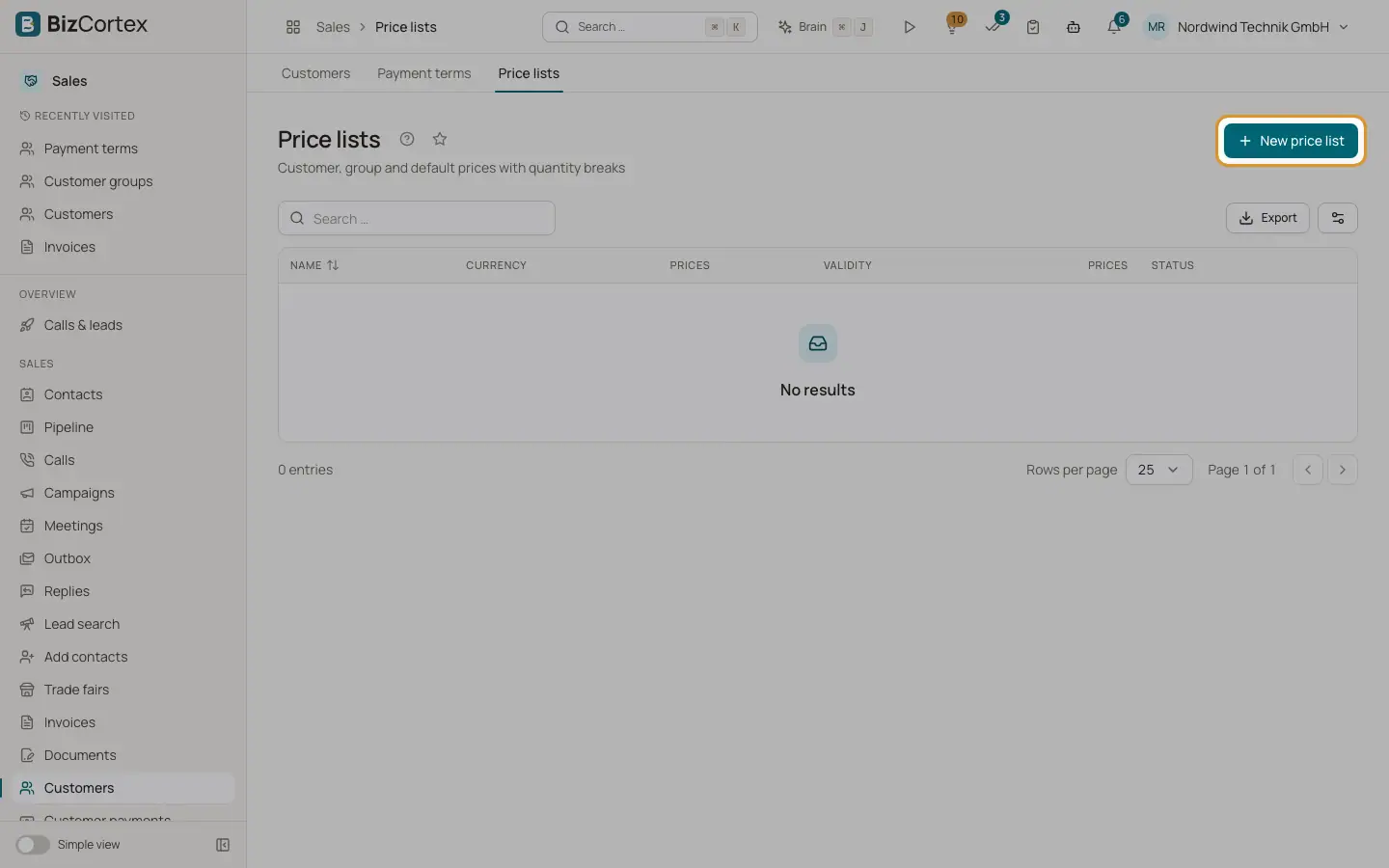
Price lists
Customer, group and default prices per currency, with quantity breaks and validity.
Open Sales, Customers, Price lists (visible in All functions). A price list belongs to one currency and holds product prices. When you pick a product on a document line, BizCortex looks for the price in this order: the customer price list, the customer group price list, the default price list of the currency, then the product price from inventory.
Who can use this
- Owner
- Admin
- Accountant
- Sales
- Viewer (read only)
Steps
1. Create a list
Click "New price list". Enter a name and the currency, optionally Valid from and Valid to, and choose Gross prices if the prices include VAT. Switch on "Default price list of the currency" for the general list.
2. Add prices
Open the list, click "Add price", pick the product and enter From quantity, Unit price and Discount. Click Save.
3. Add quantity breaks
Add several rows for the same product with different From quantities. The row with the highest from quantity that is not above the ordered quantity applies.
4. Assign the list
Choose the list on a customer (Price list) or on a customer group.
Fields and options
- Name, Currency
Both required. The currency must match the document currency.
- Prices
Gross prices or Net prices for the whole list.
- Validity
Valid from and Valid to. Outside this period the list is not used.
- Default price list of the currency
Used for every customer without their own or a group list.
- Active
Inactive lists are ignored.
- Product, From quantity, Unit price, Discount
One price row. The discount becomes the line discount.
Tips
- Use the Price lookup on the customer page, Price lists tab, to see which price a customer gets for a quantity.
Related
- Customer groups
Give groups of customers a common discount, price list and payment term.
- Writing a document: the editor
Every field of the editor for quotes, orders, delivery notes and invoices.