Dunning runs
Propose, review and confirm reminders for overdue invoices.
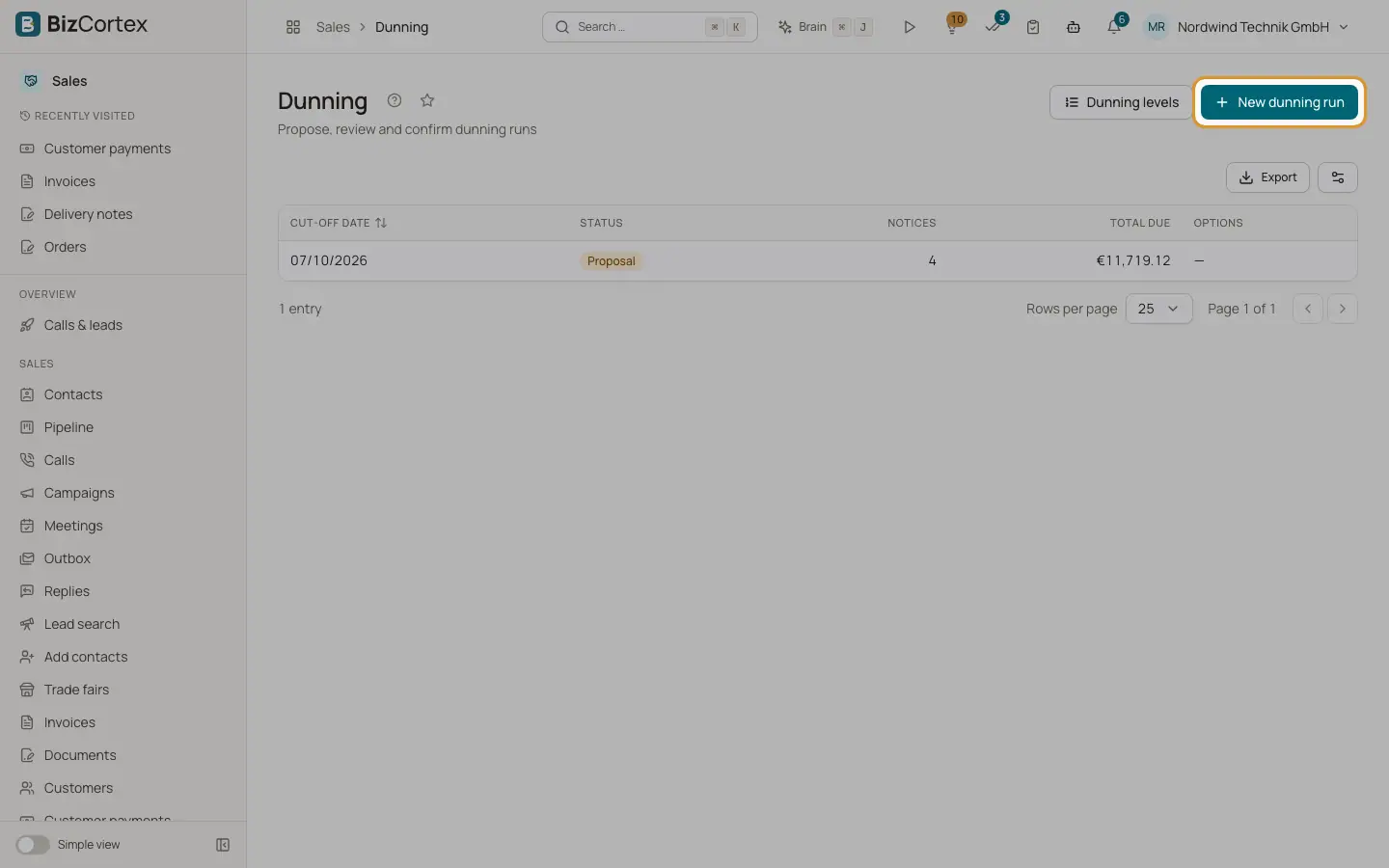
Open Sales, Dunning. The list shows each run with cut off date, status (Proposal, Confirmed, Discarded), number of notices, total due and options. A run has three steps: Proposal, Review, Confirmed.
Who can use this
- Owner
- Admin
- Accountant
- Sales
- Viewer (read only)
Steps
1. Create a proposal
Click "New dunning run". Choose the cut off date, optionally "Only for customer", and switch on "Post fees and interest" (creates a fee invoice per notice) and "Send notices by email". Click "Create proposal".
2. Review
The run lists every proposed notice with customer, invoice, level, days overdue, open amount, fee, interest, total due and status. Switch off Dun to exclude a notice. Open a notice to preview its PDF.
3. Confirm
Click "Confirm dunning run". Each notice gets a number (MA, the year and a running number), is rendered as PDF and emailed if enabled. The invoice shows its new dunning level.
4. Or discard
Click "Discard dunning run" to drop a proposal. The run is kept with status Discarded.
Fields and options
- Which invoices are proposed
Issued, open, overdue invoices of customers without dunning block, with an open amount of at least the minimum amount from Sales settings, not already in another proposed run. Each gets the next level whose days overdue are reached and whose previous deadline has passed. Fee invoices are never dunned.
- Notice statuses
Proposed, Excluded, Issued, Sent.
Good to know
- Confirming needs the Sales dunning approve permission.
- A confirmed run cannot be discarded.
- Fee invoices carry no VAT and link back to the dunned invoice.
- Notices are only emailed to customers that have an email address.
Related
- Dunning emails
How payment reminders and dunning notices are emailed during a dunning run.
- Dunning levels
Set deadlines, fees, default interest and texts for each reminder level.
- Late fees and billable expenses
Charge a late fee on an overdue invoice and add rebillable expenses to a draft.