From quote to invoice
How quotes, orders, delivery notes and invoices connect, including partial quantities.
Quotes, orders and delivery notes form one document chain. Each step takes over the lines of the previous document. Every conversion can be partial: you choose how much of each line to take over, and BizCortex remembers what is still open. The quote, order and delivery note lists are under Documents in the sidebar.
Numbers: quotes start with AN, orders with AB, delivery notes with LS, invoices with RE and credit notes with GS, each followed by the year and a running number. Quote numbers are assigned when the quote is created. Invoice numbers are assigned only when the invoice is finalized, so they have no gaps.
Who can use this
- Owner
- Admin
- Accountant
- Sales
Steps
1. Create a quote
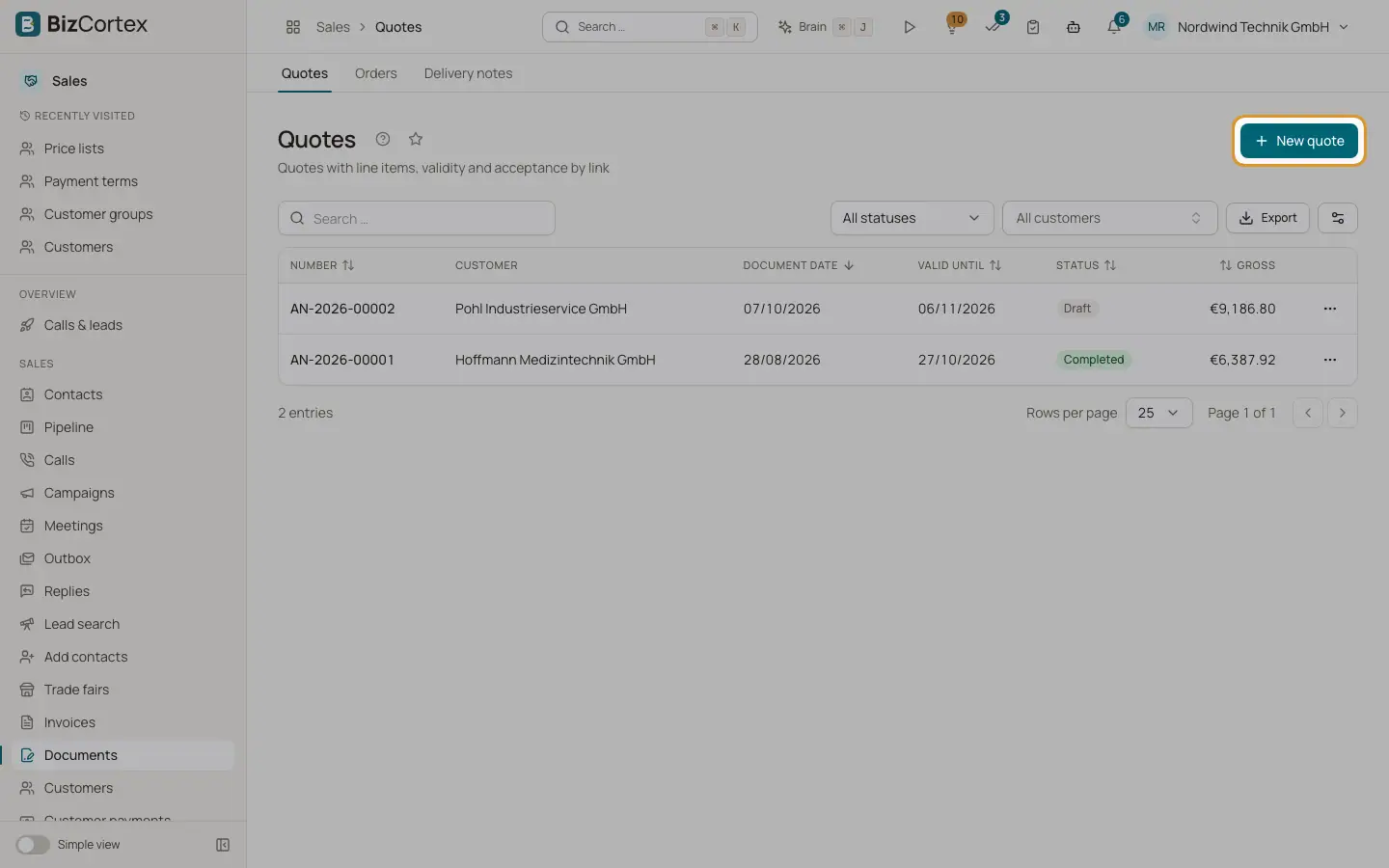
Open Documents, Quotes and click "New quote". Add the lines and save. Click "Send by email" to send it; the quote changes to Sent and gets a public link.
2. Get the decision
The customer accepts or declines by link, in the customer portal or by electronic signature. You can also click Accept or Decline yourself.
3. Turn it into an order
Click "To order". The dialog lists every line with quantity, already taken over and open. Enter the quantity to take over (0 skips a line) and click "Take over". Converting into an order also counts as acceptance.
4. Confirm the order
Open the order and click "Confirm order", or send it by email, which also confirms it. The credit limit is checked here.
5. Deliver
Click "Delivery note", choose quantities and optionally a warehouse. On the delivery note click Deliver. Lines with a product are booked out of stock.
6. Invoice
Click Invoice on the quote, order or delivered delivery note. Choose quantities and the invoice type (Invoice or Partial invoice). A draft invoice opens. Finalize it when it is correct.
Fields and options
- Open quantities card
On sent quotes and orders: per line the quantity, ordered (quotes only), delivered, invoiced and "Still to invoice".
- Predecessor document
Shown on documents that were taken over from a previous document.
- Quote statuses
Draft, Sent, Accepted, Declined, Expired, Partial, Completed, Cancelled. Sent quotes past their validity date become Expired automatically every night.
- Order statuses
Draft, Confirmed, Partial, Completed (fully invoiced), Cancelled.
- Delivery note statuses
Draft, Delivered, Partial, Completed, Cancelled.
Tips
- The remaining quantity to invoice counts direct invoices and invoices made through delivery notes, so nothing is invoiced twice.
- You can skip steps: invoice a quote directly, or an order without a delivery note.
Good to know
- A document can only be cancelled when it has no follow up documents or invoices that are still active. Cancelled documents are kept, never deleted.
- Cancelling an invoice does not reset the Partial or Completed status of its order. The open quantities are always calculated live and stay correct.
Related
- Quotes
Create, send and follow up quotes until they are accepted.
- Orders
Order confirmations that turn into delivery notes and invoices.
- Delivery notes
Ship goods, book them out of stock and invoice the delivered quantity.
- Finalizing an invoice
Check the mandatory details, finalize, and understand why an issued invoice is locked.