Connecting Stripe or PayPal
Let customers pay invoices online by card or PayPal.
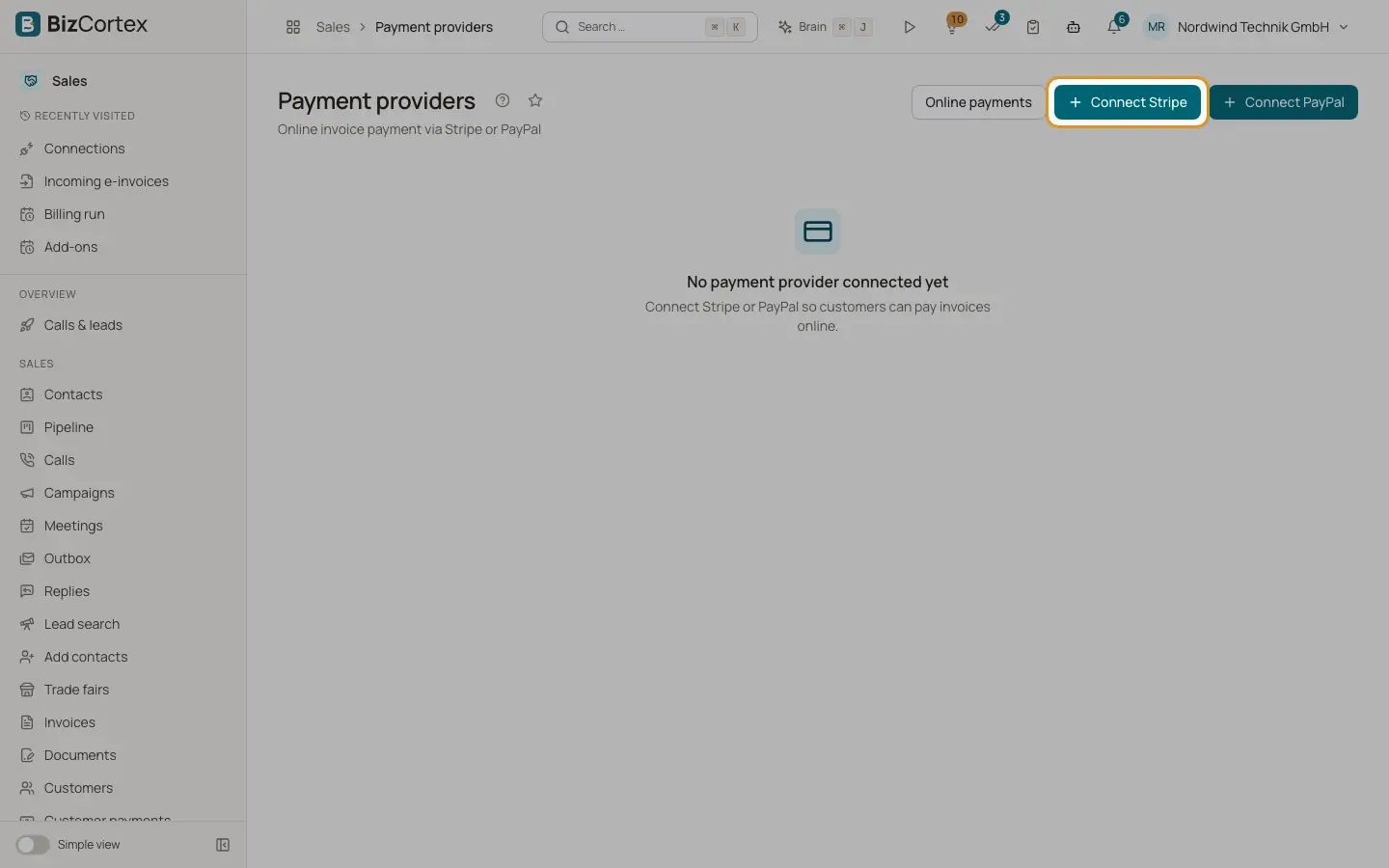
In the Sales app, open Payment providers in the Settings group (visible in All functions). You can connect one Stripe and one PayPal account. Once connected, every open invoice can be paid online from the public link and the customer portal.
Who can use this
- Owner
- Admin
- Accountant
- Sales (read only)
Steps
1. Connect
Click "Connect Stripe" or "Connect PayPal".
2. Choose the mode
Test mode (Stripe) or Sandbox (PayPal) for trials, Live for real payments.
3. Enter the keys
Stripe: Publishable key, Secret key and Webhook signing secret. PayPal: Client id, Client secret and Webhook id.
4. Redirects
Optionally enter "Redirect after payment" and "Redirect on cancel" (full URLs). Empty = the BizCortex thank you page based on the Base URL for public links. Keep Active on. Save.
5. Register the webhook
Copy the Webhook URL shown on the provider card. In Stripe add it under Developers, Webhooks for the event checkout.session.completed. In PayPal add it under App, Webhooks for PAYMENT.CAPTURE.COMPLETED.
Good to know
- Stored keys are never displayed again. Empty fields keep the stored value when you edit.
- Refunds and chargebacks at the provider are not processed by BizCortex. Record them yourself.
Related
- Payment links and online payments
How customers pay online and how the payment is booked automatically.
- Recording customer payments
Post money received, allocate it to invoices, grant cash discounts and keep the rest as credit.