Finalizing an invoice
Check the mandatory details, finalize, and understand why an issued invoice is locked.
A new invoice is a draft: it has no number, no posting and can be changed or deleted. Finalizing turns it into a legal document. BizCortex checks the mandatory details, assigns the next gapless number (RE, the year and a running number), posts it to the ledger, creates the public link and sets the status to Sent.
From then on the invoice is locked and cannot be edited (GoBD). Corrections are made with a credit note; the invoice itself stays unchanged.
Who can use this
- Owner
- Admin
- Accountant
- Sales
Steps
1. Open the draft
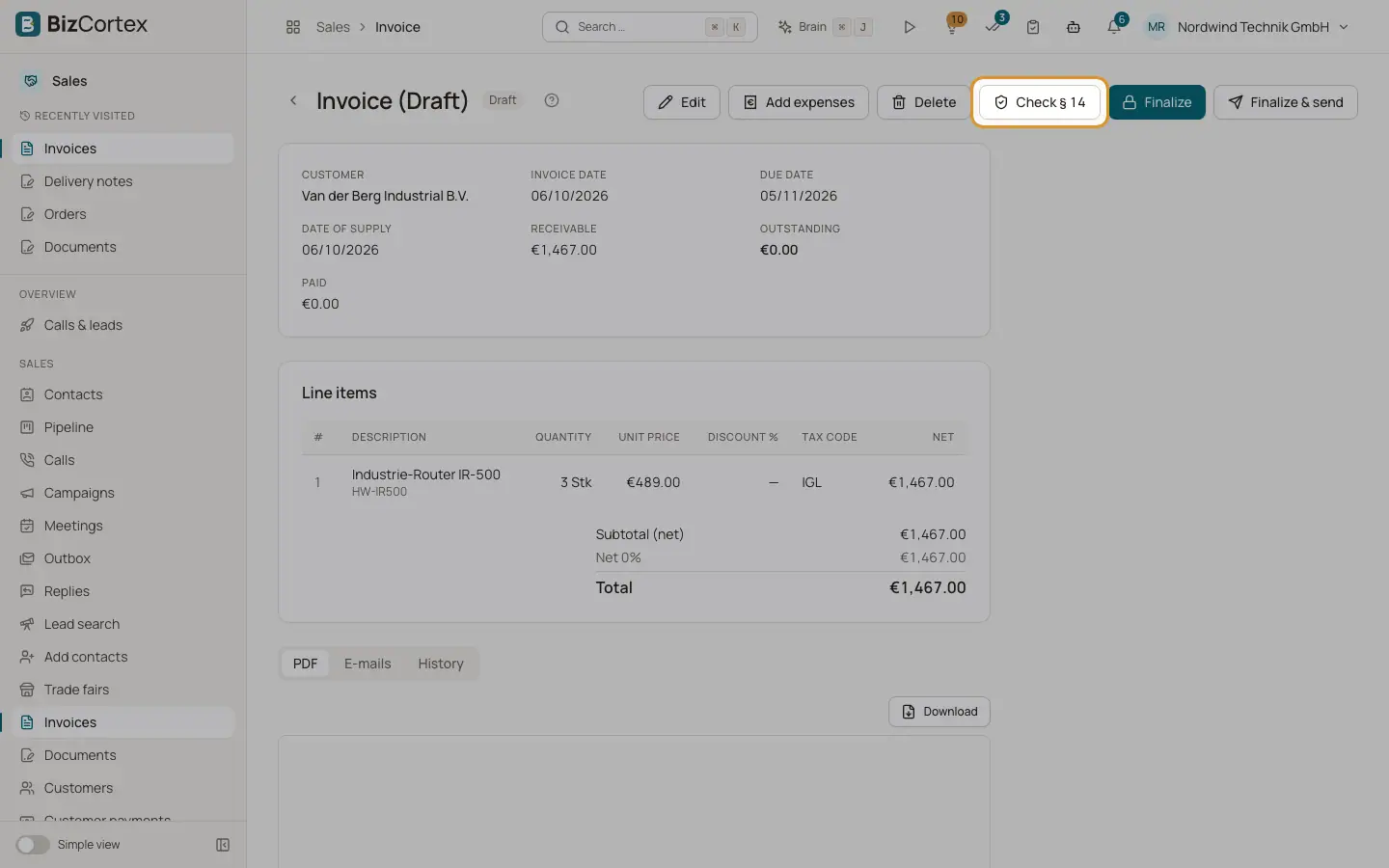
Open the invoice. Draft buttons: Edit, "Add expenses", Delete, "Check § 14", Finalize and "Finalize & send".
2. Check the mandatory details
Click "Check § 14". A box shows whether all mandatory details are present, with a list of missing details and notes.
3. Finalize
Click Finalize and confirm, or "Finalize & send" to finalize and email in one step. If details are missing and the check is enforced, you see "The invoice cannot be finalized" with the list of problems.
4. Work with the issued invoice
Issued invoices show "Send by email", "Record payment", "Credit note / correction" and "Late fee" depending on the status.
Fields and options
- Details card
Customer, invoice date, due date, date of supply or service period, Receivable, Outstanding, Paid, and when present Credited, Cash discount granted, Cash discount (percentage until date), customer order number, Leitweg ID, exchange rate, Original invoice, Related invoice and Dunning level.
- Line items
Lines, totals per tax rate and, on final invoices, the deducted down payment invoices with the remaining amount due.
- Payments card
Every payment with date, reference, amount and cash discount. Reversed payments are crossed out.
- PDF, Emails, History tabs
PDF preview and download, the email log and the change history.
- E invoice card
Download, validate and send the electronic invoice. See Outgoing electronic invoices.
Good to know
- In Germany the check covers your name and address, tax number or VAT ID, recipient name and address (not needed up to 250 euros gross), date, number, date of supply, quantity and description per line, net amount, rate and tax per rate, and the customer VAT ID for reverse charge and intra EU supplies. Mismatches between tax treatment and tax codes are only warnings.
- Outside Germany a general EN 16931 check plus the rules of your country pack runs instead.
- Finalizing needs the Sales invoice approve permission (Owner, Admin, Accountant and Sales have it).
- You can switch the enforcement off in Sales settings, but then incomplete invoices can be issued.
Related
- Credit notes and cancellations
Cancel an invoice completely or correct single lines with a credit note.
- Sending documents by email
Email quotes, orders, delivery notes and invoices with PDF, electronic invoice and public link.
- Sales settings
Every setting that controls invoices, dunning, fees, links and email delivery.