Vendors
Keep the master data of your suppliers and service providers.
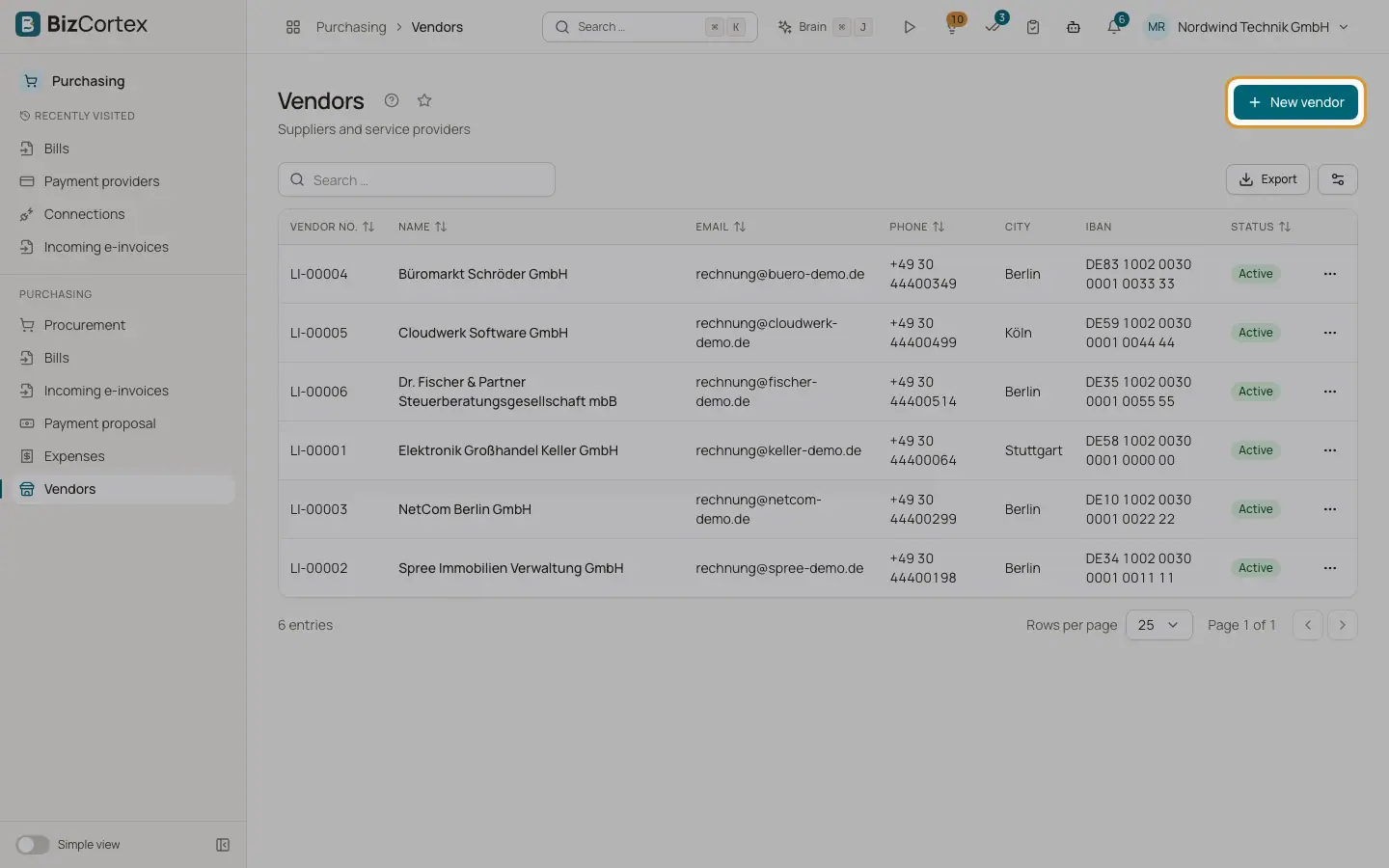
Purchasing, Vendors lists all vendors with vendor number, name, email, phone, city, IBAN and status. Vendors without an IBAN show "IBAN missing". The vendor number (LI followed by five digits) is assigned when you save.
Who can use this
- Owner
- Admin
- Accountant
- Purchase
Steps
1. Create a vendor
Click "New vendor". Enter at least the name. Add address, tax number, VAT ID, bank details, payment term, your customer number at the vendor, default expense account, default tax code, currency and notes.
2. Add contacts
Open the vendor, tab Contacts, and click "New contact". Enter salutation, first name, last name, email, phone, position and notes. Turn on "Primary contact" for the main contact; only one contact can be primary.
3. See documents
The tabs Bills and Purchase orders list the documents of this vendor. The Activity tab shows comments, attachments and history.
4. Deactivate
Edit the vendor and turn off Active. Vendors with documents cannot be deleted.
Fields and options
- VAT ID
Format checked, for example DE123456789. The Overview tab can show a VAT ID confirmation panel.
- IBAN and BIC
The IBAN checksum is validated. The BIC has 8 or 11 characters. Both are stored without spaces in upper case.
- Payment term
Default term for new bills and purchase orders. It also sets the cash discount of bills.
- Default expense account
Used when a bill is created from an order line without account, and for expenses created from receipts.
- Default tax code
19 % input VAT, 7 % input VAT, reverse charge (§ 13b) 19 % or intra EU acquisition 19 %. Used on order lines created from requisitions and RFQ awards.
- Currency
Three letters. Default is your base currency.
Good to know
- The manual bill form and the purchase order form do not take over the default account and tax code of the vendor.
- There is no delete button for vendors.
Related
- Supplier portal: giving vendors access
Invite vendor contacts and manage their documents.