Bills (incoming invoices)
Record vendor invoices and follow their status.
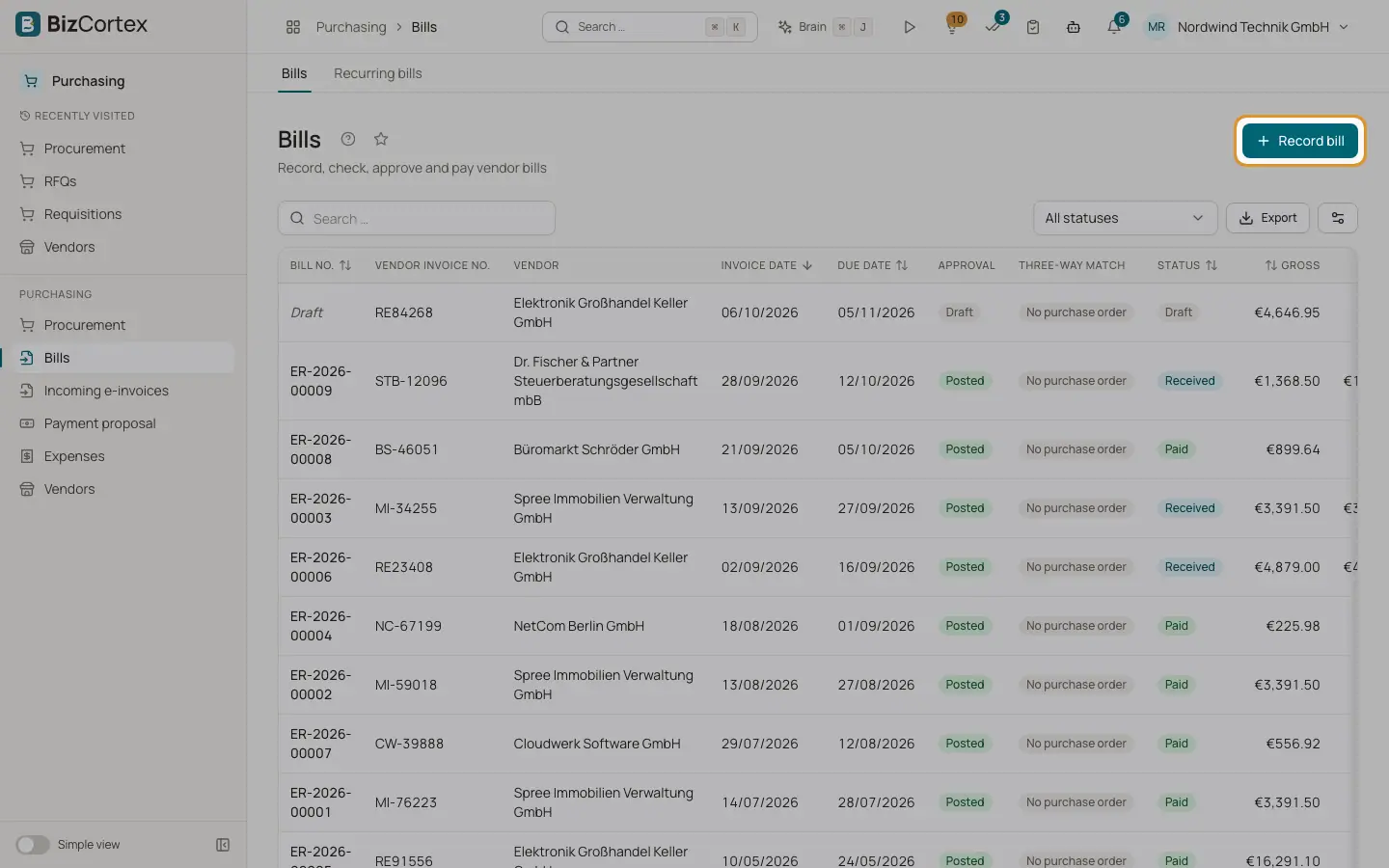
Purchasing, Bills lists all vendor bills with bill number, vendor invoice number, vendor, invoice date, due date, approval, three way match, status, gross and open amount. The bill number (ER, year and counter) is assigned only when the bill is posted; before that the list shows Draft.
Bills come from several sources: entered by hand, from a purchase order, from a recurring bill, from an incoming electronic invoice or uploaded by the vendor in the supplier portal.
Who can use this
- Owner
- Admin
- Accountant
- Purchase (record, not approve)
Steps
1. Record a bill
Click "Record bill". Choose the vendor and enter vendor invoice number, invoice date (default today) and due date (default in 30 days). Add lines with description, account, quantity, unit price and VAT rate (19 %, 7 % or 0 %). Save.
2. Filter and search
Filter by approval status (Draft, Approved, Posted, Rejected). Search by bill number, vendor invoice number or notes.
3. Open a bill
The detail page shows vendor invoice number, dates, service date, cash discount, purchase order, source, open amount, notes, the lines, the three way match, payments, approval and activity.
4. Delete a draft
Use Delete in the row menu. Only unposted, not approved bills can be deleted.
Fields and options
- Status
Draft, Received (posted and unpaid), Partially paid, Paid or Overdue.
- Approval
Draft, Approved, Posted or Rejected.
- Cash discount
Taken from the payment term of the vendor: discount percent and the last day for the discount.
Tips
- When the list is empty, use the button for uploading an electronic invoice to go to the incoming electronic invoices.
Good to know
- The bill form always uses your base currency and has no fields for service date, payment term, cash discount, cost center or special tax codes. Bills from orders or electronic invoices can carry these.
- Bills do not become Overdue automatically.
- Delete in the list has no confirmation dialog.
Related
- Incoming electronic invoices
Receive XRechnung and ZUGFeRD invoices from vendors and turn them into draft bills.
- Capitalising an asset from a bill
Turn a line of an approved purchase bill into a fixed asset, with automatic reclassification.
- Approving and posting bills
Approve a bill, post it to the ledger or reject it.
- The three way match
How BizCortex compares the bill with the purchase order and the goods receipt.
- Bill payments and cash discount
Record or reverse a payment and take cash discounts.