Supplier portal: what vendors see
How vendors sign in, confirm orders, follow invoices and upload documents.
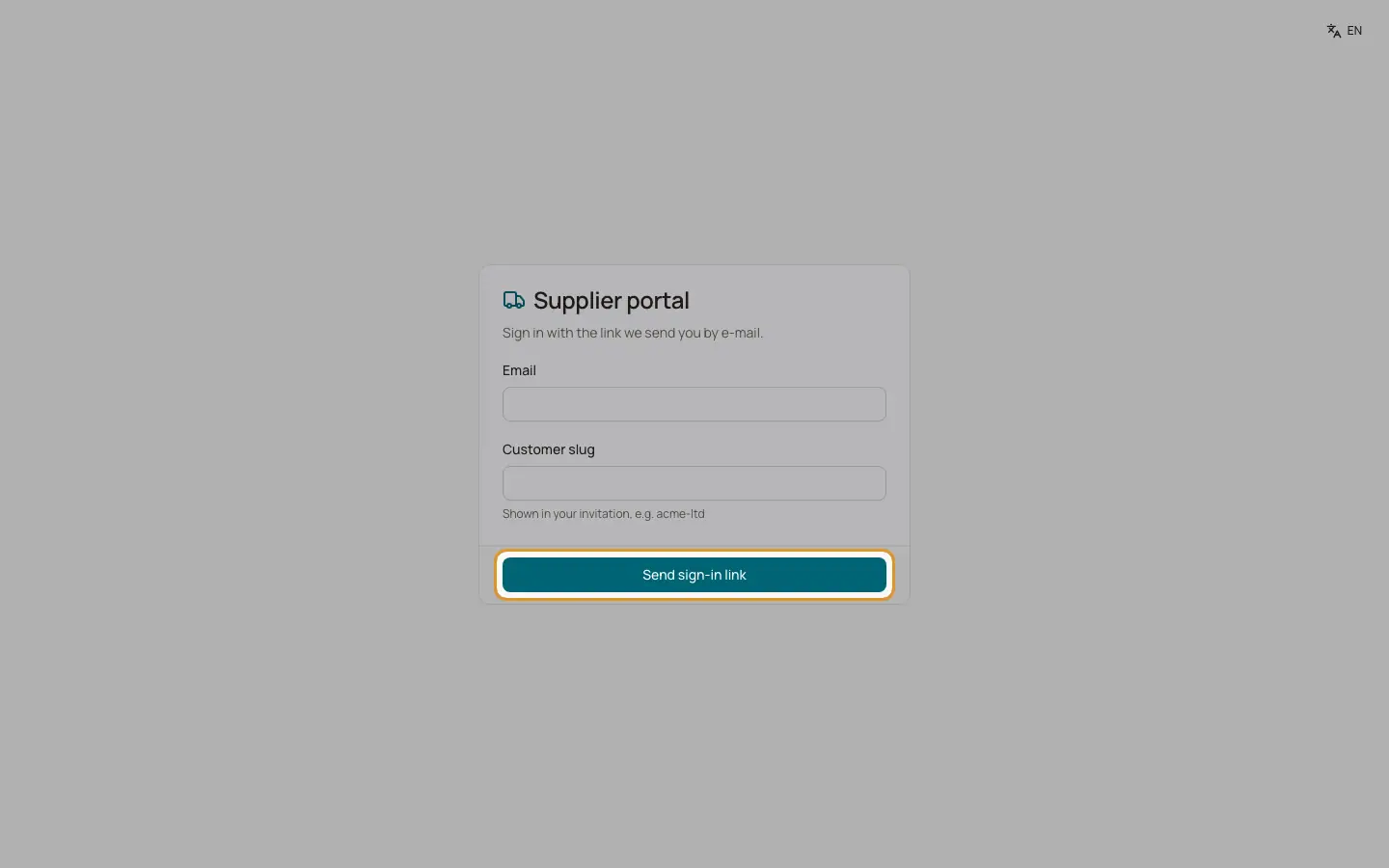
Vendors sign in without a password. They open the supplier portal login page, enter their email and the short name of your company (shown in the invitation), and click "Send sign in link". The link is valid for 30 minutes and can be used once. A session lasts 12 hours.
The portal has the tabs Purchase orders, Invoices & payments, Upload invoices & documents and Bank details. Vendors only see their own data.
Who can use this
- Invited vendor contacts
Steps
1. Purchase orders
Issued, received and cancelled orders with their lines. For an issued order the vendor clicks "Confirm order" (with their order number, delivery date and note) or Decline. A confirmation updates the vendor reference and the expected date of the order. Purchasing users are notified.
2. Invoices and payments
Shows the vendor invoices with status In review, Open, Partially paid, Paid or Overdue, and the remittance advice: payments grouped by date with the invoices they settle and discounts taken.
3. Upload
Choose Invoice (optionally a credit note) or Certificate / document (with title and valid until), add a note and drop the file: PDF, XML or image. Electronic invoices are captured automatically.
4. Bank details
Shows the masked IBAN on file and the change requests. See the page Vendor bank detail changes.
Good to know
- The page always says a link was sent, even for unknown addresses, so nobody can test which addresses exist.
- Upload limit: the hint says 25 MB, but the browser accepts at most 20 MB. Executables are blocked and files are scanned for viruses.
- A decline does not change the status of the order.
Related
- Supplier portal: giving vendors access
Invite vendor contacts and manage their documents.
- Supplier portal
What vendors see and do: purchase orders, invoices, payments, uploads and bank details.