The three way match
How BizCortex compares the bill with the purchase order and the goods receipt.
When a bill is linked to a purchase order, BizCortex checks every bill line against the order line and the received quantity. The result is Matched or Mismatch. Bills without an order show No purchase order and need no match.
Who can use this
- Owner
- Admin
- Accountant
- Purchase
Steps
1. Create the bill from the order
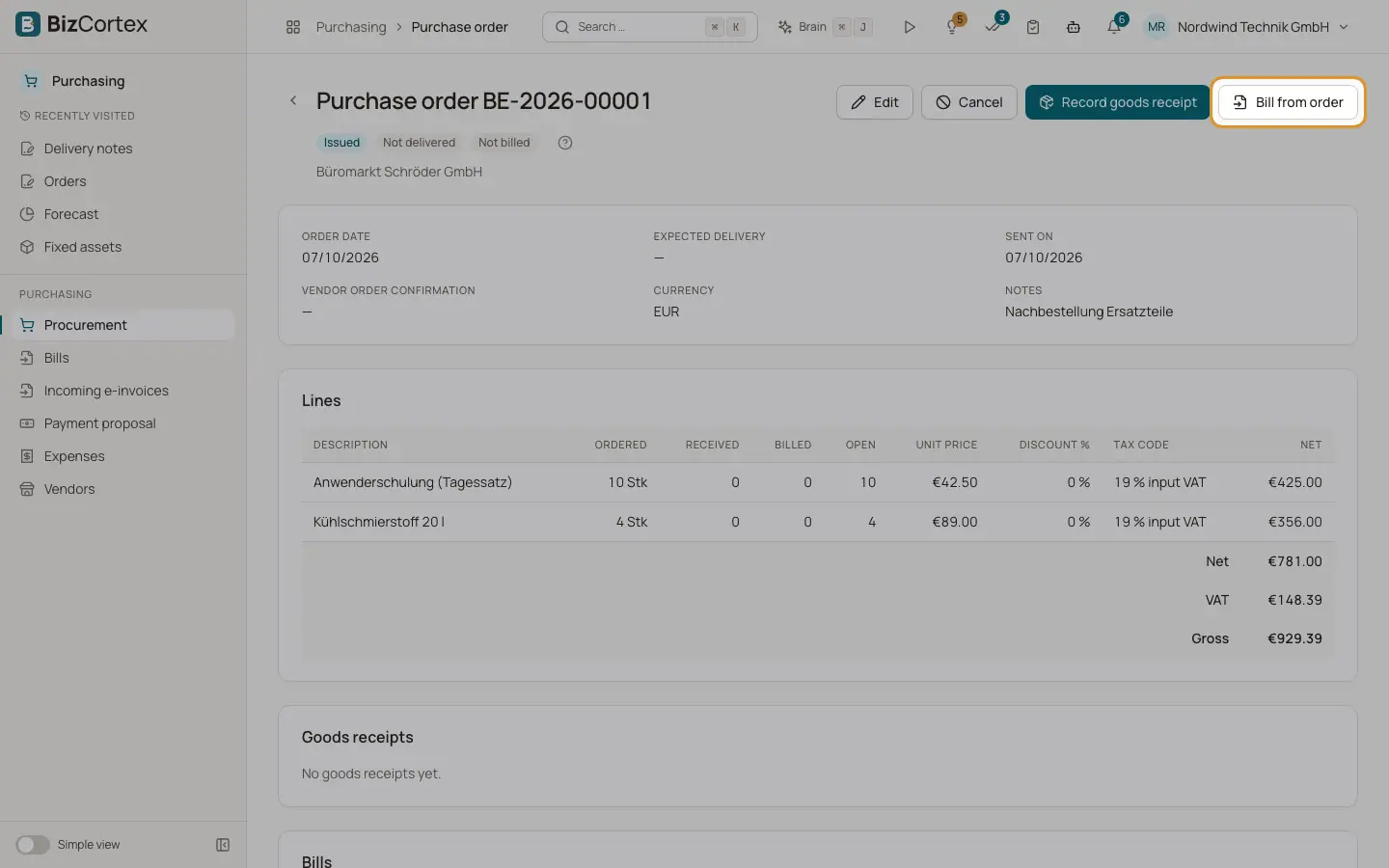
On the order click "Bill from order". Enter invoice date, due date and vendor invoice number, and choose the quantities: "Received quantities" or "Ordered quantities". Service lines always use the ordered quantity.
2. Read the match card
The "Three way match" card shows the tolerance and per line the ordered, received and billed quantity, the order price and the bill price. Values outside the tolerance are red.
3. Resolve differences
Correct the bill, record the missing goods receipt or ask the vendor for a corrected invoice. The match is recalculated when you open the bill.
Fields and options
- Quantity check
Billed quantity (already posted plus this bill) must not exceed the ordered quantity plus the quantity tolerance. For product lines it must also not exceed the received quantity plus the tolerance. Service lines are only checked against the order.
- Price check
The bill unit price may differ from the order price after discount by at most the price tolerance percent, at least 0.01.
- Extra lines
A bill line that is not on the order is a mismatch.
Good to know
- With "Enforce match before approval" on (default), a mismatched bill cannot be approved or posted.
- On the bill page, Approve and "Approve and post" are disabled for a mismatched bill even when enforcement is turned off.
- Two draft bills from the same order can contain the same open quantity, because only posted bills count as billed. The second one then fails the check.
- Match messages are shown in English only.
Related
- Purchasing settings
Tolerances for the three way match and rates for travel costs.
- Goods receipt
Record what was delivered against a purchase order.