Purchase orders
Create, place, track and close orders to vendors.
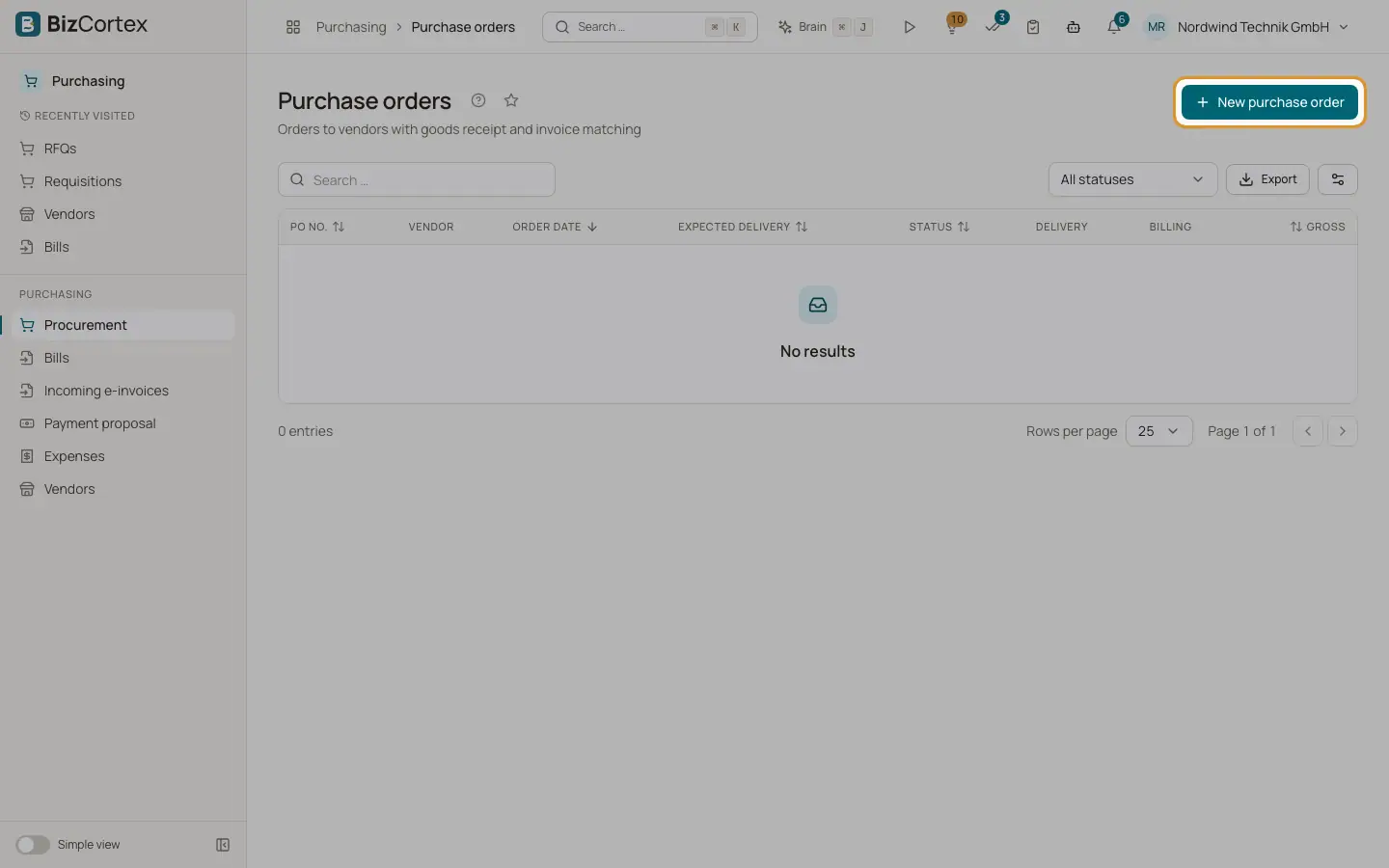
Purchasing, Procurement, Purchase orders lists all orders with order number, vendor, order date, expected delivery, status, delivery status, billing status and gross amount. Statuses are Draft, Issued, Received and Cancelled. Delivery shows Not delivered, Partially delivered or Fully delivered. Billing shows Not billed, Partially billed or Fully billed.
Who can use this
- Owner
- Admin
- Accountant
- Purchase
Steps
1. Create
Click "New purchase order". Choose the vendor and enter expected delivery, currency, warehouse, payment term (default from the vendor) and the vendor order confirmation. Add lines with product, description, quantity, unit, unit price (up to 4 decimals), discount percent, tax code, account and cost center. Totals show net, VAT per tax code and gross.
2. Place the order
Click "Place order". Keep "Send by email" on to email the order to the vendor, change the address if needed and optionally write a message. The order becomes Issued.
3. Record goods receipts
Click "Record goods receipt" when goods arrive. See the page Goods receipt.
4. Create the bill
Click "Bill from order" to create a draft bill for the quantities not billed yet.
5. Close
If the rest will not be delivered, click Close. The remaining quantities are dropped and the order becomes Received.
6. Cancel
Click Cancel for an order without goods receipts.
Fields and options
- Lines on the detail page
Ordered, Received, Billed and Open quantity per line.
- Billing status
Updated only when a bill linked to the order is posted.
Good to know
- After placing the order, vendor, lines and currency are locked. Only expected delivery, warehouse, payment term, vendor order confirmation and notes can change.
- The order email is plain text. A message you type replaces the whole email text. There is no PDF of the purchase order yet.
- If "Send by email" is on and no address exists, an error appears, but the order is already issued.
- If an approval workflow for purchase orders applies, "Place order" first starts an approval request. The Approval panel shows the progress.
- There is no delete button for purchase orders.
Related
- Goods receipt
Record what was delivered against a purchase order.
- The three way match
How BizCortex compares the bill with the purchase order and the goods receipt.