Requests for quotation (RFQs)
Ask several vendors for quotes, compare them and award the order.
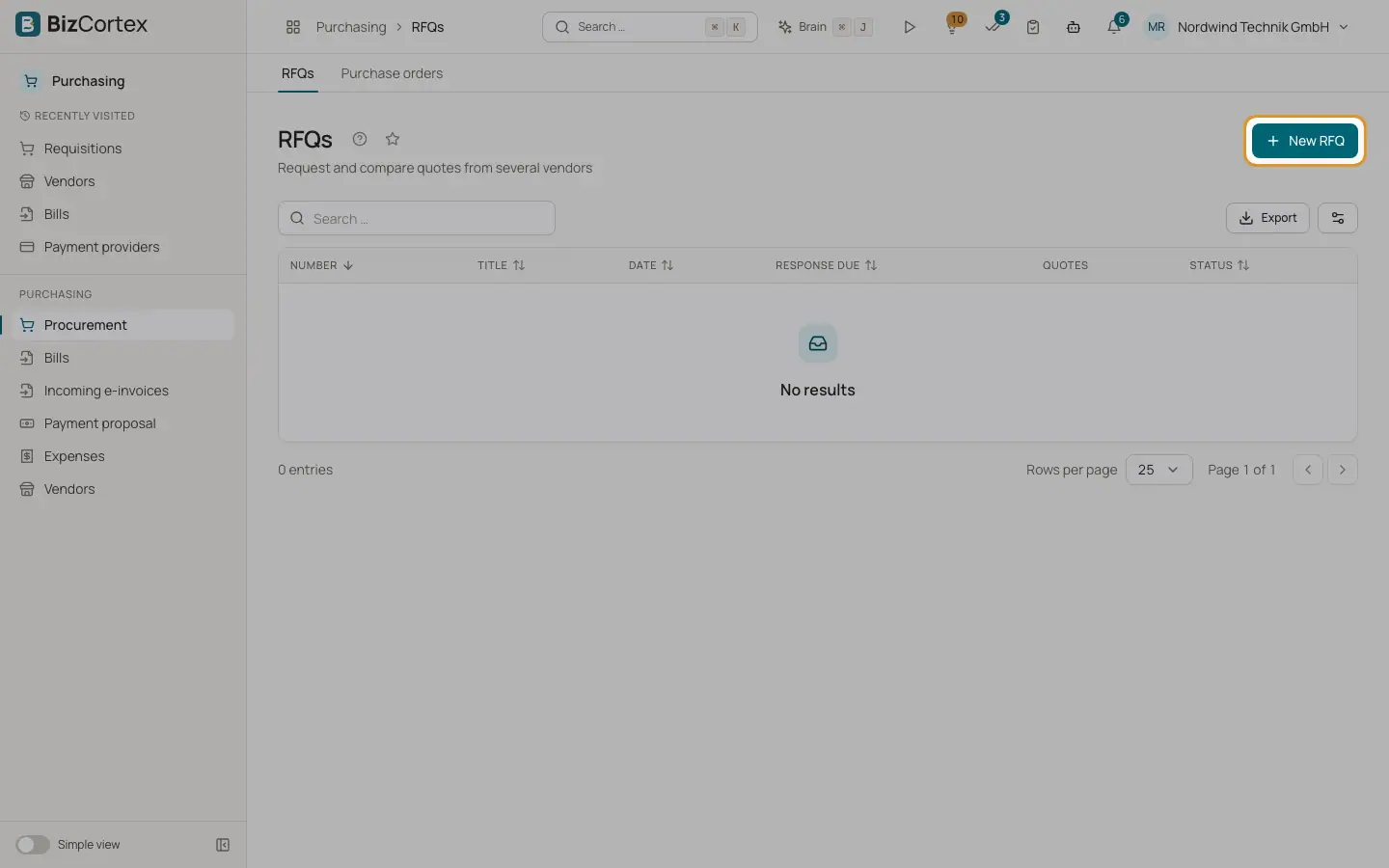
Purchasing, Procurement, RFQs lists all requests for quotation with number, title, date, response due, quotes received of invited vendors and status (Draft, Sent, Awarded, Cancelled).
Who can use this
- Owner
- Admin
- Accountant
- Purchase
Steps
1. Create
Click "New RFQ". Enter title, date, response due, currency, the invited vendors (at least one), the lines (product, description, quantity, unit) and notes. RFQ lines have no prices.
2. Send
Click "Send RFQ". Every invited vendor with an email address receives a plain text email with the items and the deadline, in the language of your company documents. Use "Send again" to repeat.
3. Record quotes
In "Invited vendors" click "Record quote" for a vendor. Enter unit price and discount percent per line, valid until, delivery time in days, quote number and notes. The vendor status becomes Quoted.
4. Compare
The "Quote comparison" shows the net unit price and line total per vendor. The best price per line is green. A trophy marks the best total of vendors who quoted every line. Incomplete quotes are marked incomplete.
5. Award
Click Award for a vendor and confirm. A draft purchase order at the quoted prices is created and opened. Other vendors are marked Not selected. A linked requisition becomes Ordered.
6. Cancel
Click Cancel to cancel an RFQ that is not awarded.
Fields and options
- Vendor status
Invited, Quoted, Awarded or Not selected.
Good to know
- Only a vendor who quoted every line can be awarded.
- An RFQ cannot be edited or deleted after creation. The RFQ email has no PDF attachment.
- The status Declined exists for vendors, but there is no way to set it yet.
- The RFQ list has no status filter.
Related
- Purchase orders
Create, place, track and close orders to vendors.