Approving and posting bills
Approve a bill, post it to the ledger or reject it.
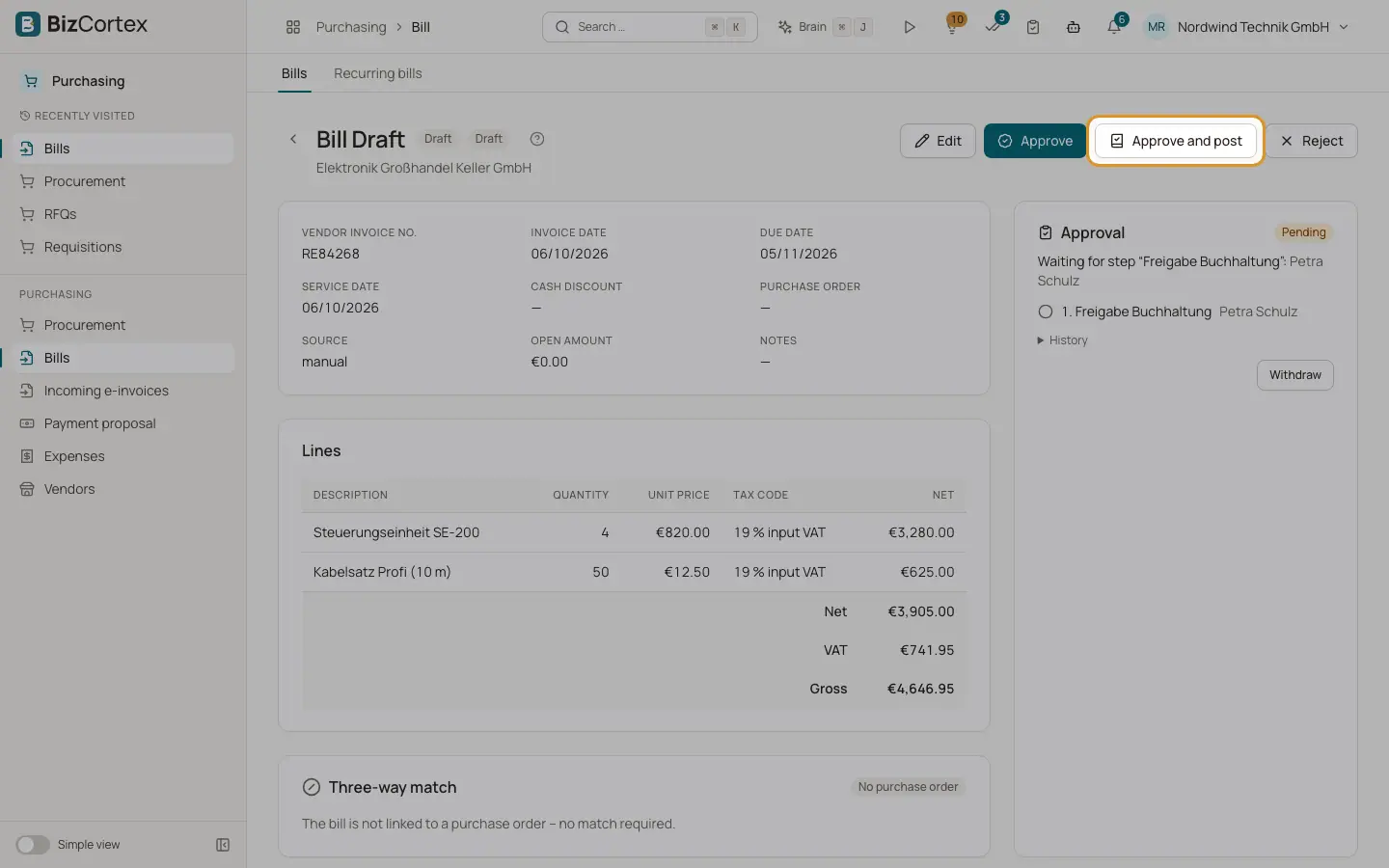
A bill is first approved and then posted. Posting gives the bill its number, writes the journal entry (expense and input VAT against accounts payable) and locks it.
Who can use this
- Owner
- Admin
- Accountant
Steps
1. Approve
Click Approve. The bill is approved but not posted yet.
2. Approve and post in one step
Click "Approve and post". The bill gets its number and is posted.
3. Post
For an approved bill click Post.
4. Reject
Click Reject and enter an optional reason. The bill shows "Rejected" with the reason. Edit it and approve it again.
5. Change an approved bill
An approved bill cannot be edited. Reject it first, edit it, then approve it again.
Tips
- If an approval workflow for vendor bills applies, the first approve starts an approval request. The bill becomes Approved when the workflow approves it; posting is still a separate step. Workflow conditions can use amount, currency, vendor, new vendor, cost center, match status and whether a purchase order exists.
Good to know
- Posting needs an open fiscal year for the invoice date and an unlocked accounting period.
- Each tax code must have a tax account. Reverse charge and intra EU codes need both an input and an output tax account.
- Foreign currency bills use the exchange rate of the invoice date.
- After posting, the electronic invoice and the attachments are archived.
- A posted bill cannot be deleted, cancelled or credited in Purchasing yet.
Related
- Approvals inbox
Approve or reject documents and requests from every area in one place.
- The three way match
How BizCortex compares the bill with the purchase order and the goods receipt.
- Bill payments and cash discount
Record or reverse a payment and take cash discounts.