Approvals inbox
Approve or reject documents and requests from every area in one place.
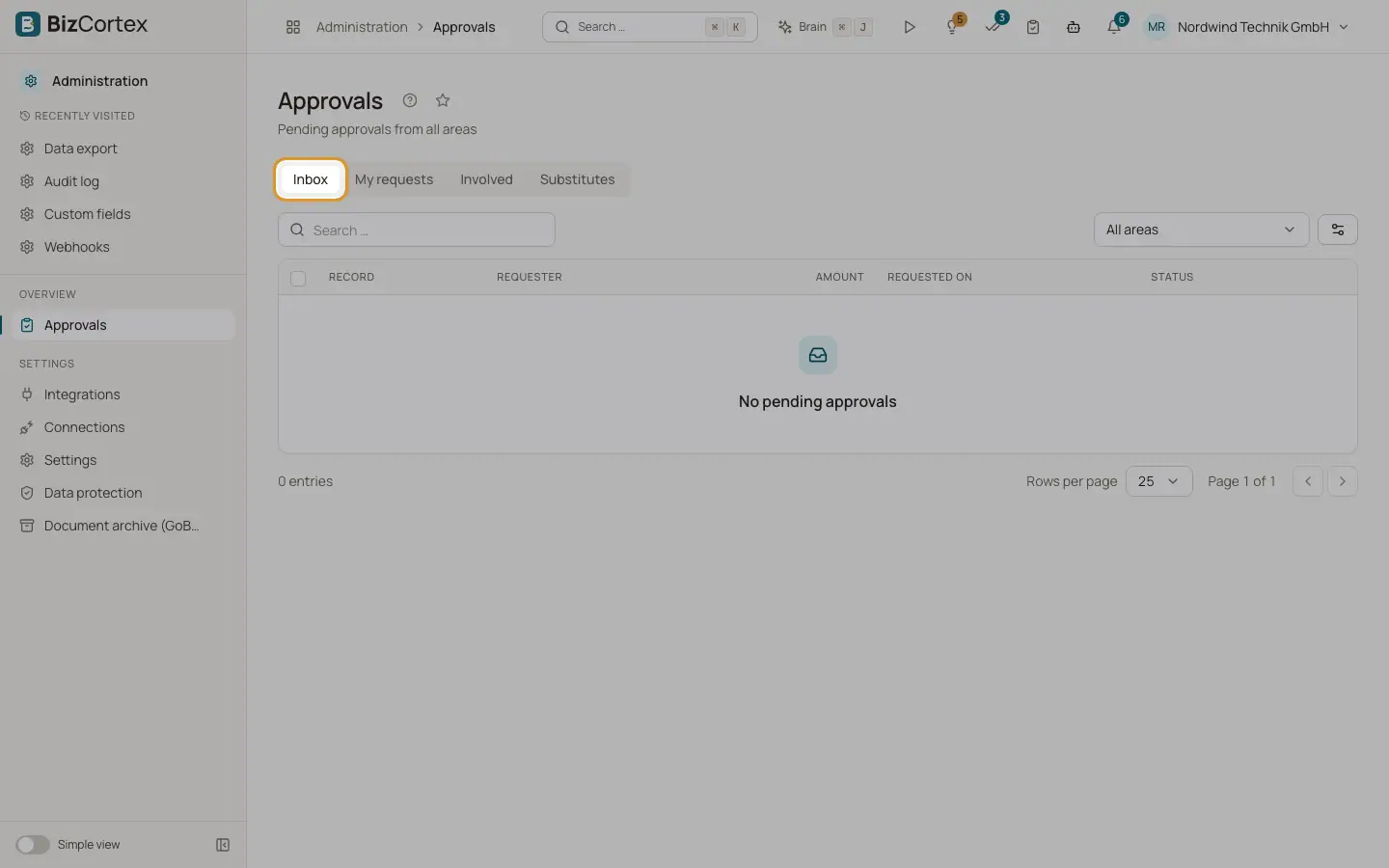
The "Approvals" page collects everything that waits for your decision, for example vendor bills, purchase orders, expense claims, leave requests, credit notes and journal drafts. Open it from the sidebar or click the approvals badge in the header. The badge shows the number of pending approvals and updates every minute.
The page has four tabs: "Inbox", "My requests", "Involved" and "Substitutes".
Who can use this
- Every member (Viewer can only read)
Steps
1. Review the inbox
The "Inbox" tab lists your pending approvals with record, requester, amount, request date and status. Items past their escalation date are marked "overdue". Items you handle as a substitute show "as substitute". Filter by area with the list at the top ("All areas" by default).
2. Decide
Click "Approve" or "Reject" in the row. A comment is optional when you approve. When you reject, you must give a reason.
3. Open the details
Click a row to open the details: amount, requester, request date, current step, the approval steps with the person responsible and their status, the history and the record data. From here you can also "Request changes", which needs a comment too.
4. Approve several at once
Tick several rows and click "Approve" with the number of selected items. A message shows how many were approved and how many failed.
5. Follow your own requests
"My requests" lists approvals you started. "Involved" lists approvals in which you took part. Both tabs have a search.
Fields and options
- Pending
Waiting for a decision.
- Approved
All steps are approved. The record can continue.
- Rejected
An approver rejected it. The record stays blocked until it is submitted again.
- Changes requested
The requester must change the record and submit it again. Submitting again restarts at the first step.
- Withdrawn
The requester or an administrator withdrew the request.
- Escalated
A step was not decided in time and was passed to the escalation approver.
- Not needed
A task that was no longer needed, for example because another approver of the same step already decided.
Good to know
- Four eyes principle: you can never approve your own request, unless the workflow step explicitly allows it.
- You receive an in app notification and an email for new tasks, reminders and escalations. The requester is informed about the final result.
Related
- Substitutes for approvals
Let a colleague approve for you while you are away.
- Approvals on documents
How approvals work on bills, orders, expense claims, leave, credit notes and journal drafts.