Automations
Run actions automatically when an event happens or on a schedule.
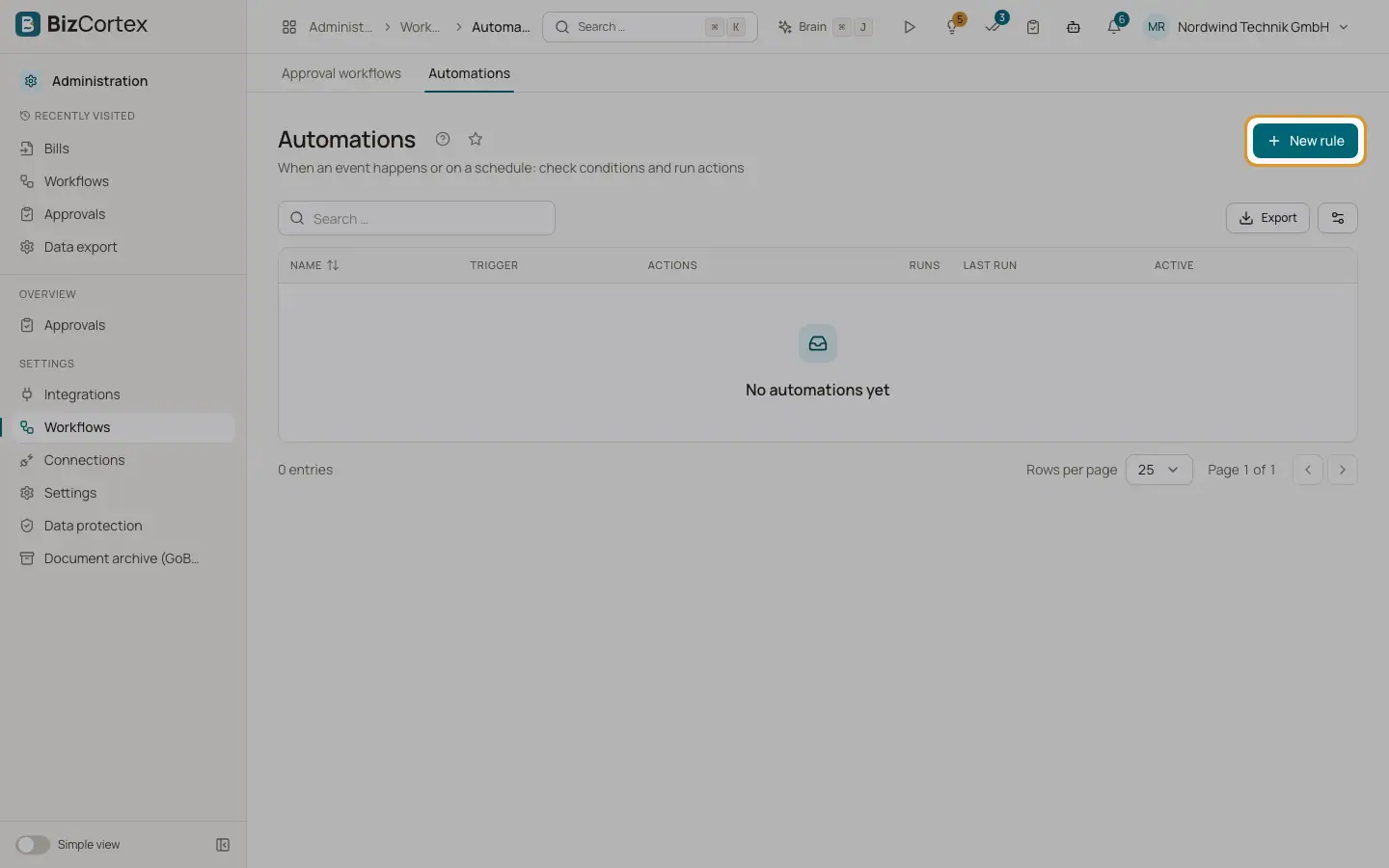
An automation rule watches for an event (for example a posted invoice) or runs on a schedule, checks conditions and then runs one or more actions. Open "Workflows" and then "Automations". The list shows name, trigger, actions, number of runs, last run and an "Active" switch.
Who can use this
- Owner, Admin and Accountant can view
- Owner and Admin can create, edit and test
Steps
1. Create a rule
Click "New rule". Enter a name and leave "Active" on.
2. Choose the trigger
Choose "Event" and enter an event pattern, for example sales.invoice.* or workflow.approved. Suggestions from the catalog appear as you type. Or choose "Schedule" and enter a cron expression, for example 0 7 * * mon for every Monday at 7:00. "Next runs" shows the next three run times.
3. Add conditions
Use the condition builder in the same way as in approval workflows. Without conditions the rule always runs.
4. Add actions
Click "Add action", choose the action and fill in its parameters. Placeholders from the event data are replaced, for example {{ invoice_id }} or {{ client.name }}.
5. Save
Click "Save".
6. Test
Open the row menu and choose "Test". Enter sample data as JSON. Click "Dry run (no side effects)" to see what would happen, or "Really execute" to run the actions for real.
Fields and options
- Event pattern
An event name, a pattern with *, or * for all events. Approval events are workflow.started, workflow.approved, workflow.rejected, workflow.changes_requested, workflow.withdrawn and workflow.escalated.
- Schedule
A cron expression with five parts (minute, hour, day, month, weekday) or a shortcut such as @daily. Times are German time (Europe/Berlin).
Tips
- Ids in the event data are expanded into the full record, so you can use conditions like invoice.total greater than 5000 and placeholders like {{ client.name }}. This works for invoices, clients, bills, vendors, expenses, projects, subscriptions and documents.
- Always run a dry run before you activate a rule that sends emails or changes data.
Good to know
- Event rules start a few seconds after the event, once the change is saved.
- Scheduled rules are checked every 5 minutes. They have no record context: the data contains only the company, the planned time, now and today.
- Events caused by an automation do not trigger other automations. Each rule runs at most 30 times per minute to prevent loops.
- Creating and changing rules is written to the audit log.
Related
- Automation actions
Every action an automation rule can run, with its parameters.
- Automation execution log
Every run of every automation rule, with its result and errors.