Custom fields
Add your own fields to customers, vendors, invoices, employees, products and projects.
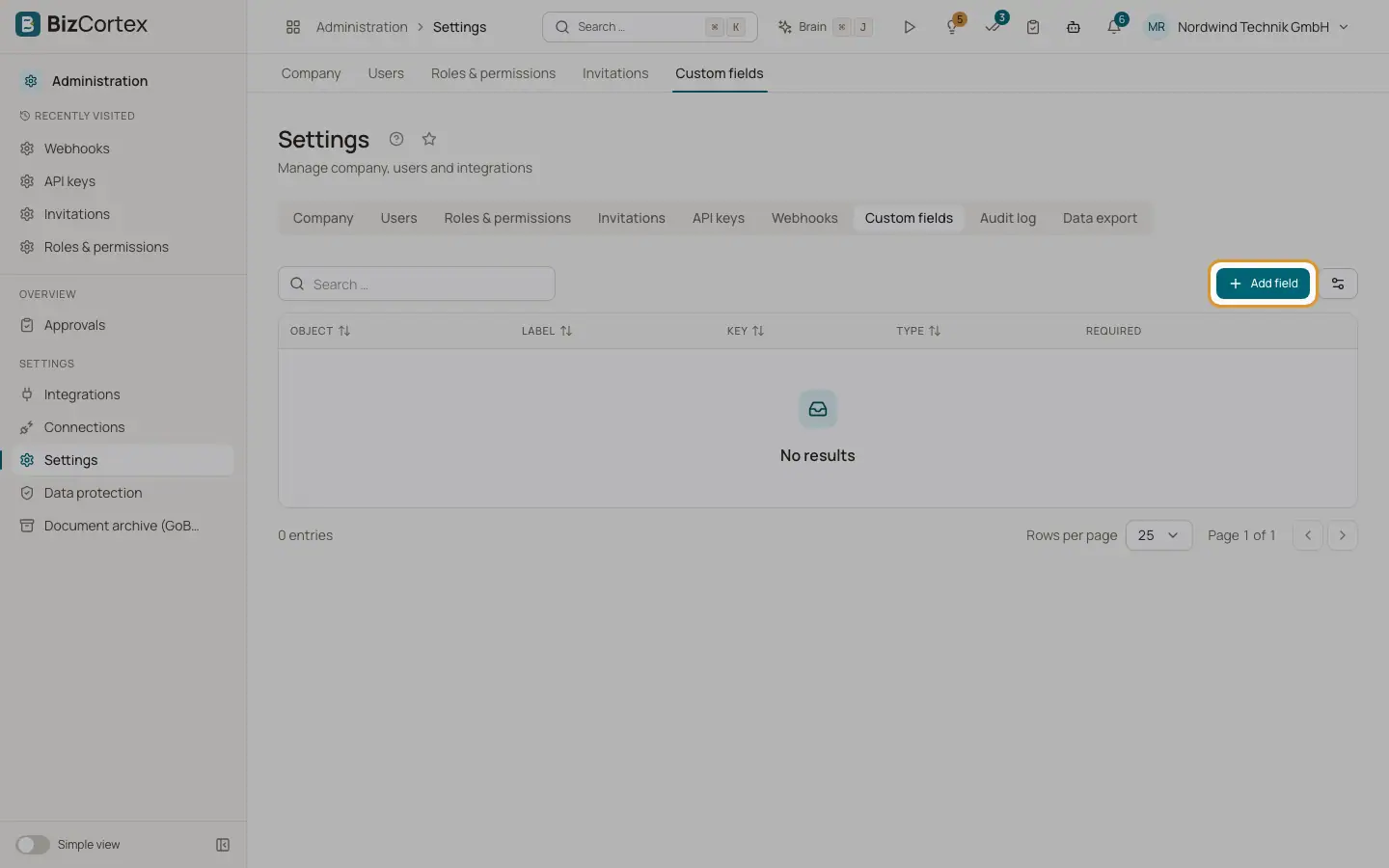
Custom fields store information that BizCortex does not have a field for, such as a cost center or an internal customer number. Open "Settings" and the "Custom fields" tab. The table shows the object, label, key, type and whether the field is required.
Who can use this
- Everyone can view
- Owner, Admin and Accountant can add, edit and delete
Steps
1. Add a field
Click "Add field". Choose the object, enter a label and a key, and choose the type.
2. Add options for a select field
For the type Select, enter the options, one value per line. At least one option is required.
3. Required or not
Switch on "Required" if the field must always be filled in.
4. Edit or delete
Use the row menu. When you edit, you can change the label, the options and "Required".
Fields and options
- Object
Customer, Vendor, Invoice, Employee, Product or Project. Cannot be changed later.
- Label
The name users see on the form.
- Key
The technical name. Lowercase letters, digits and the underscore, starting with a letter, for example cost_center. Cannot be changed later.
- Type
Text, Number, Date, Yes/No or Select. Cannot be changed later.
- Options
Only for Select. One value per line.
- Required
The field must be filled in before the record can be saved.
Tips
- Automation rules can fill custom fields of customers, vendors and projects with the "set field" action.
Related
- Automation actions
Every action an automation rule can run, with its parameters.