Webhooks
Notify other systems automatically when events happen, for example a new invoice.
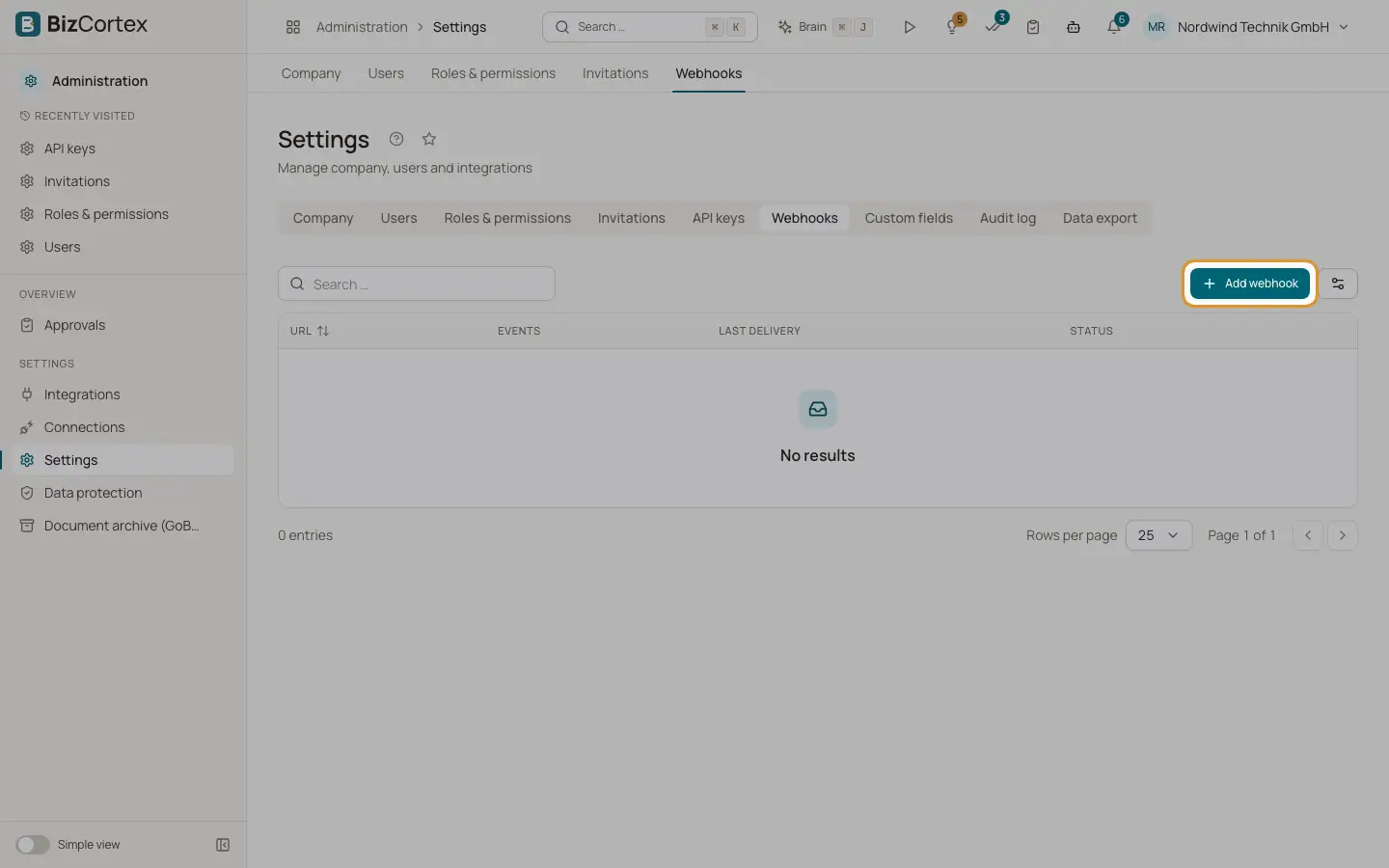
A webhook sends a signed POST request to a URL of your choice whenever one of the selected events happens. Open "Settings" and the "Webhooks" tab. The table shows the URL, the events, the last delivery with its time and response code, and the status Active or Inactive.
Who can use this
- Owner
- Admin
Steps
1. Add a webhook
Click "Add webhook". Enter the URL, tick at least one event, add an optional description and leave "Active" on. Save.
2. Give the secret to the receiver
Open the row menu and choose "Show secret". Every request is signed with this secret using HMAC SHA256. The receiving system checks the signature to make sure the request comes from BizCortex.
3. Edit or pause
Choose "Edit" to change the URL, events or description. Switch "Active" off to stop deliveries without deleting the webhook.
4. Rotate the secret
Choose "Rotate secret" if the secret may have leaked. Update the receiving system with the new secret.
5. Delete
Choose "Delete" and confirm.
Fields and options
- URL
Must start with http:// or https://. Up to 1000 characters.
- Events
Choose from: * (every event), sales.invoice.* (every invoice event), sales.invoice.created, sales.invoice.posted, sales.invoice.cancelled, sales.payment.recorded, purchasing.bill.posted, accounting.transaction.posted and accounting.transaction.reversed.
- Description
Optional note.
- Active
Only active webhooks receive events.
Tips
- If the last delivery is shown in red, hover over it to see the error the receiver returned.
Good to know
- Each request contains the event name, your company id and the event data as JSON.
- The receiver has 10 seconds to answer. If a delivery fails, BizCortex tries again up to 5 times with growing pauses (30 seconds, then 1, 2, 4 and 8 minutes).
Related
- Automation actions
Every action an automation rule can run, with its parameters.