Company roles
Create your own roles and decide per area what a role may see, edit, approve or manage.
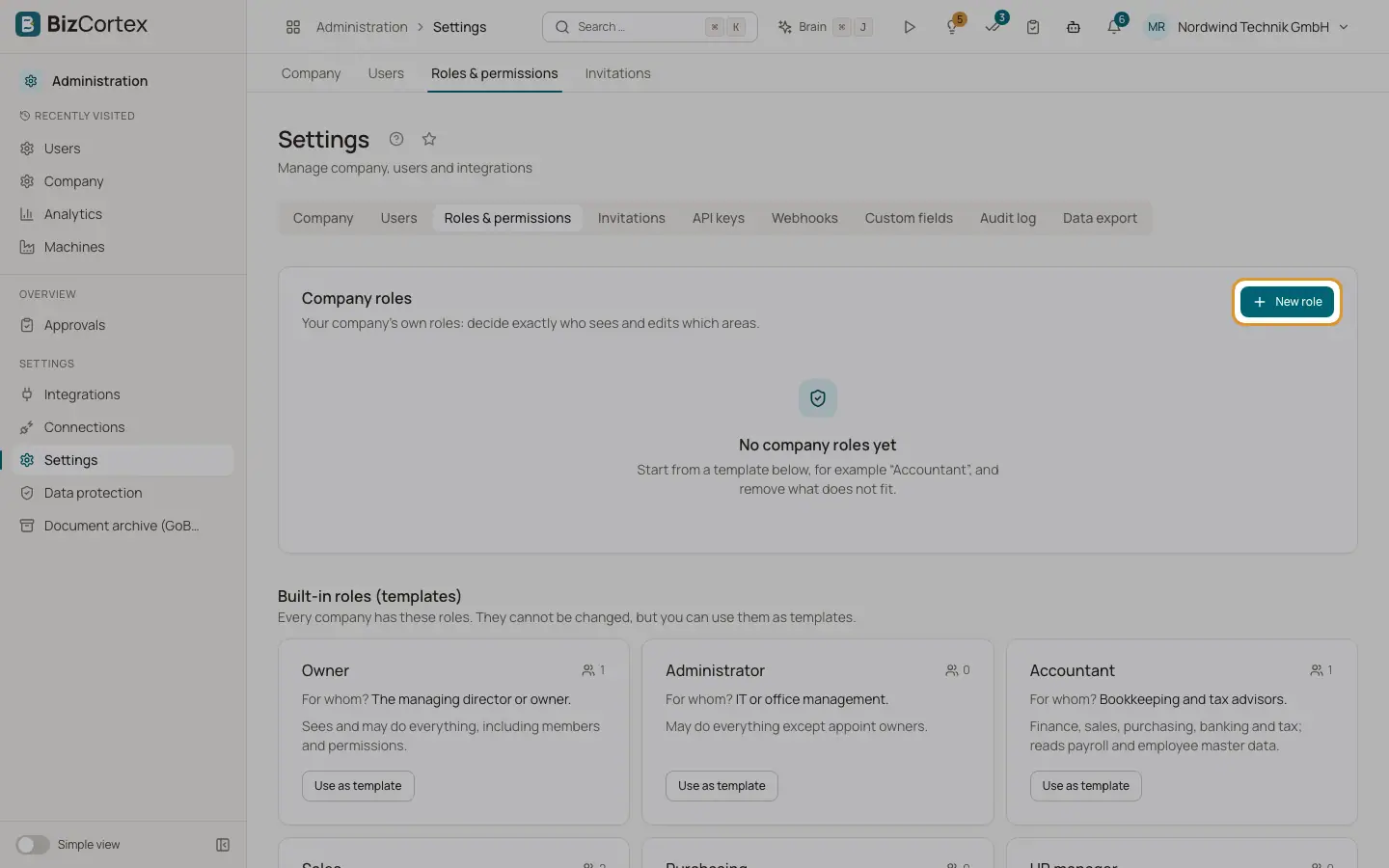
Company roles are your own roles. You decide exactly who sees and edits which areas, for example "Accounting without payroll". The upper card "Company roles" on the "Roles & permissions" tab lists them with their base role, description, a preview of what the role sees and the number of members.
You assign a company role on the "Users" tab like any other role.
Who can use this
- Owner
- Admin
Steps
1. Start a role
Click "New role", or click "Use as template" on a built in role to start with its rights.
2. Name and base role
Enter a name and optionally a description. Choose a base role. The base role sets defaults such as the home dashboard and notifications. Owner and Administrator cannot be a base.
3. Set the levels
In "What may the role do?" choose one level per area: None, View, Edit, Approve or Manage. Each level includes the ones before it. Areas are Finance, Sales, Sales calling, Purchasing, People, My area, Operations, Workspace, Analytics, Manuals, Brain, Assistant and Administration.
4. Fine tune single modules
Switch on "Advanced" to set single modules of an area differently, for example People without payroll. An area whose modules have different levels shows "Custom".
5. Apply a template
Choose a template in "Choose a template" and click "Apply template" to copy its levels into the matrix. This replaces the levels you set.
6. Check and save
Read the preview "This role sees:" at the bottom. Then click "Save role".
Fields and options
- Name
Required. Two roles cannot have the same name.
- Description
Who the role is for.
- Base role
Any built in role except Owner and Administrator. Default is Employee.
- Level per area
None, View, Edit, Approve or Manage.
Tips
- Start from the template that is closest to what you need and remove what does not fit.
- Areas your company has not booked are marked "Not booked". The preview lists them as hidden.
Good to know
- A company role can never administer the company account, members, roles, API keys or webhooks. These rights stay with Owner and Administrator.
- A role that is still assigned to members cannot be deleted or deactivated. Give the members another role first.
- When you change the base role of a role in use, the members follow the new base role.
- Inactive roles are marked "Inactive" and cannot be assigned.
- Every change to a role is written to the audit log.
Related
- Roles and permissions
The nine built in roles and what each of them may do.
- Users
See who has access to the company, invite people, change roles and remove users.