API keys
Keys that let other programs access your company data through the REST API.
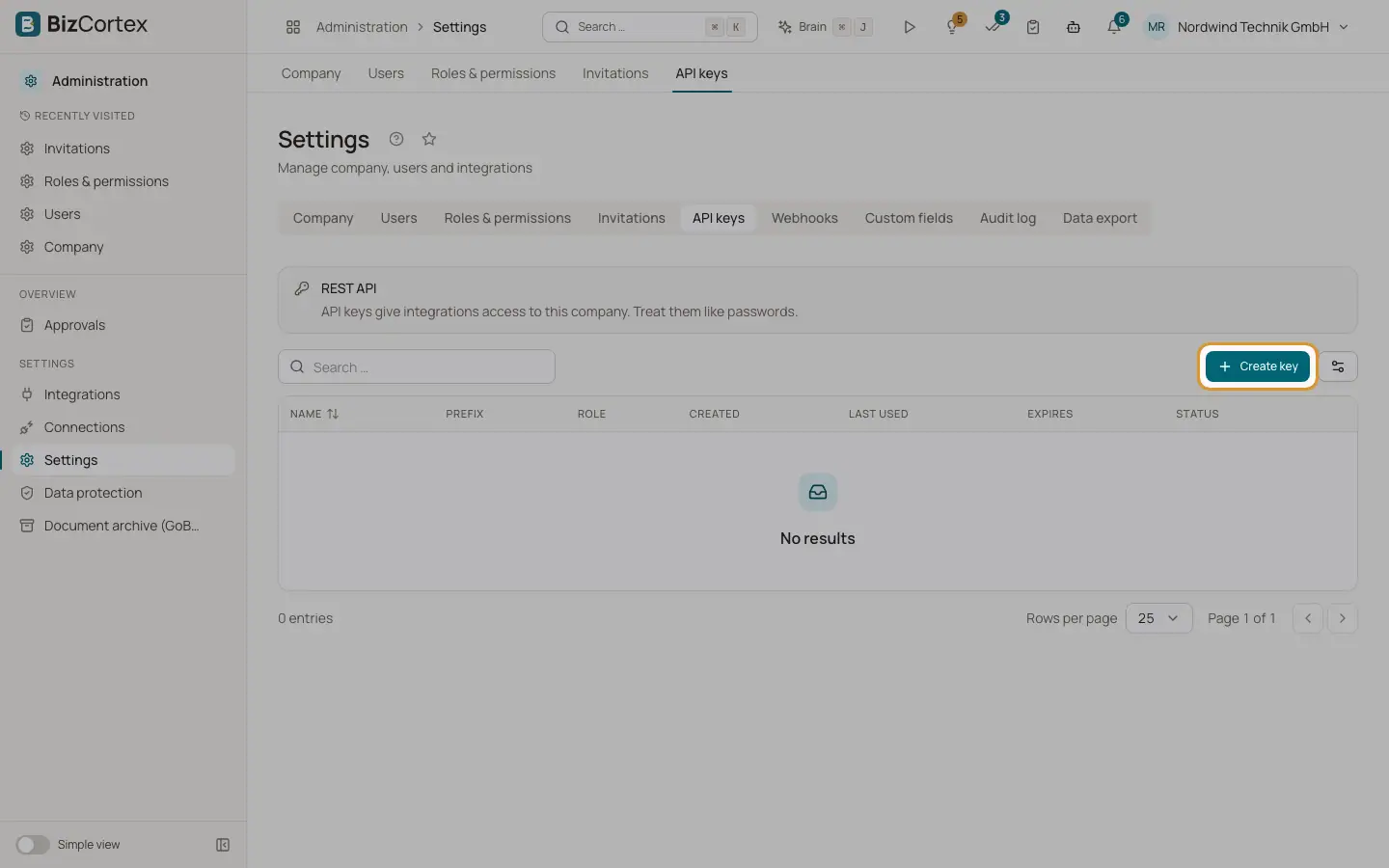
API keys give integrations access to this company. Treat them like passwords. Open "Settings" and the "API keys" tab. The table shows name, prefix (the first characters of the key), role, creation date, "Last used", "Expires" and the status Active or Revoked.
Who can use this
- Owner
- Admin
Steps
1. Create a key
Click "Create key". Enter a name, for example "DATEV Export", choose the role and optionally an expiry date. Click save.
2. Copy the key
The dialog "API key created" shows the key once. Click the copy button and store the key in a safe place. It will not be shown again.
3. Revoke a key
Open the row menu and choose "Revoke". Confirm "Revoke key?". The key stops working at once.
Fields and options
- Name
Required. Helps you recognise the integration.
- Role
The permissions of the key, at most your own role. Owner cannot be chosen. Default is Viewer.
- Expires
Optional date after which the key no longer works.
Tips
- Create one key per integration so you can revoke it without affecting others.
- Give a key the smallest role it needs. A reporting tool usually needs only Viewer.
- An identity provider can deactivate leaving users automatically through the SCIM interface. It needs a key with the Administrator role.
Good to know
- Only a fingerprint of the key is stored. If you lose the key, revoke it and create a new one.
- When a user is offboarded, the API keys this user created are revoked as well.
- Creating and revoking keys is written to the audit log.
Related
- Connect AI tools (MCP)
Use BizCortex from Claude, ChatGPT, Cursor and other AI tools through the Model Context Protocol.