Users
See who has access to the company, invite people, change roles and remove users.
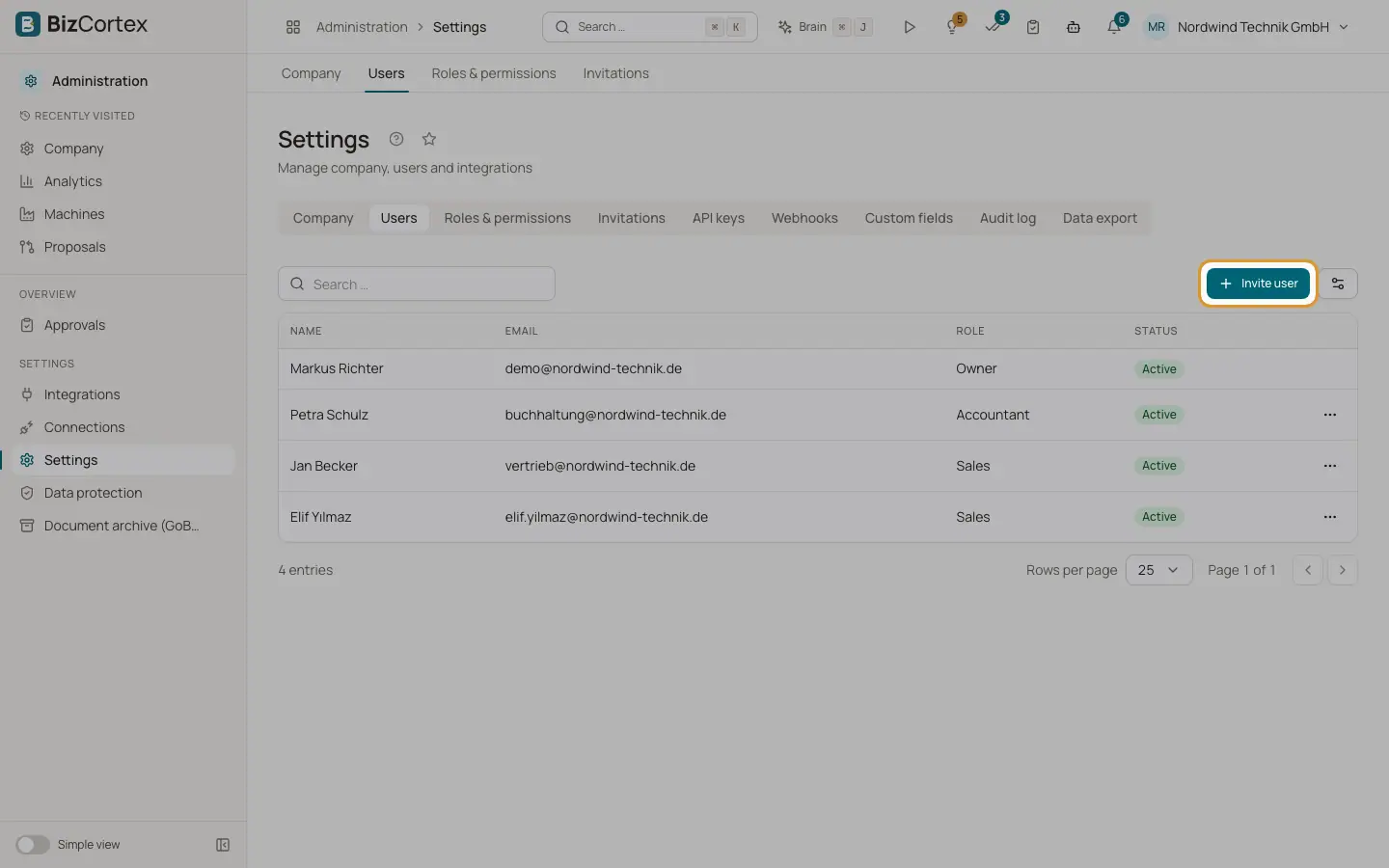
Open "Settings" and the "Users" tab. The table lists every member with name, email, role and status. The status is "Active" or "Not signed in yet" for people who were added but have not signed in.
Sign in security such as multi factor authentication, single sign on, password rules and sessions is handled by the sign in service (Auth0), not on this page.
Who can use this
- Everyone can see the list
- Owner and Admin can invite, change roles and remove
Steps
1. Invite a user
Click "Invite user". Enter the email address, optionally the name, and choose a role. The default role is Accountant. Click "Invite user" in the dialog. The person is added as a member right away and, with Auth0 sign in, receives an invitation email.
2. Change a role
Open the row menu and choose "Change role". Pick a built in role or one of your company roles. Company roles appear as their name followed by "(company role)".
3. Remove a user
Open the row menu and choose "Remove". Confirm "Remove user from this company?". The person loses access to this company at once.
Fields and options
The address the person signs in with. Required and must be valid.
- Name
Optional display name.
- Role
A built in role (Owner, Administrator, Accountant, Sales, Purchasing, HR manager, Employee, Viewer, Compliance) or an active company role.
Tips
- Use the "Invitations" tab if you want to see which invitations are still open and resend or revoke them.
- Give each person the smallest role that fits their work. You can create company roles with exactly the rights you need.
Good to know
- Only an Owner can make someone an Owner or change or remove an Owner. Admins can manage every other role.
- A company always needs at least one Owner. The last Owner cannot be removed or downgraded.
- You cannot change or remove your own membership on this tab.
- When a user is removed, their personal assistant data in this company (mailbox content, drafts, connections) is deleted as well.
- An email address can only be a member once. Inviting an existing member is refused.
Related
- Invitations
Invite new people by email and manage invitations that are still open.
- Roles and permissions
The nine built in roles and what each of them may do.
- Company roles
Create your own roles and decide per area what a role may see, edit, approve or manage.