Editing an approval workflow
Set the document type, condition, steps, approvers, escalation and reminders.
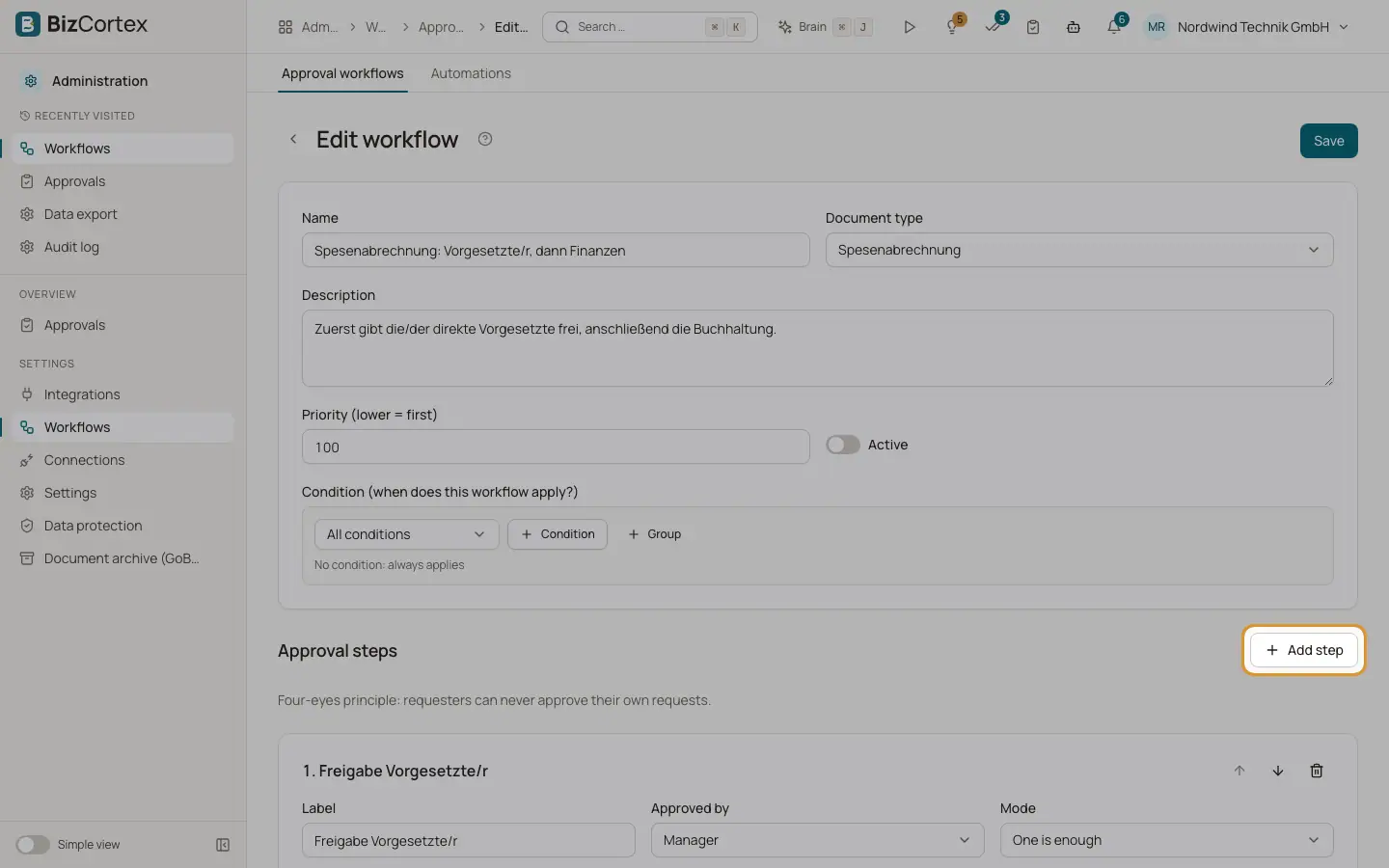
The workflow editor has two parts: the general settings with the condition, and the list of approval steps. The steps run in order. Click "Save" at the top when you are done. A message "Workflow saved" confirms it.
Who can use this
- Owner
- Admin
Steps
1. General settings
Enter a name, choose the document type, add a description, set the priority (a lower number is checked first) and switch "Active" on or off.
2. Condition
In "Condition (when does this workflow apply?)" add conditions with "Condition" and groups with "Group". Each condition has a field, an operator and a value. Choose "All conditions" or "At least one" to combine them. Without a condition the workflow always applies.
3. Add steps
Click "Add step". For each step enter a label, choose who approves it and the mode. Use "Move up", "Move down" and "Remove" to arrange the steps.
4. Escalation and reminders
In "Escalate after (hours)" and "Escalate to" set who takes over when the step is not decided in time. In "Remind after (hours)" set when the approvers get one reminder.
5. Step condition
Use "Only if" to skip a step when its own condition does not match, for example a second approval only above a certain amount. Skipped steps are recorded in the history.
Fields and options
- Document type
Vendor bill, Purchase order, Expense, Expense claim, Leave request, Invoice, Credit note, Quote, Journal draft, Job requisition or Generic approval.
- Approved by: Role
Everyone with the chosen role (Owner, Administrator, Accountant, Sales, Purchasing, HR manager or Employee).
- Approved by: Specific person
One chosen member.
- Approved by: Manager
The direct manager of the employee, taken from the HR employee records.
- Approved by: Head of department
The head of the department of the employee.
- Approved by: Field of the record
A field of the record that holds a user, for example project.manager_id.
- Mode
"One is enough": the first approval completes the step. "Everyone must approve": every approver of the step must approve.
- Operators
Equal, not equal, greater, greater or equal, less, less or equal, is one of, is none of, contains, does not contain, starts with, ends with, is empty, is not empty, is true, is false and between.
- Requester may approve themselves
Switches off the four eyes principle for this step. Leave it off unless you have a good reason.
Good to know
- If nobody is left to approve a step (for example because the only approver is the requester), Owners and Administrators are used as a fallback. If there is still nobody, the approval cannot start.
- Without an escalation target, the escalation time sends a reminder instead.
- Escalations and reminders are checked every 15 minutes.
Related
- Approval workflows
Rules for who has to approve which documents, including ready made templates.