Requisitions
Collect needs, approve them and turn them into RFQs or purchase orders.
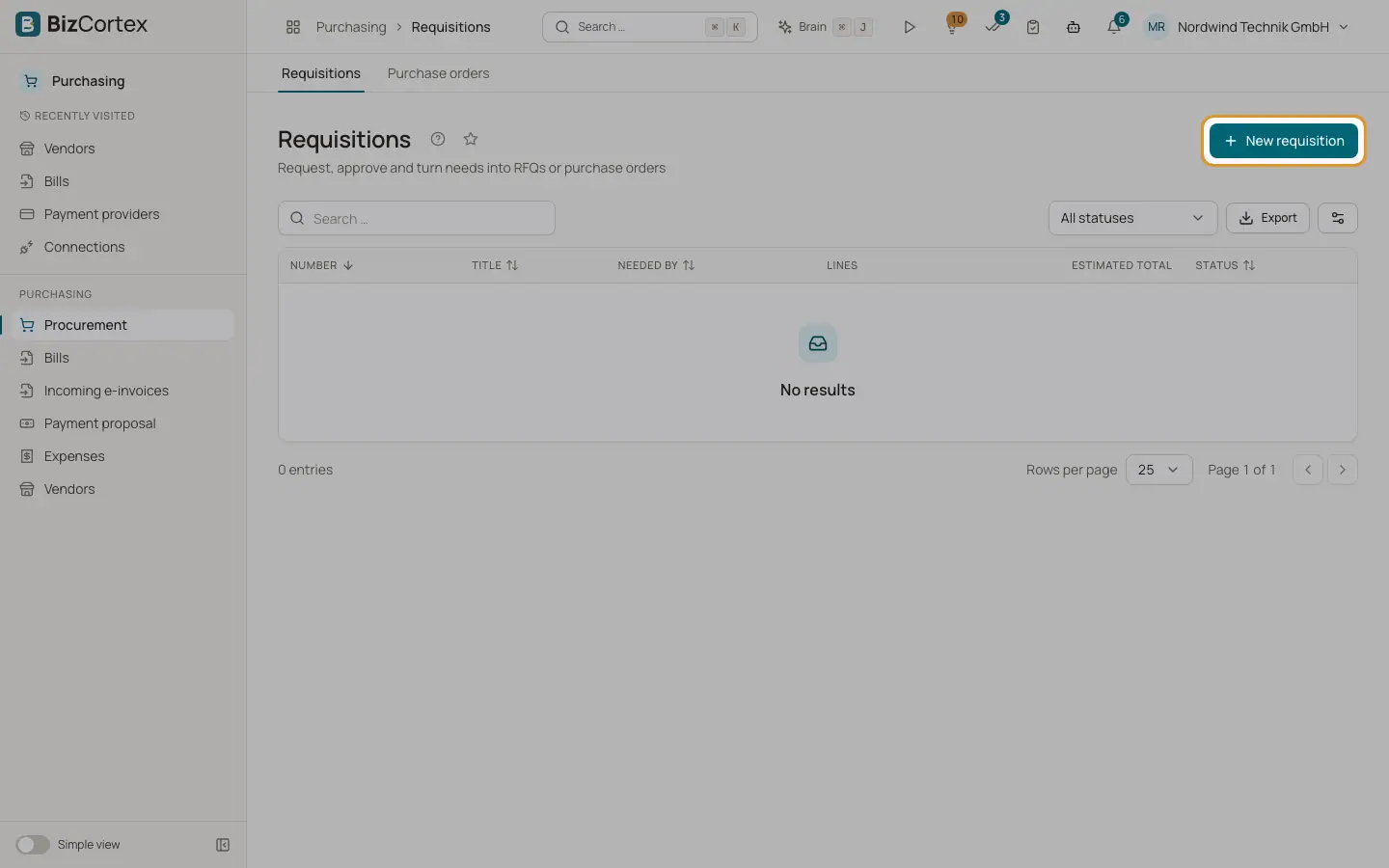
Purchasing, Procurement, Requisitions lists all purchase requisitions with number, title, needed by date, lines, estimated total and status. Statuses are Draft, Submitted, Approved, Rejected and Ordered.
Who can use this
- Owner
- Admin
- Accountant
- Purchase (create, not approve)
Steps
1. Create
Click "New requisition". Enter title, "Needed by" and notes. Add lines with product (optional, fills description, unit and cost price), description, quantity, unit and estimated price. At least one line is required.
2. Submit
Click Submit. The requisition waits for approval.
3. Approve or reject
An approver clicks Approve, or Reject with an optional reason. A rejected requisition shows the reason and can be edited and submitted again.
4. Create an RFQ
On an approved requisition click "Create RFQ", choose one or more vendors and the response date. A draft RFQ with the lines is created. The requisition stays Approved until the RFQ is awarded.
5. Create a purchase order
Or click "Create purchase order" and choose a vendor. A draft order is created at the estimated prices and the requisition becomes Ordered.
Good to know
- Only drafts and rejected requisitions can be edited. Saving sets the status back to Draft.
- Ordered requisitions cannot be deleted.
- Approvers do not get a notification. Check the list with the filter Submitted.
Related
- Requests for quotation (RFQs)
Ask several vendors for quotes, compare them and award the order.
- Purchase orders
Create, place, track and close orders to vendors.