Supplier portal: giving vendors access
Invite vendor contacts and manage their documents.
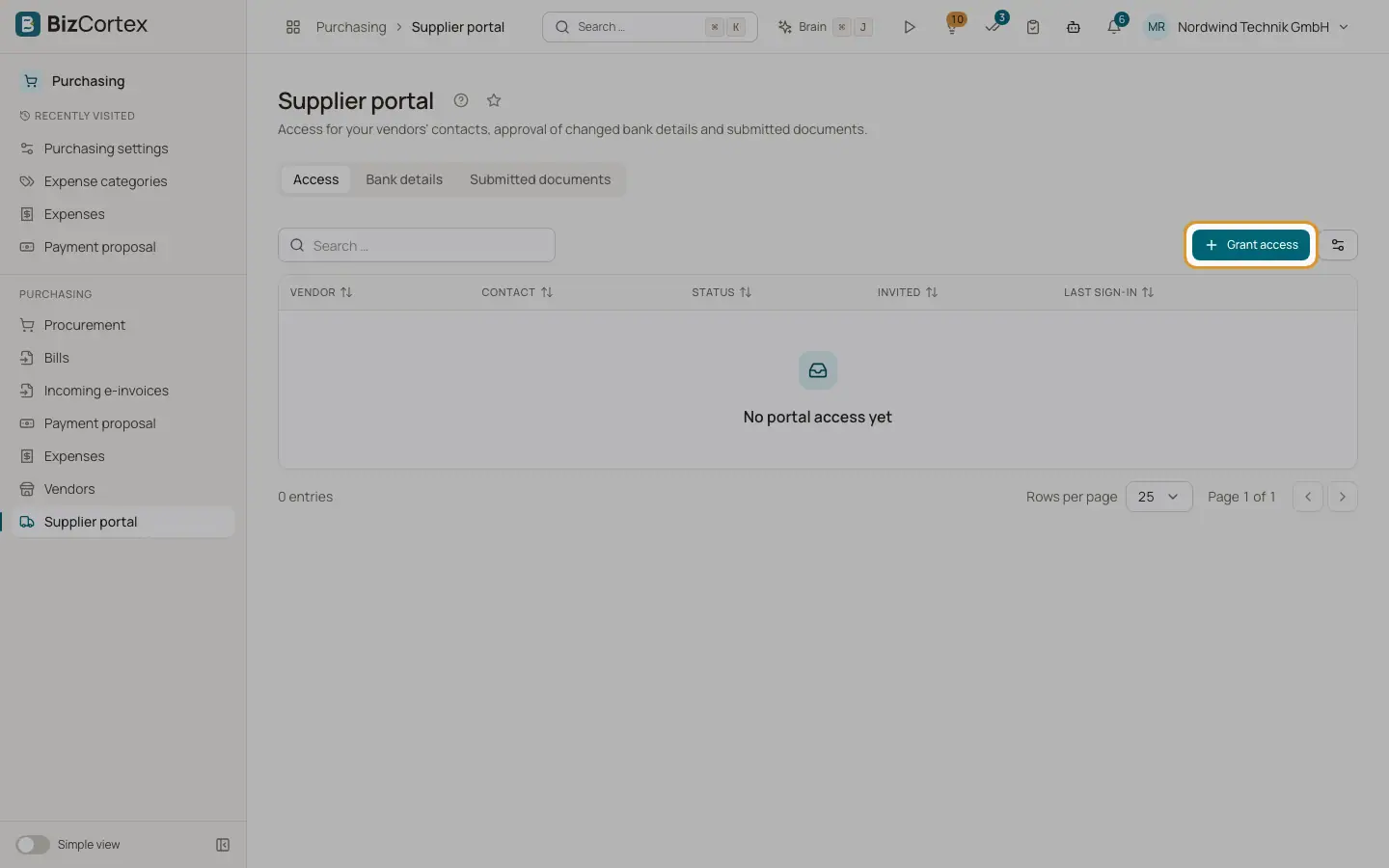
The supplier portal is a separate website where your vendors see their purchase orders, invoices and payments, upload invoices and certificates and report new bank details. Purchasing, Supplier portal has the tabs Access, Bank details and Submitted documents.
Who can use this
- Owner
- Admin
- Accountant
- Purchase
- Viewer (read only)
Steps
1. Grant access
In the Access tab click "Grant access". Choose the vendor and the contact. The contact needs an email address. The contact receives a sign in link by email.
2. Resend or revoke
Use "Resend link" to send a new link. Use "Revoke access" to disable access and end all open sessions of the contact.
3. Process documents
In "Submitted documents" you see vendor, document, received date, status and note. Download the file and click "Mark as processed" or Reject.
Fields and options
- Access columns
Vendor, Contact, Status, Invited, Last sign in.
- Document status
Received, Captured (an electronic invoice became a draft bill), Processed or Rejected.
Good to know
- Uploaded electronic invoices (XRechnung, ZUGFeRD and similar) automatically become draft bills of that vendor. Other files stay Received for manual processing.
- Every uploaded invoice is archived when it is received.
- The admin list shows at most 500 documents and has no filters.
Related
- Supplier portal: what vendors see
How vendors sign in, confirm orders, follow invoices and upload documents.
- Vendor bank detail changes
Approve new bank details reported by vendors, with fraud protection.