Calendar: import, export and subscriptions
Import ICS files, export your appointments and subscribe in Outlook, Google or Apple Calendar.
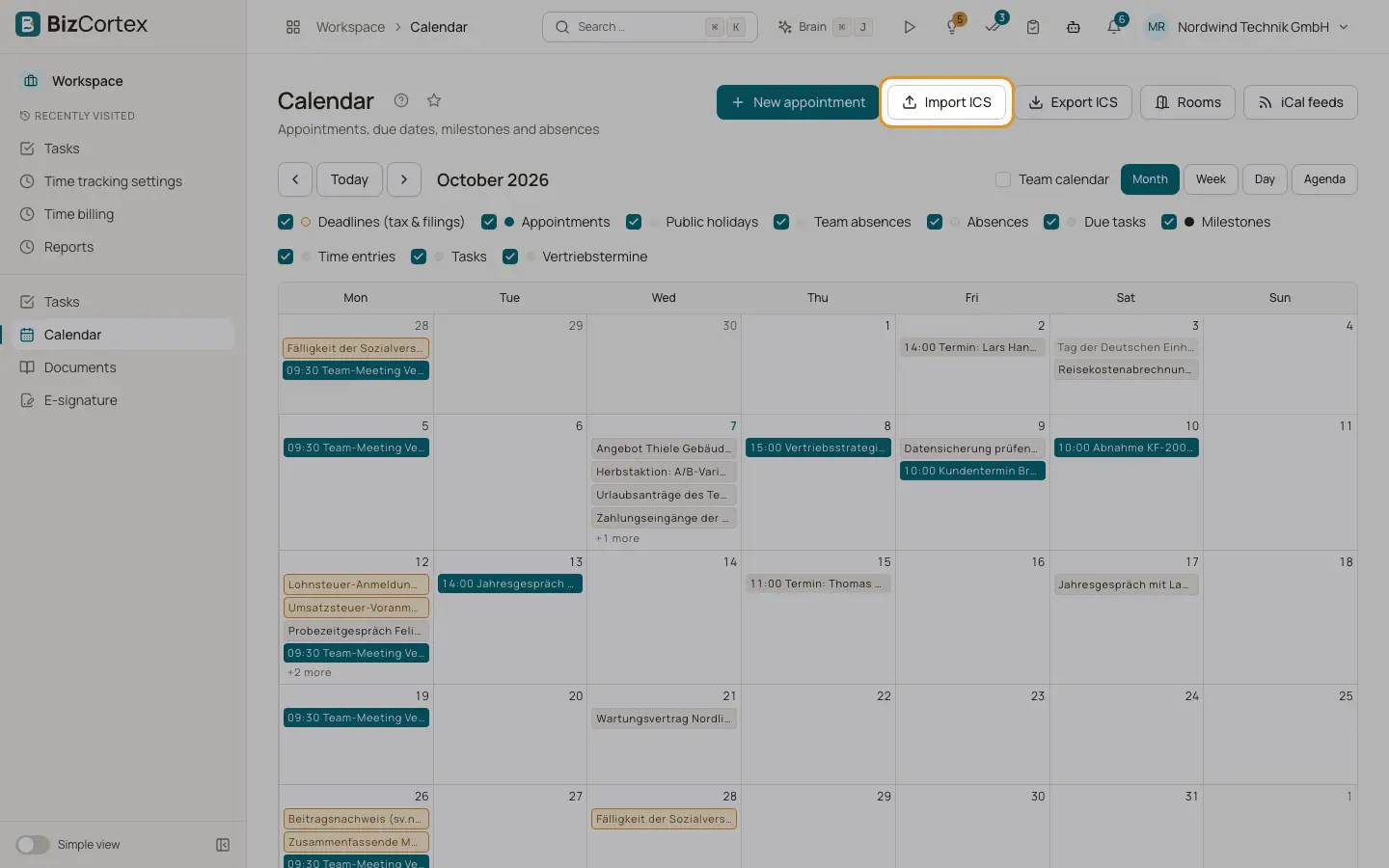
The calendar toolbar has "Import ICS" and "Export ICS". The iCal feeds page lets you subscribe to your BizCortex calendar from another calendar program.
Who can use this
- Anyone with the Calendar write permission (import)
- Anyone with the Calendar feed permission (feeds)
Steps
1. Import
Click "Import ICS" and choose a .ics file of at most 5 MB. The result shows how many appointments were created, updated and skipped. An appointment you already have (same id) is updated, unless the file holds an older version. Cancelled events are skipped.
2. Export
Click "Export ICS" to download your appointments from one year back to two years ahead, with repeat rules and attendees.
3. Create a feed
In the sidebar, open Calendar and choose "Subscribe in Outlook or Google", or open the iCal feeds page. Click "New feed", enter a name (default "My calendar") and choose the content. No selection means all content. Save.
4. Copy the link
The feed link is shown once with the warning to keep it secret, because anyone with the link can see your calendar. Click "Copy link" and add it as a subscription in your calendar program.
5. Revoke
Click "Revoke". The link stops working. The list shows when each feed was last fetched.
Good to know
- Repeat rules that BizCortex does not support are imported as their first occurrence only, and are listed as errors.
- Exported times are written in UTC. Most calendar programs convert them correctly.
- There is no two way sync through CalDAV.
Related
- Calendar: views and content
Month, week, day and agenda views and what the calendar shows.