Electronic signature: overview and list
Send PDFs for signature and follow every request in one list.
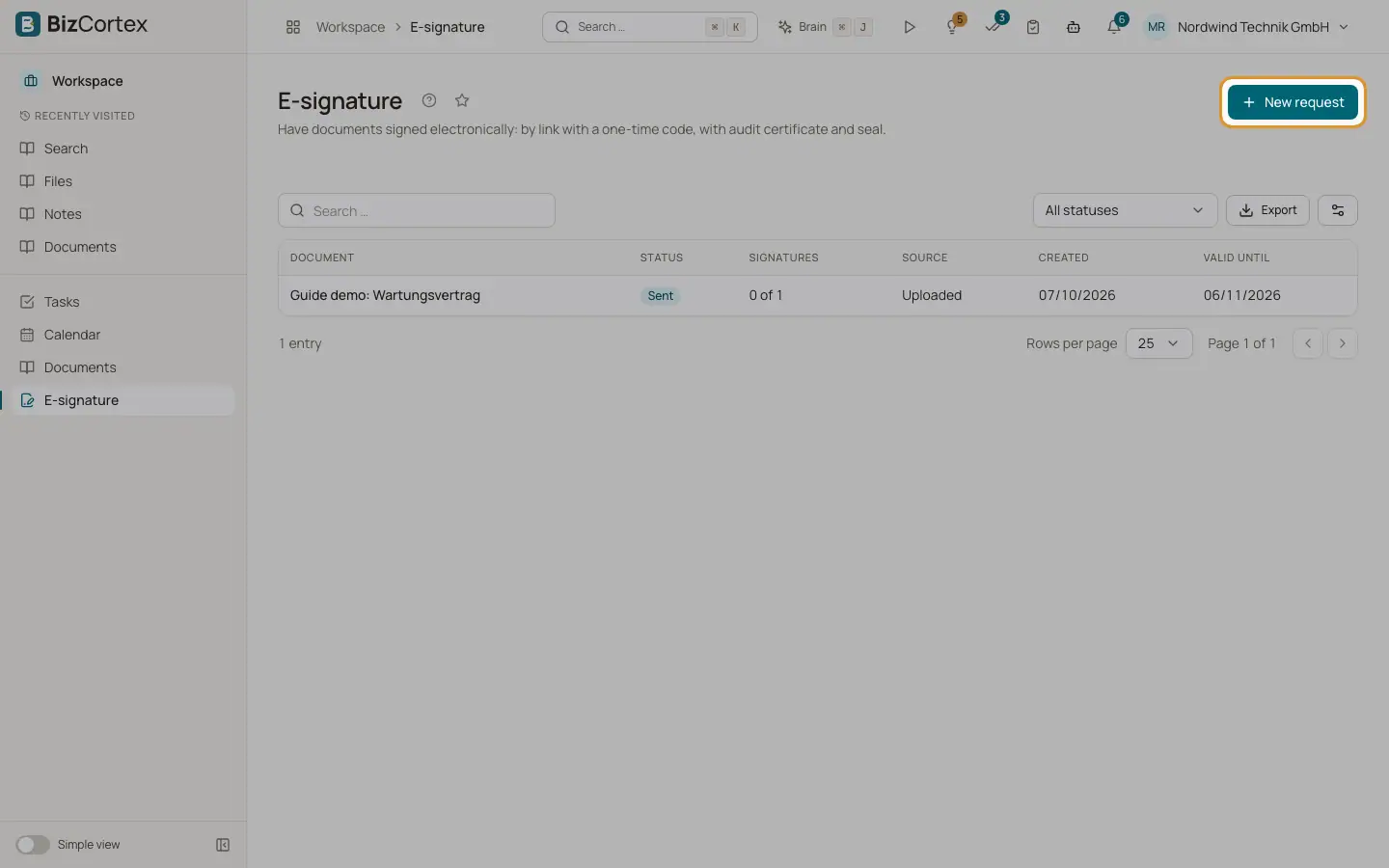
Open Workspace and choose E signature in the sidebar. You send a PDF to one or more signers. Each signer gets a personal link, confirms with a one time code and signs. When everyone has signed, you receive one signed PDF with stamped signatures, an audit certificate and an electronic seal. It is archived unchangeably.
Signers do not need a BizCortex account.
Who can use this
- Owner, Admin, Accountant, Sales, HR manager, Purchasing: read and send
- Viewer: read only
- Requests from the personnel file: only for roles that may read HR documents
Steps
1. Start a request
Click "New request", or choose "Send a document for signature" in the sidebar.
2. From a quote
On a quote in Sales, click "Send for signature". The quote PDF is loaded and the contact person or customer is suggested as signer.
3. From the personnel file
In an employee's documents, choose "Send for signature". The employee is suggested as signer.
Fields and options
- Document, Status, Signatures, Source, Created, Valid until
The columns of the list. Signatures shows progress, for example "1 of 2".
- Status
Draft, Sent, Partially signed, Completed, Declined, Expired or Withdrawn. Filter with "All statuses".
- Source
Uploaded, Archive, Personnel file or Quote.
Related
- Electronic signature: the send wizard
Upload the document, add signers, place fields and send.
- Electronic signature: the request detail page
Follow the signers, send reminders, correct addresses, withdraw and download.
- Electronic signature: legal level and written form
Which signature level BizCortex reaches and when you must not use it.