Tasks: the task detail panel
Edit every field of a task, add subtasks, a checklist, comments and attachments.
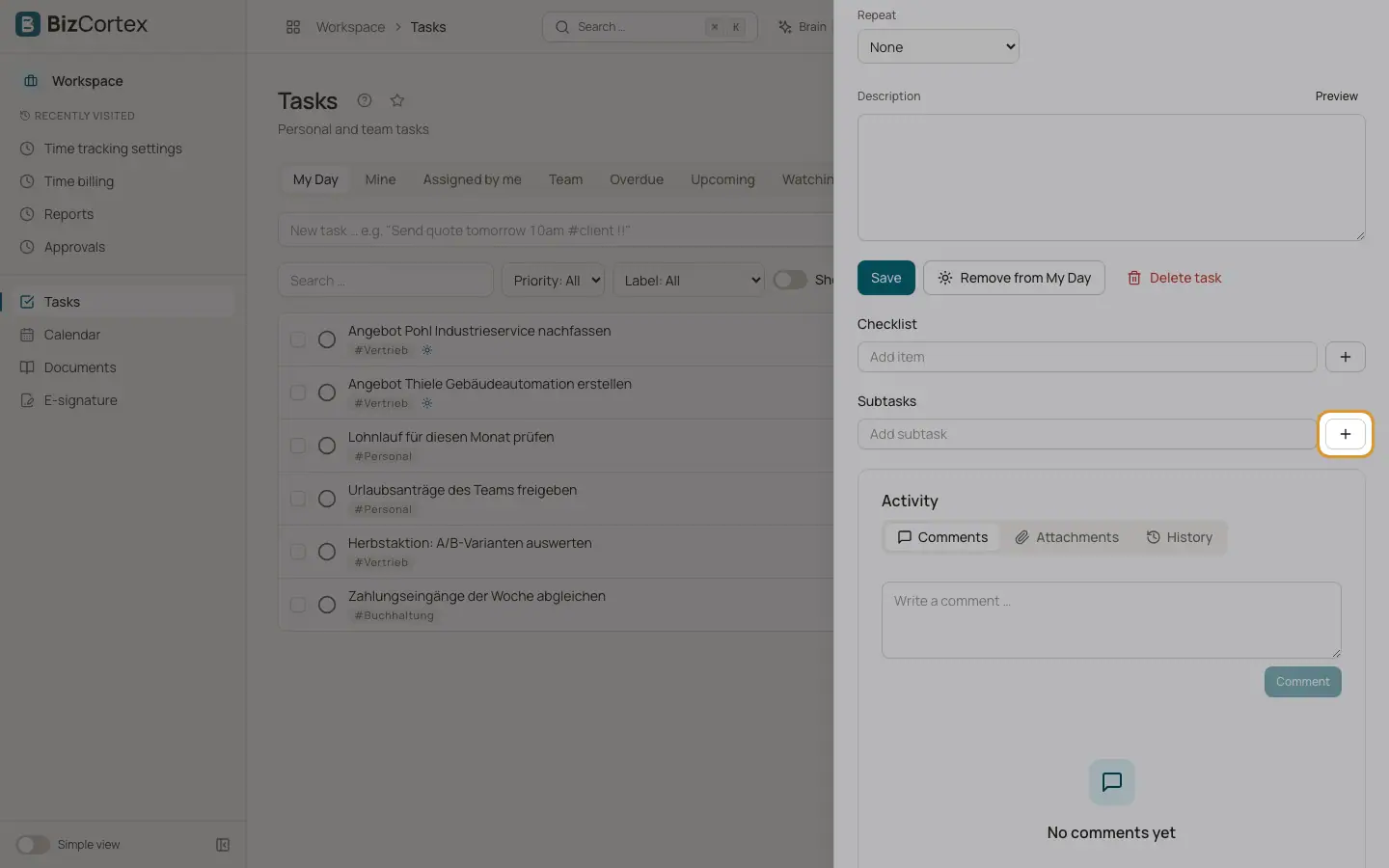
Click a task to open its detail panel. Here you change every field, write a description, manage subtasks and a checklist, and see comments, attachments and the change history.
Who can use this
- Anyone who can see the task and has the Tasks write permission
Steps
1. Add subtasks
Click "Add subtask". Subtasks are full tasks. Deleting the parent also deletes its subtasks.
2. Add a checklist
Click "Add item" under Checklist. Tick items as you go.
3. Complete or reopen
Click "Complete". The creator and the watchers are notified. Click "Reopen" to set the task back to To do.
4. Pin to today
Click "Add to My Day" or "Remove from My Day". The pin is personal.
5. Delete
Click "Delete task" and confirm. Only the creator or an admin can delete.
Fields and options
- Title
The name of the task.
- Description
Free text with Markdown formatting. Click Preview to see the formatted text.
- Status and Priority
See the views page for the possible values.
- Due date and Time
The due date, with an optional time of day. The time is read as German local time (Europe/Berlin).
- Start
An optional start date.
- Assignees
Click "Add person". New assignees receive a notification.
- Watchers
Click "Add watcher". Watchers are told when the task is completed.
- Labels
Comma separated labels.
- Repeat
None, Daily, Weekly, Monthly or Yearly, with "Every" (the interval) and "Until".
- Reminder
A date and time when the assignees receive a reminder.
- Estimate (min)
The planned effort in minutes.
- Linked to
The record the task belongs to, for example a client, invoice, lead, employee, project, vendor or bill.
- Parent task
Shown for subtasks.
Tips
- Comments, attachments and history at the bottom follow the same visibility as the task itself.
Related
- Tasks: recurring tasks and reminders
How repeating tasks create their next occurrence and how reminders are sent.
- Tasks: views and layouts
Use My Day, Mine, Team and the other views, and switch between list and board.