Files: the file library
Store files in folders per space with versions, previews and a storage quota.
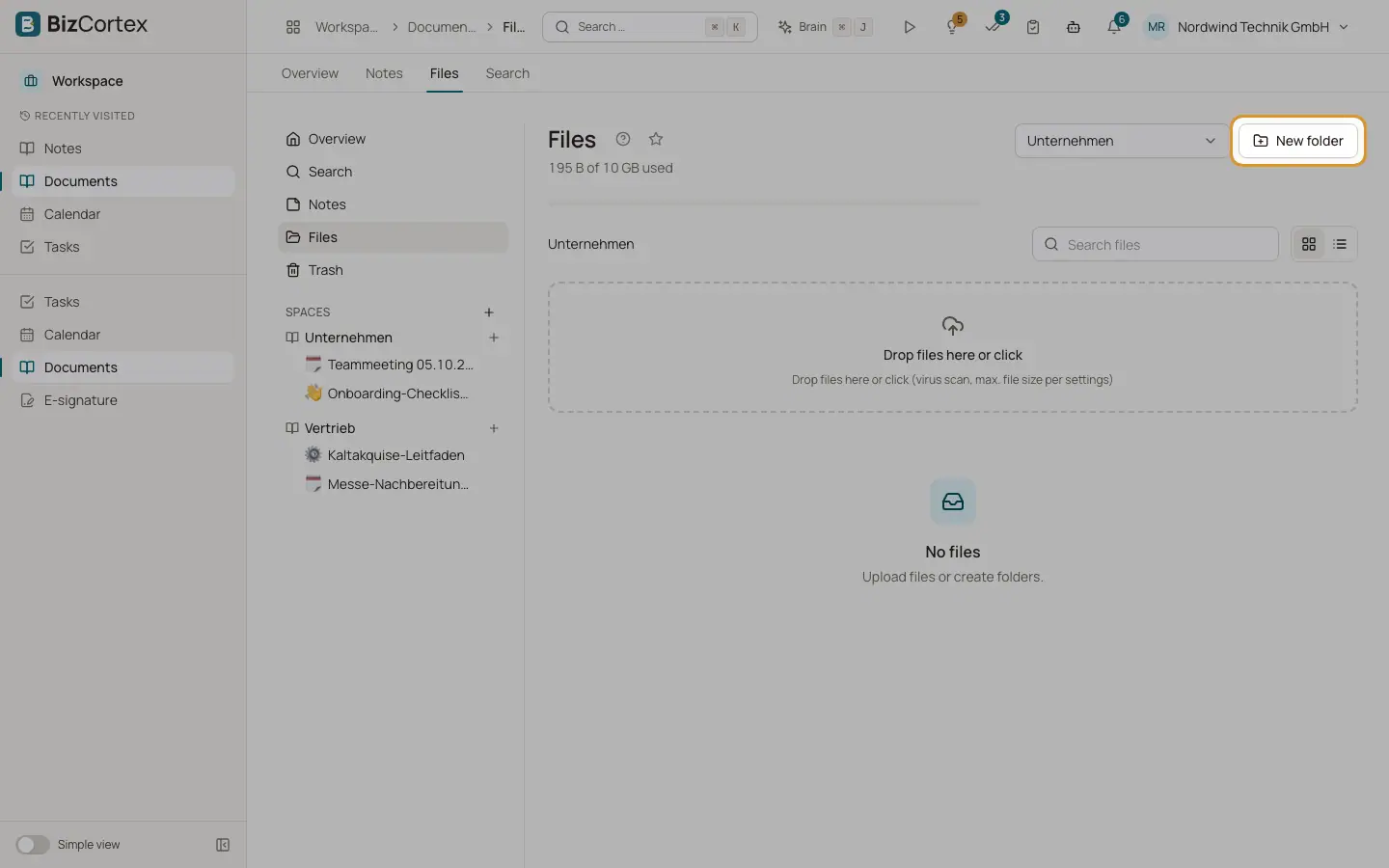
Open Documents, Files. Choose a Space, or "Shared with me" for files that colleagues shared with you directly. Switch between Grid and List (your choice is remembered). The bar at the top shows storage usage, for example "2 GB of 10 GB used".
Who can use this
- Space role Edit (upload, move, trash)
- Space role Read or a direct share (view)
Steps
1. Upload
Drop files on the upload area or click it. Each upload is scanned for viruses. Executable programs are rejected.
2. Create folders
Click "New folder". Rename it with "Rename folder".
3. Open and preview
Click a file. The preview shows images, PDFs and text files, with Dimensions or Pages. Other types show "There is no preview for this file type."
4. Upload a new version
In the preview, click "Upload new version". All versions stay available under Versions and can be downloaded one by one.
5. Move
Use "Move one level up" or "Move to" a folder. Files can only move within the same space.
6. Trash
Click "Move to trash". It can be restored for 30 days.
Fields and options
- Name, Size, Modified, Uploaded by
The columns of the list view.
Good to know
- Default limits: 100 MB per file and 10 GB for the whole company. Owners and admins can change them.
- The quota counts every version of every file, including files in the trash until they are deleted for good.
Related
- Files: sharing internally and by public link
Share a file with colleagues or roles, or send a protected public download link.
- Documents: finalize into the GoBD archive
Store a page or file unchangeably in the archive with the right retention period.