Calendar: views and content
Month, week, day and agenda views and what the calendar shows.
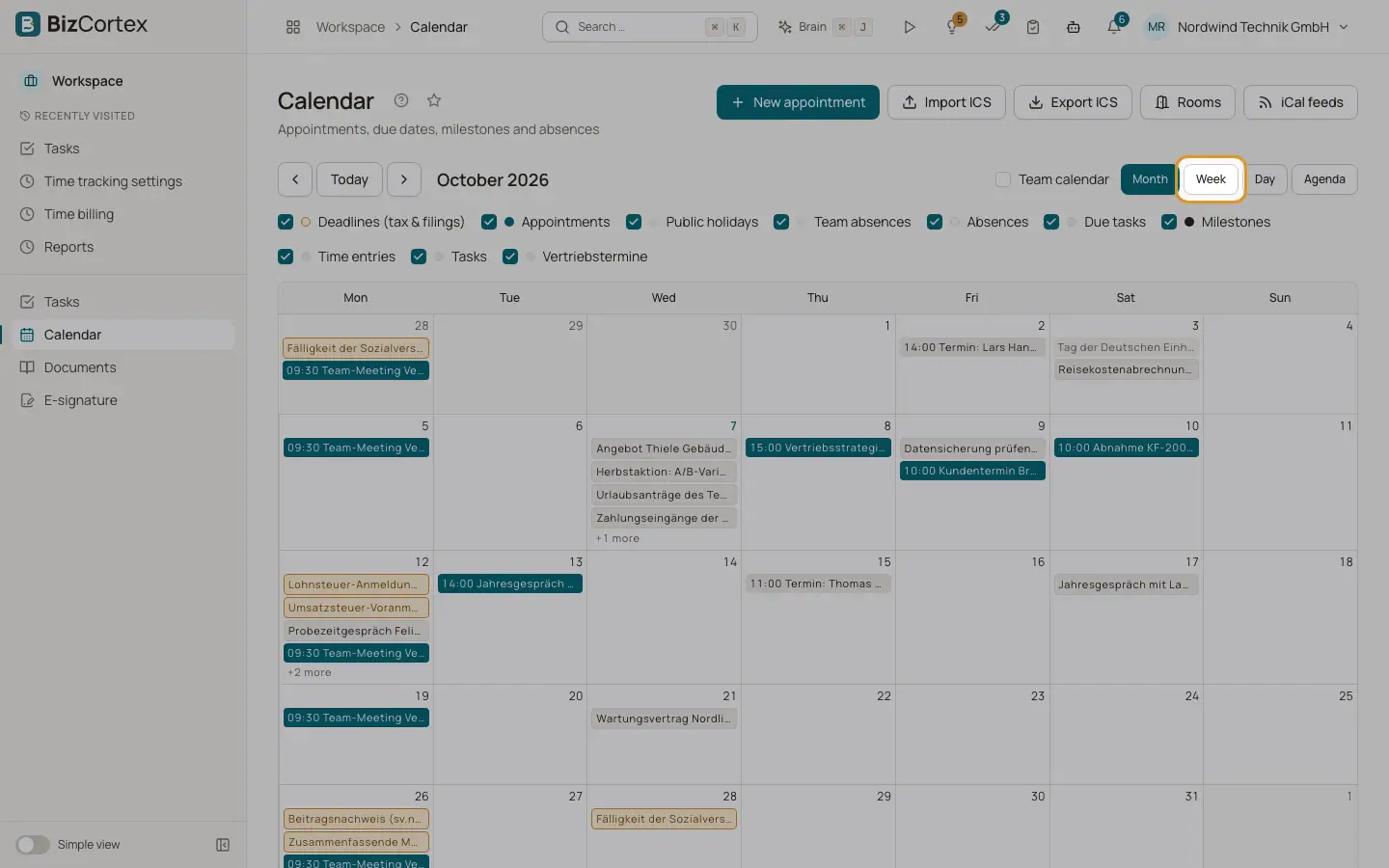
Open Workspace, Calendar. The calendar combines your own appointments with dates from other parts of BizCortex. Use Today, Previous and Next to move in time, and switch between Month, Week, Day and Agenda. The Agenda lists the next 30 days.
Who can use this
- Owner, Admin: every appointment and every team calendar
- Accountant, Sales, Purchasing, HR manager, Employee: own appointments and invitations
- Viewer: read only
Steps
1. Create by dragging
In the week or day view, drag over an empty time slot to create an appointment for that time.
2. Move or resize
Drag an appointment to move it, or drag its bottom edge to change the end. This only works for appointments you may edit.
3. Open an appointment
Click it to see details, your answer, the "Join meeting" link and the actions.
Fields and options
- Appointments
Your own appointments and the ones you are invited to.
- Tasks
Due dates of your workspace tasks. A task with a time is shown as a 30 minute event, otherwise as an all day event.
- Public holidays
The public holidays of your federal state (taken from your employee record), plus company holidays. Without an employee record you see the nationwide holidays.
- Absences
Your own approved leave.
- Team absences
Only in the team calendar: approved leave of department colleagues, shown as "Abwesend: Name". The type of leave is never shown.
- Other sources
Depending on the modules you use: Time entries, Due tasks, Milestones, Shifts and Deadlines (tax and filings).
- Synced appointments
Appointments synced from Outlook show "Synced from Outlook and read only here. Edit it in Outlook."
Tips
- The home widget "Upcoming appointments" shows the next 7 days. Click "Open calendar" to jump here.
Related
- Calendar: create and edit appointments
All fields of the appointment dialog, with reminders, rooms and attendees.
- Calendar: team calendar
See the appointments and absences of your department.