Documents: spaces and access
Organise the wiki in spaces and decide who can read, edit or manage them.
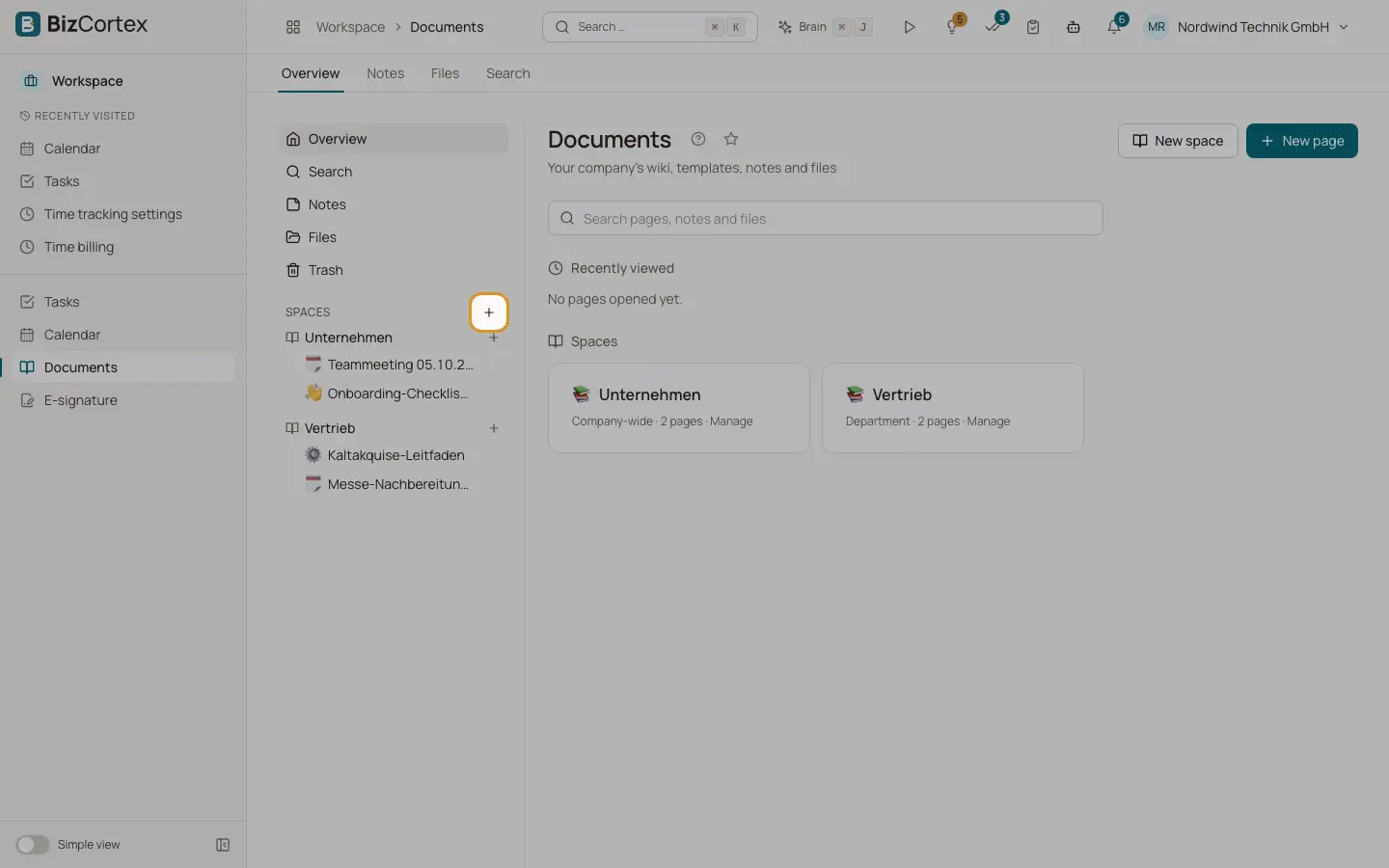
Open Workspace, Documents. The Overview shows your spaces, "Recently viewed" pages and Favorites. A space is a container for pages and files. Your role in a space decides what you can do there, not only your company role.
Who can use this
- Accountant, Sales, Purchasing, HR manager, Employee: create spaces and pages
- Owner, Admin: create company wide spaces and manage every space that is not private
- Viewer: read only
Steps
1. Create a space
Click "New space", choose the Type, enter a Name and save.
2. Manage access
Open the space and click "Manage space". Under Access, set a role per company role (for example "All members of the company" can Edit). Use "Add member" to give a person an explicit role, and "Remove member" to take it away.
3. Delete a space
Click "Delete space permanently". All pages, versions and files of the space are deleted permanently. Documents that were already finalized stay in the archive.
4. Export a space
Use "Space as ZIP" to download all pages and files of the space.
Fields and options
- Company wide
Visible to and editable by every member of the company. Viewers read only. Only owners and admins can create it.
- Department
Only for explicitly added members and granted roles.
- Private
Only you can see this space. Administrators cannot either. A private space cannot have members.
- Project
Members of the linked project can collaborate (they edit by default). You must select a project.
- Name, Icon, Description
The icon is an emoji.
- Read, Edit, Manage
The three space roles. Read: view and comment. Edit: also create, edit, move and trash pages, upload and share files, finalize. Manage: also manage members and access, delete the space, reopen finalized pages and delete other people's comments.
Good to know
- Spaces you cannot see do not appear at all, so their existence is not revealed.
- In the ZIP export, library files are included up to 500 MB in total. Larger files are only listed.
Related
- Documents: writing pages
The page editor, autosave, the page tree, mentions, links and favourites.
- Files: the file library
Store files in folders per space with versions, previews and a storage quota.