Calendar: rooms, resources and finding a time
Manage bookable rooms and resources and find a slot when everyone is free.
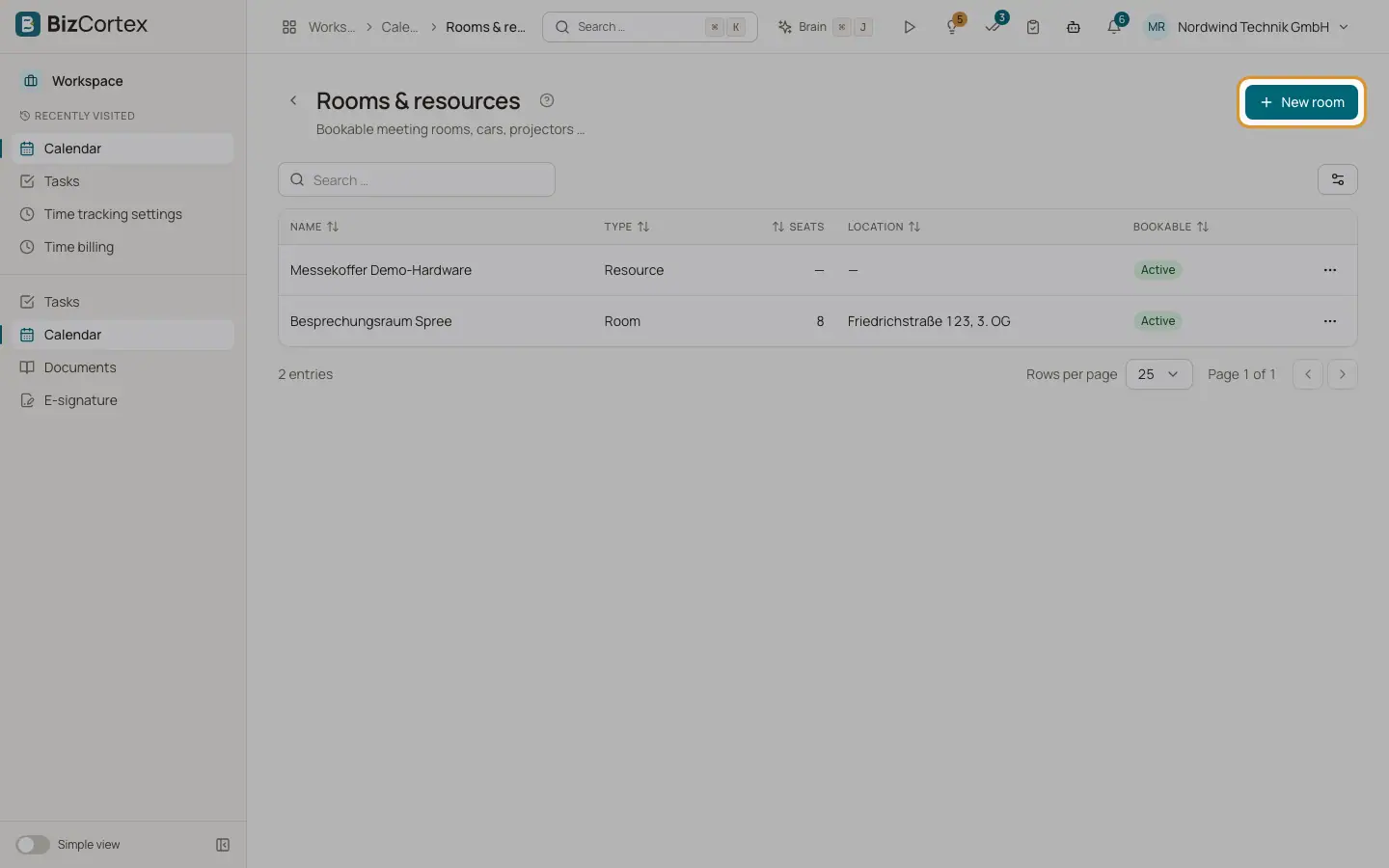
Click "Rooms" in the calendar toolbar to open "Rooms & resources": bookable meeting rooms, cars, projectors and similar items. In the appointment dialog, pick a room under "Room / resource".
"Find a time" in the appointment dialog searches free slots for all attendees and the selected room in the next 7 days. It also shows a busy strip per person for the selected day ("Busy on the selected day"). If nothing fits, you see "No common free time found".
Who can use this
- Everyone with Calendar access can see rooms and book them
- Owner, Admin: create, edit and delete rooms
Steps
1. Add a room
Click "New room", fill in the fields and save.
2. Delete a room
Confirm "Delete the room? Existing appointments keep their data but lose the booking."
Fields and options
- Name
The name of the room or resource.
- Type
Room or Resource.
- Seats
The capacity.
- Location
Where it is.
- Description
Free text.
- Bookable
Turn it off to stop new bookings. An inactive room cannot be booked.
Good to know
- Free and busy counts appointments that are not shown as Free and that the person has not declined, plus approved leave (shown as out of office).
- You only see appointment titles for appointments you are involved in and for public team appointments.
- Two bookings made at exactly the same moment are not blocked against each other.
Related
- Calendar: create and edit appointments
All fields of the appointment dialog, with reminders, rooms and attendees.