Workspace at a glance
What the Workspace app contains and where to find each tool.
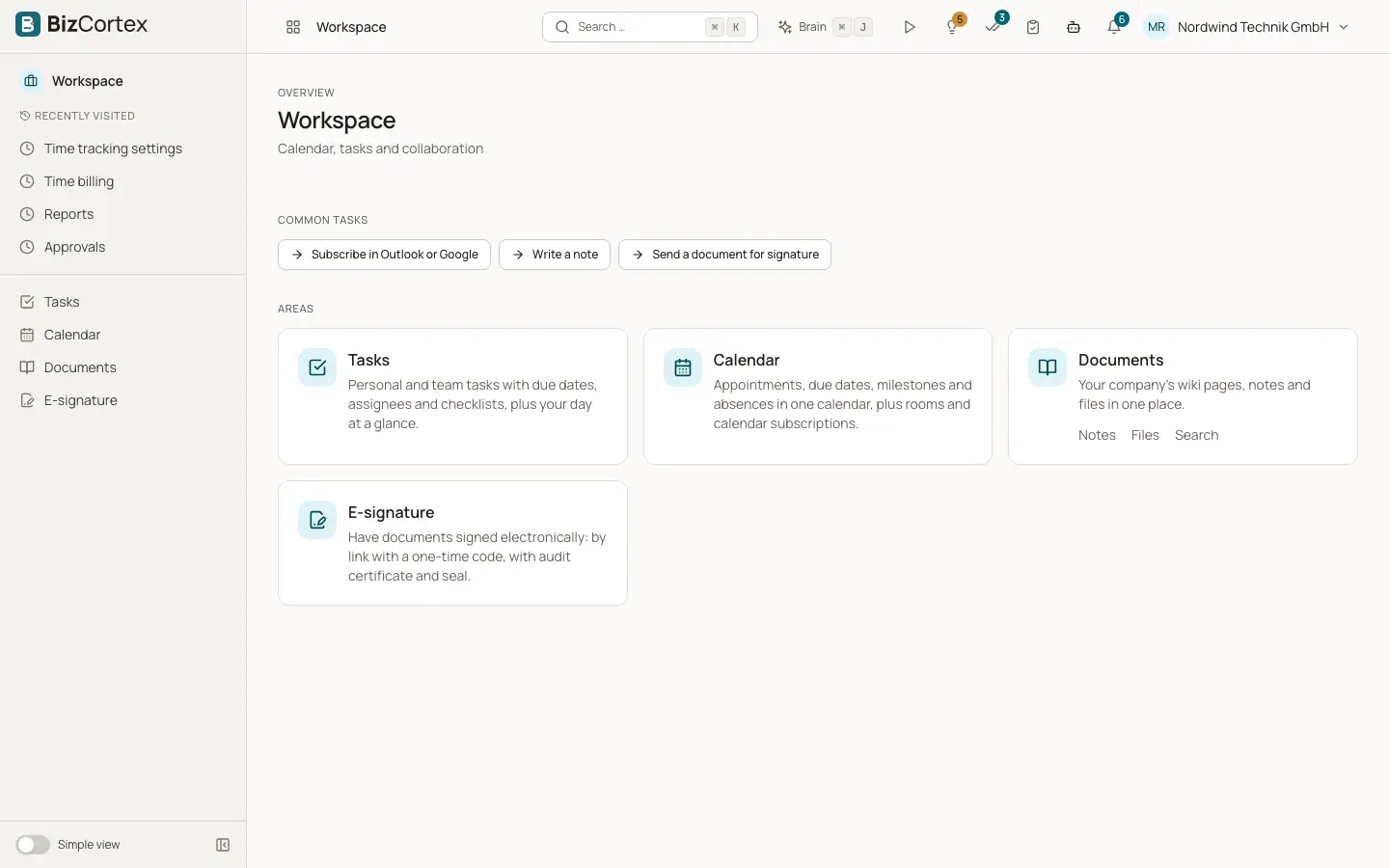
Open the app launcher and choose Workspace. The sidebar shows Tasks, Calendar, Documents and E signature (the electronic signature tool). Each item only appears when your role has the matching read permission.
The Workspace tools are connected. Tasks with a due date appear in the calendar. Wiki pages, notes and files are found by the same search. A quote or a personnel document can be sent for signature with one click, and the signed copy is archived automatically.
Who can use this
- Owner
- Admin
- Accountant
- Sales
- Purchasing
- HR manager
- Employee
- Viewer (read only)
Steps
1. Tasks
Personal and team tasks with due dates, assignees, checklists and subtasks, plus a My Day view for today.
2. Calendar
Appointments, due dates, milestones, public holidays and absences in one calendar, with rooms, invitations and calendar subscriptions.
3. Documents
The company wiki (spaces and pages), personal notes, the file library with sharing, full text search and a trash.
4. E signature
Send a PDF for electronic signature. Signers sign through a personal link with a one time code. You receive one signed PDF with an audit certificate.
Tips
- Two widgets are available on your home page: My tasks today and Upcoming appointments.
- Many records in BizCortex (clients, invoices, leads, employees, projects) show a Tasks panel, so you can create a task that is linked to that record.
Related
- Tasks: views and layouts
Use My Day, Mine, Team and the other views, and switch between list and board.
- Calendar: views and content
Month, week, day and agenda views and what the calendar shows.
- Documents: spaces and access
Organise the wiki in spaces and decide who can read, edit or manage them.
- Electronic signature: overview and list
Send PDFs for signature and follow every request in one list.