Tasks: views and layouts
Use My Day, Mine, Team and the other views, and switch between list and board.
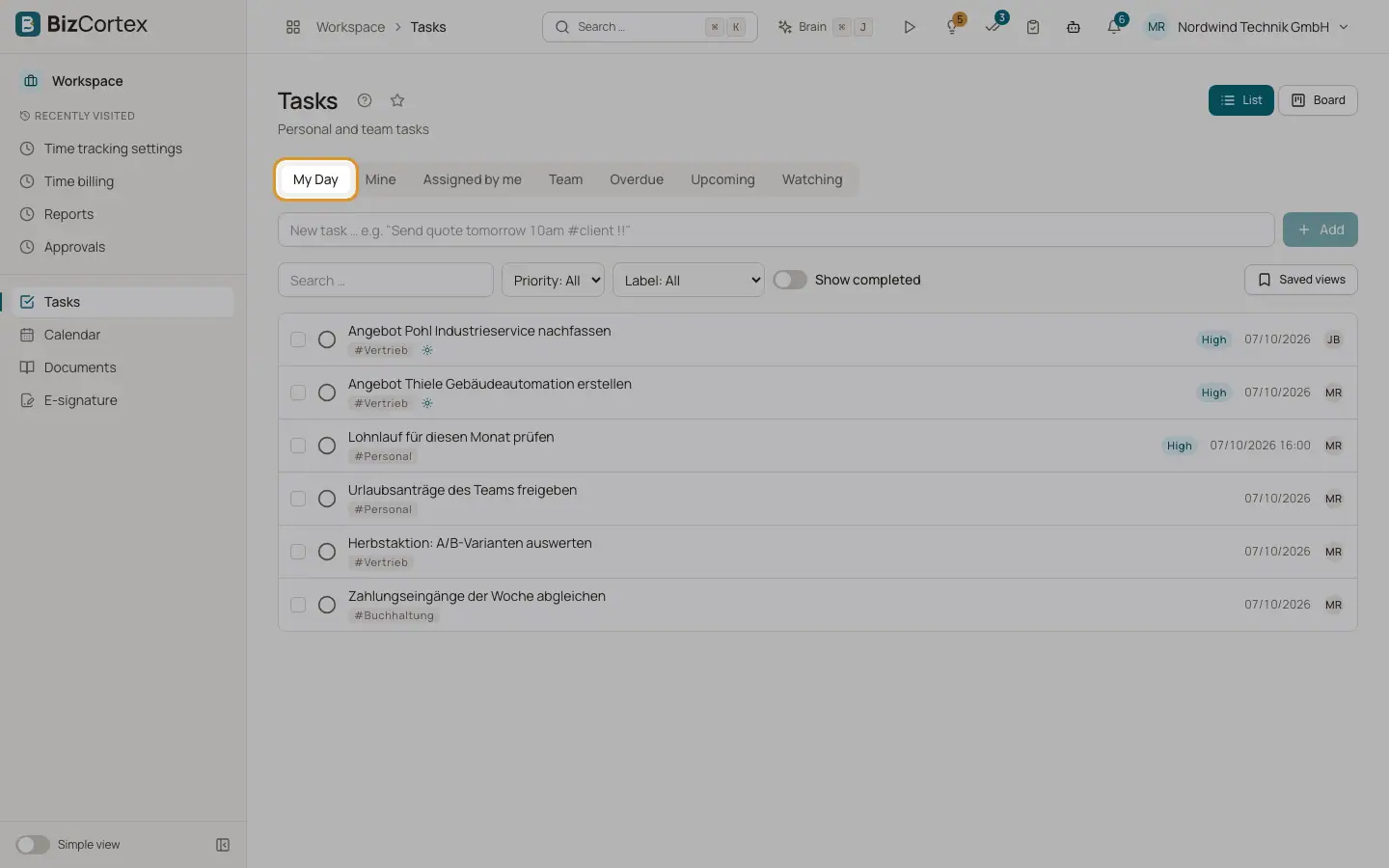
Open Workspace, Tasks. The page has view tabs at the top, a quick add field, filters and a toggle between List and Board.
A task is visible to its creator, its assignees and its watchers. A team task (a task for a department) is also visible to every member of that department. Anyone who can see a task and has the Tasks write permission can edit it. Only the creator or an admin can delete it.
Who can use this
- Owner, Admin: all tasks of the company and every team view
- Accountant, Sales, Purchasing, HR manager, Employee: create and edit tasks
- Viewer: read only
Steps
1. Pick a view
Click a view tab, for example My Day or Overdue.
2. Filter
Use "Search …" to search titles and descriptions. Use the Priority and Label filters. Turn on "Show completed" to include finished tasks.
3. Switch the layout
Click List or Board.
4. Open a task
Click a task to open the detail panel on the right.
Fields and options
- My Day
Your tasks due today, plus every task you pinned to today with "Add to My Day". When nothing is planned you see "Nothing planned for today".
- Mine
Your open tasks. A task is yours when it is assigned to you, or when you created it and nobody is assigned.
- Assigned by me
Tasks you created and assigned to someone else.
- Team
Team tasks of your departments. Admins can see any department.
- Overdue
Your tasks whose due date is in the past.
- Upcoming
Your tasks due within the next 7 days.
- Watching
Tasks you watch.
- Status
To do, In progress, Done or Cancelled. Done and cancelled tasks are hidden unless you turn on "Show completed" or filter by status.
- Priority
Urgent, High, Normal or Low.
- Badges
A task row can show Overdue, Today, My Day (pinned) and Recurring.
- List and Board
List shows rows. Board shows one column per status. Drag a card to another column to change its status, or within a column to change the order.
Tips
- In Mine and My Day you also see a read only section "Project tasks". These are open project tasks assigned to you. They are edited in the project, not here.
- The home widget "My tasks today" shows what is due today and how many tasks are overdue.
Good to know
- A team task can only be created for one of your own departments. Team membership comes from your HR employee record. Users without an employee record have no team.
Related
- Tasks: quick add
Type one line to create a task with a due date, time, label and priority.
- Tasks: the task detail panel
Edit every field of a task, add subtasks, a checklist, comments and attachments.
- Tasks: bulk actions and saved views
Change many tasks at once and save your favourite filters.