Calendar: create and edit appointments
All fields of the appointment dialog, with reminders, rooms and attendees.
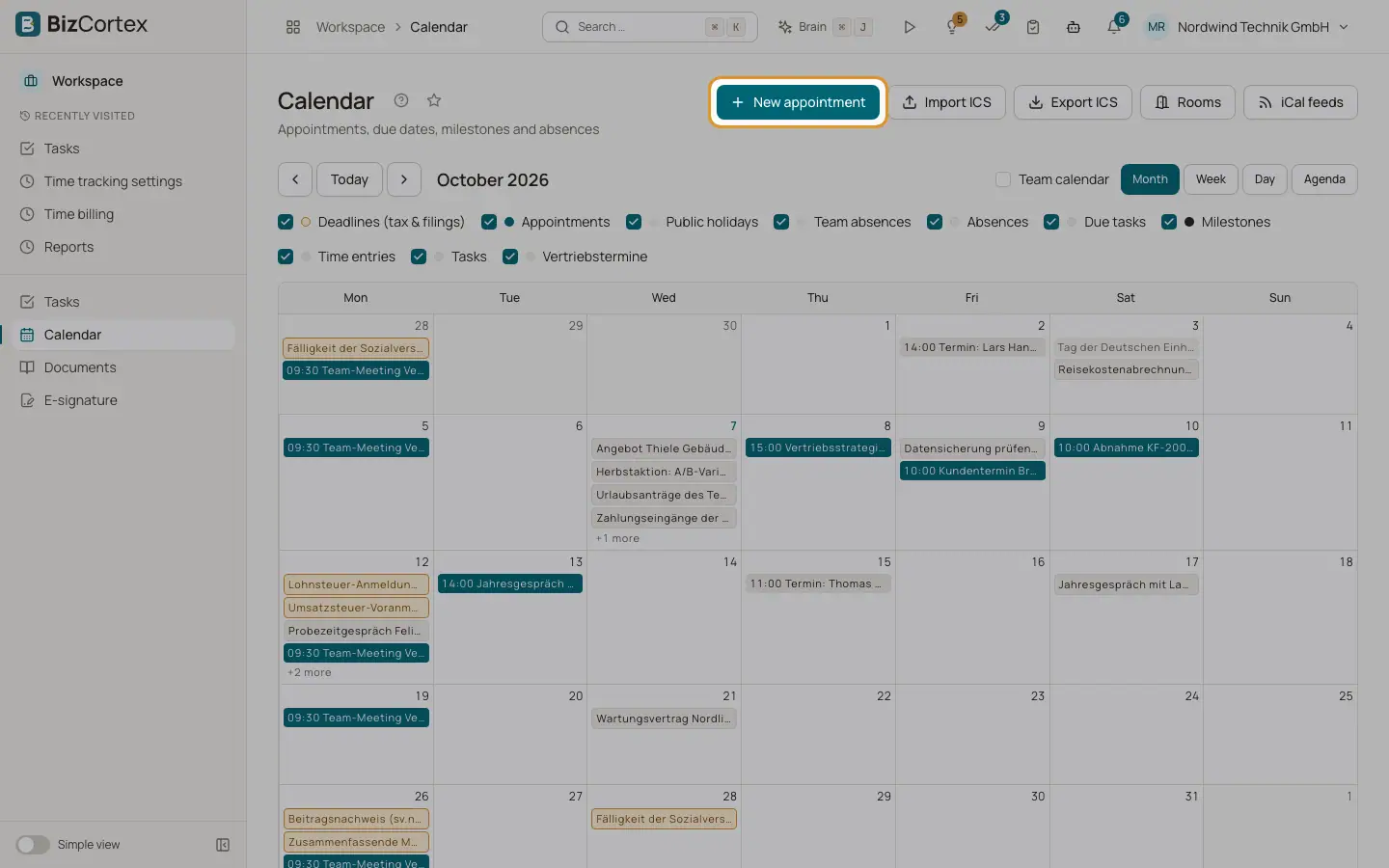
Click "New appointment" in the toolbar, or drag over an empty slot. The dialog "New appointment" opens. To change an existing appointment, open it and click Edit.
Who can use this
- Anyone with the Calendar write permission. Only the organizer or an admin can change or delete an appointment.
Steps
1. Fill in and save
Fill in the fields and click Save.
2. Change it later
When you change the time, place, room or repeat rule, all answers are reset to Pending and the invitation is sent again. Removed attendees receive a cancellation and new attendees receive an invitation.
3. Delete
Open the appointment and click Delete. Confirm "Delete the appointment? Invitees receive a cancellation."
4. Download
Click "Download .ics" to save one appointment as a calendar file.
Fields and options
- Title
The name of the appointment.
- All day
Turns off the times. For all day appointments, the end date is the last day included.
- Start (date), Start (time), End (date), End (time)
When it takes place. The end must be after the start.
- Time zone
The time zone of the appointment. Default is Europe/Berlin. Repeating appointments keep their local time across the change to and from summer time.
- Location
A place, as text.
- Online meeting link
A link that appears as "Join meeting".
- Description
Free text.
- Repeat
None, Daily, Weekly, Monthly or Yearly, with Every, Until and (for weekly) Weekdays.
- Show as
Busy, Free, Tentative or Out of office. Appointments shown as Free do not block you in free and busy searches.
- Visibility
Public (team sees details) or Private (team sees "busy" only).
- Reminder
None, At start, 5, 10, 15 or 30 min before, 1 hour before or 1 day before. The organizer and invitees who have not declined get a notification and an email.
- Room / resource
Book a room or resource. If it is already booked at that time, saving fails with an error message.
- Attendees
Use "Invite person" for colleagues and "External email address" plus "Add" for outside guests.
- Send invitations by email
On by default. Turn it off to save without sending any emails.
Good to know
- Room conflicts of open ended series are checked one year ahead.
- Invited colleagues can only answer (accept, maybe, decline). They cannot change the appointment.
Related
- Calendar: invitations and answers
How attendees are invited and how they accept or decline, also without an account.
- Calendar: recurring appointments
Change or delete a single occurrence or the whole series.
- Calendar: rooms, resources and finding a time
Manage bookable rooms and resources and find a slot when everyone is free.