Electronic signature: what the signer sees
How a signer confirms their identity and signs, without an account.
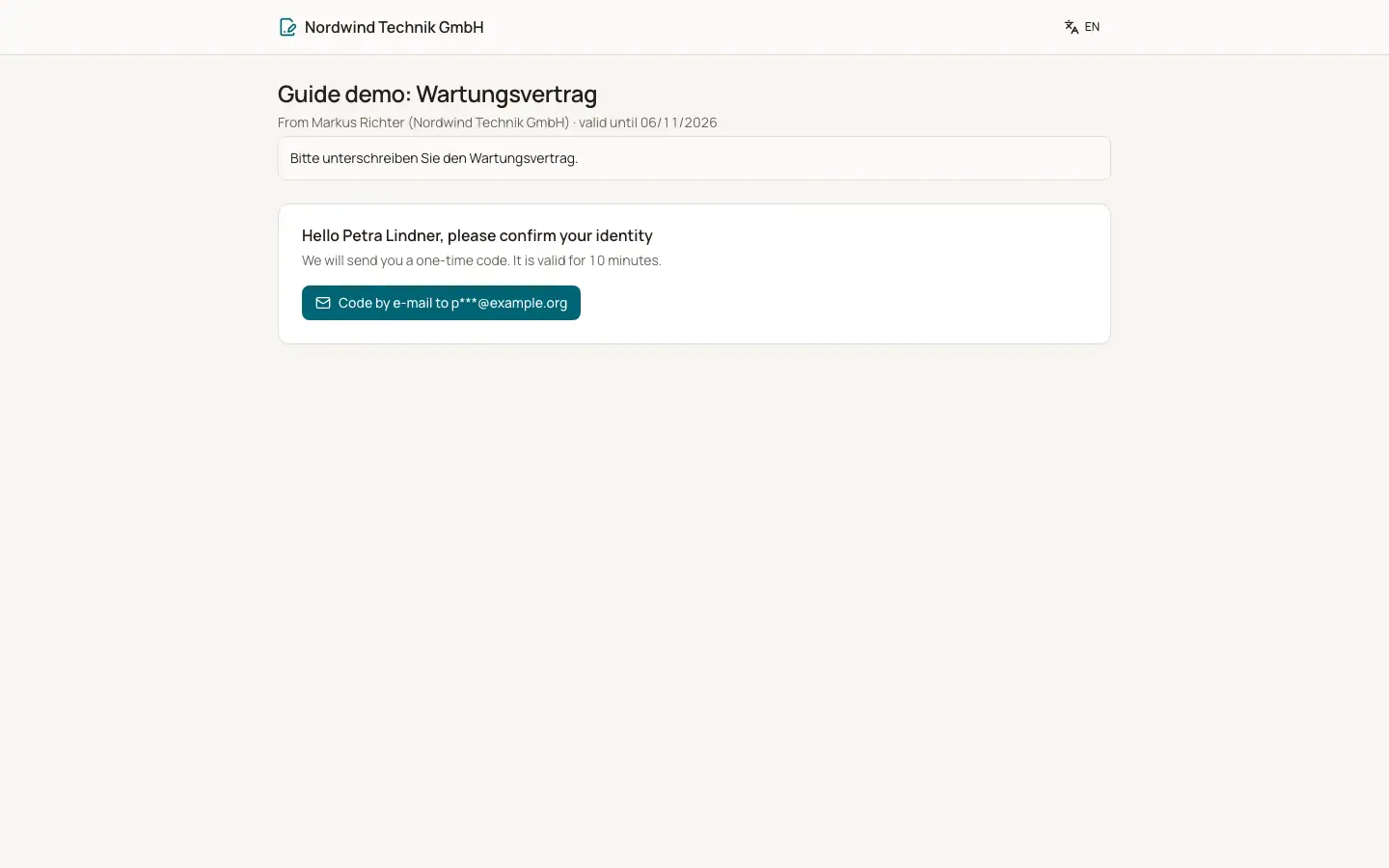
The signer receives an email "Please sign: title" with a personal link. The link must not be forwarded. It opens the signing page in the request's language.
Who can use this
- Signers (no BizCortex account needed)
Steps
1. Confirm identity
The page says "Hello …, please confirm your identity". The signer clicks "Code by email" or "Code by text message" and enters the 6 digit Confirmation code. The code is valid for 10 minutes.
2. Read the document
The pages are shown with the signer's own fields highlighted. "Download PDF" saves a copy.
3. Fill in
Text and checkbox fields are filled in under "Please fill in".
4. Sign
Under "Your signature" choose Draw (mouse, finger or pen, with Undo and Clear), Type ("Your full name") or "Saved signature". Accept the consent text and click "Sign now".
5. Or decline
Click Decline, optionally give a Reason, and confirm. This ends the signature request for everyone.
Fields and options
- Saved signature
Only for colleagues who signed as BizCortex users and saved a signature under My account, Signature tab.
- Consent
The signer agrees that name, email or phone, IP address, browser, time and the code confirmation are recorded as evidence.
- Messages
"It is not your turn yet" (one after another order), "Thank you, you have signed", "This signature request was withdrawn", "This signature request has expired" or "This link is invalid or no longer active".
Good to know
- After 5 wrong codes the code is locked until a new one is requested. A signer can request at most 5 codes per hour, with 30 seconds between requests.
- After the code is confirmed, the signer has 60 minutes to sign.
- An empty signature pad is rejected.
Related
- Signing page for electronic signatures
What a signer sees and does when they open a signature request link.
- Electronic signature emails
Invitations, codes, reminders and results of signature requests.
- Electronic signature: completion and audit certificate
What happens after the last signature, and what the audit certificate contains.
- Electronic signature: the send wizard
Upload the document, add signers, place fields and send.