The company graph
A 3D map of how people, customers, vendors, projects and conversations connect.
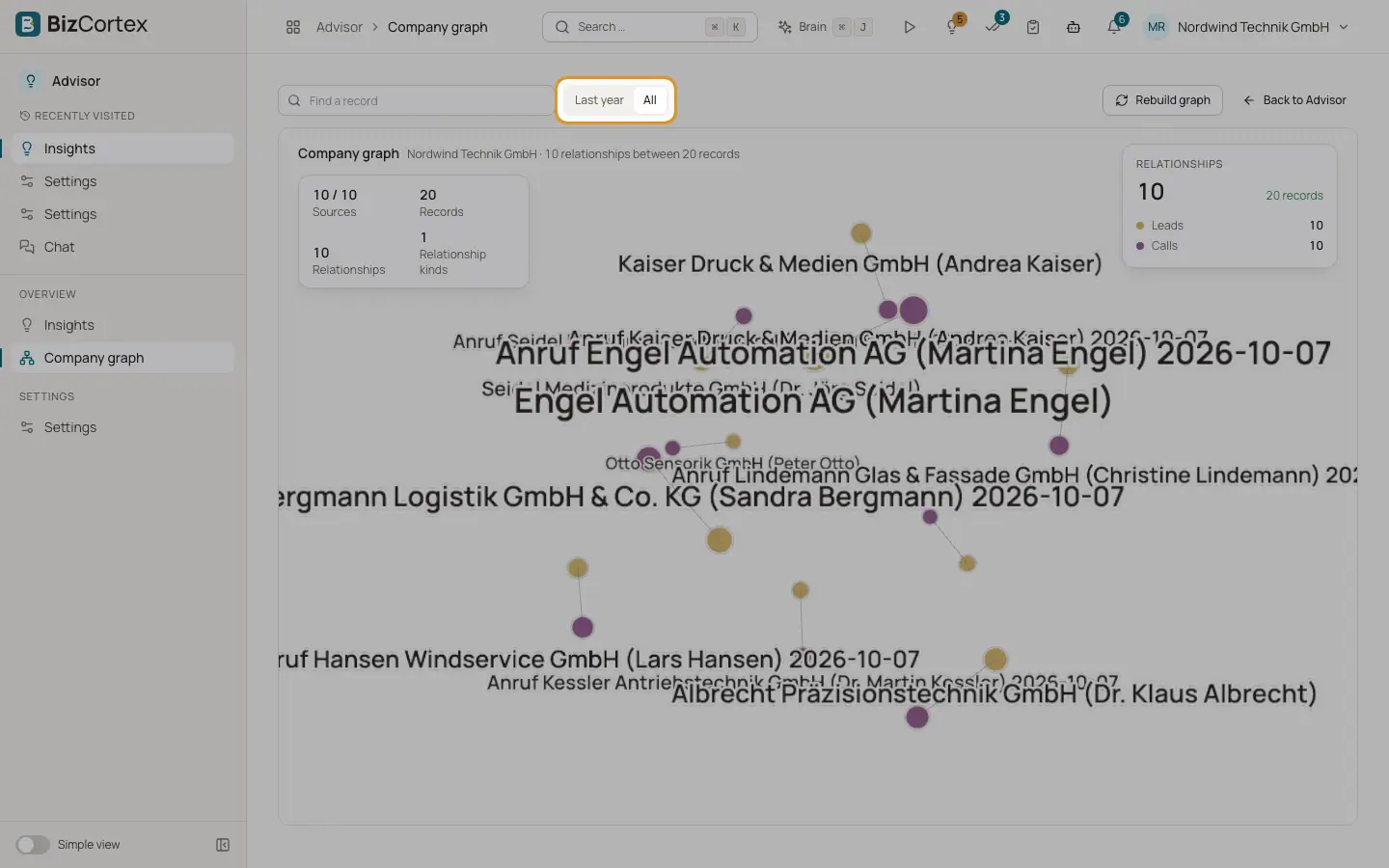
Advisor, Company graph shows your company as a 3D network. Records (people, departments, customers, vendors, projects, products, leads, calls, meetings, contracts and competitors) are points, and relationships between them are lines, for example "works in", "reports to", "manages", "owns the account of", "works on", "supplies", "bought", "discussed in", "mentioned", "depends on", "covers for" and "converted to".
When the page opens, the graph builds up in the order the relationships happened in the business (hire date, invoice date, call time and so on). A list on the side, "Logged to the graph", shows invoices, conversations, hires and projects as they appear.
Who can use this
- Owner
- Admin
- Accountant
- Sales
- Purchase
- HR Manager
- Viewer
Steps
1. Play the build up
Use "Play", "Pause" and "Replay" to control the animation. The progress bar shows how far the build up is.
2. Choose the period
Under Period choose "Last year" or "All".
3. Find a record
Type in "Find a record" and pick a match. "No match" means nothing visible fits your search.
4. Show or hide types
Click a type in the legend to show or hide it.
5. Inspect a record
Click a point to see its facts and relationships. Click a line to see the connection and its source. Double click a point to open the record.
6. Ask Brain
In the details panel click "Ask Brain" to have Brain explain a record or a connection.
7. Rebuild
Administrators can click "Rebuild graph". Small companies are rebuilt at once ("The company graph has been rebuilt."); larger ones in the background ("Reload the page in a few minutes.").
Fields and options
- Sources
Number of source records the relationships come from.
- Records
Number of points in the graph you may see.
- Relationships
Number of lines.
- Relationship kinds
Number of different kinds of relationship.
Good to know
- The graph is rebuilt every night at 04:30 (German time). Calls and analysed meetings are added right after they finish.
- You see only records you may read. A relationship is shown only when you may see both ends.
- The graph contains no sensitive HR data (no pay, health or private contact data). Private 1:1 notes are never read.
- The 3D view needs WebGL. If your browser cannot draw it you see "3D view not available"; turn on hardware acceleration or use a current browser.
- If the graph is empty, it fills during the next night. Administrators can build it at once with "Rebuild graph" or "Check now" in Advisor.
Related
- Advisor at a glance
How Advisor finds what needs attention and turns it into insights.