The Brain chat and your conversations
Use the Brain app to hold conversations, rename them and delete them.
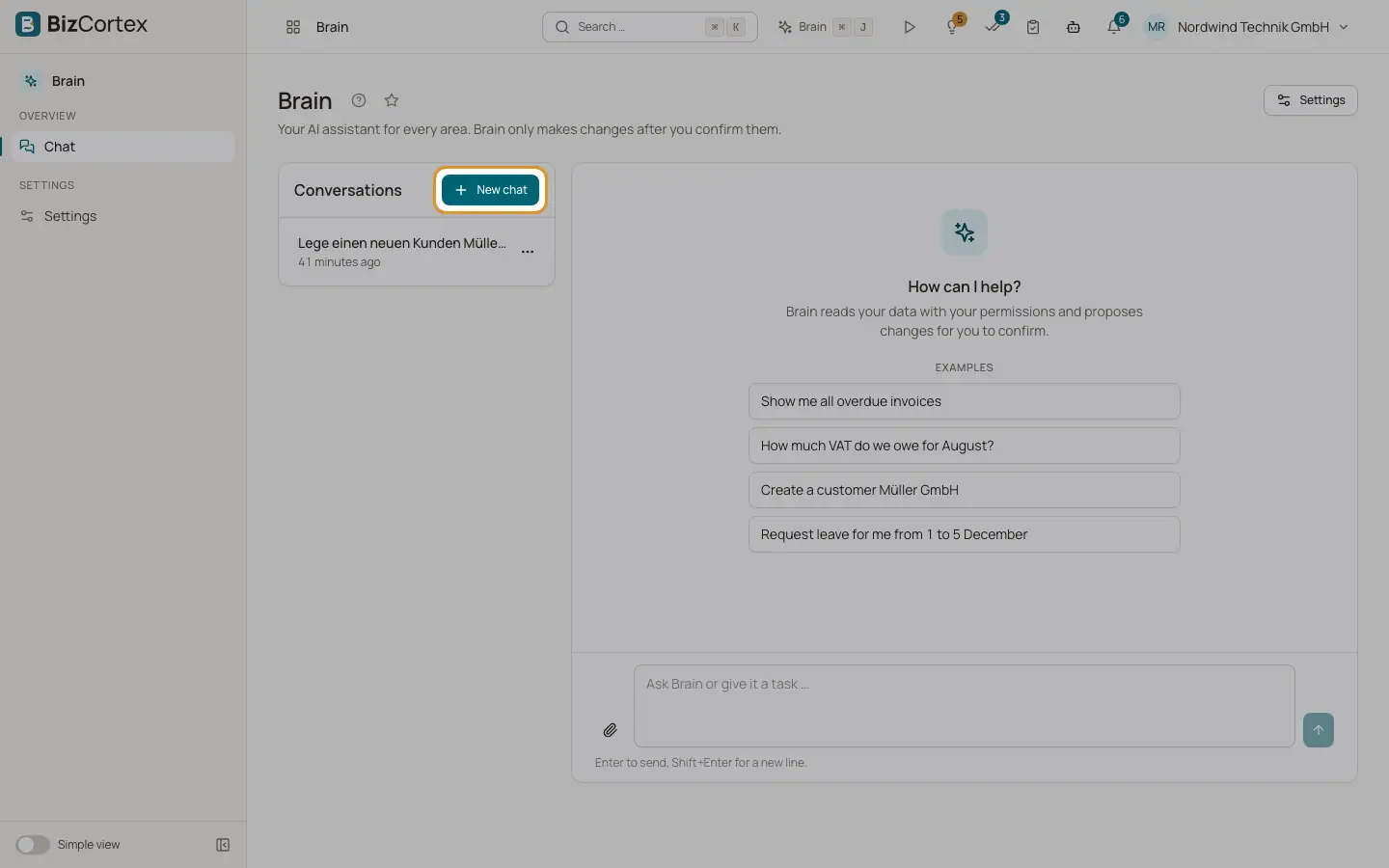
The Brain app shows your conversations on the left and the chat on the right. Every conversation belongs only to you. Nobody else in the company can see your conversations, not even an administrator.
A new, empty chat shows "How can I help?" and a few examples that you can click to start.
Who can use this
- Every member with a built in role: Owner, Admin, Accountant, Sales, Purchase, HR Manager, Employee, Viewer and Compliance
- Members with a custom role only when the role includes the Brain chat permission
Steps
1. Start a new conversation
Click "New chat". Type your message and press Enter or click "Send". The conversation gets a title from your first message.
2. Stop an answer
While Brain is answering, the Send button becomes "Stop". Click it to cancel the answer that is running.
3. Open an earlier conversation
Click a conversation in the "Conversations" list. The list shows when each conversation was last used, for example "just now".
4. Rename a conversation
Open the options menu next to the conversation and choose "Rename". Enter a new Title and click Save.
5. Delete a conversation
Open the options menu and choose "Delete". Confirm "Delete conversation?". The conversation and all its messages are deleted. This cannot be undone.
Fields and options
- Examples
Shown in an empty chat: "Show me all overdue invoices", "How much VAT do we owe for August?", "Create a customer Müller GmbH", "Request leave for me from 1 to 5 December".
- Activity
Each step Brain takes appears as "Activity: …" with the state running, done or failed.
- Chat history
All messages of the conversation, including confirmation cards and their outcome.
Tips
- Start a new chat for a new topic. Brain then uses less context and answers faster.
- If an answer failed, click "Try again". Click "Dismiss" to hide the error.
Good to know
- Conversations that have not been used for 12 months are deleted automatically. You can delete them yourself at any time.
- Brain sends at most the last 80 messages of a conversation to the AI model.
- Possible errors: "Brain is not available right now.", "No connection to the server. Please try again.", "Brain could not process the request." and "Brain's monthly quota is used up. It resets at the start of the month."
Related
- The Brain panel on every page
Ask Brain about the page you are on without leaving it.
- Attaching files to a Brain conversation
Give Brain a PDF, image, spreadsheet or document to read.