Brain settings
Switch Brain on or off for the company, choose the model, set the budget and control HR data.
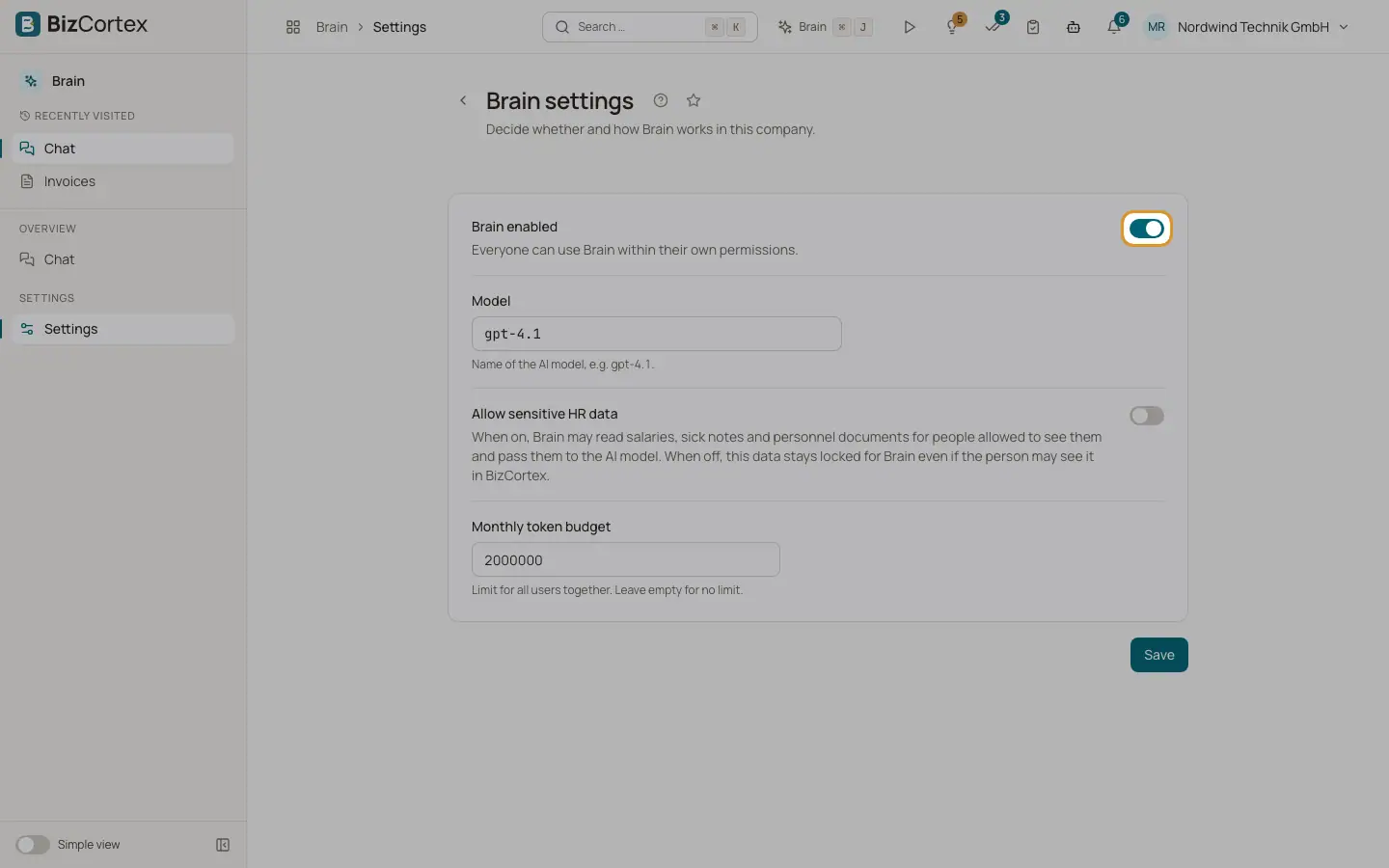
The Brain settings decide whether and how Brain works in your company. Open the Brain app and choose Settings in the sidebar, or click Settings on the Brain page.
Who can use this
- Owner
- Admin
Steps
1. Open the settings
Open the Brain app, then Settings. The page is called "Brain settings".
2. Change the values
Switch "Brain enabled", enter the Model, switch "Allow sensitive HR data" and set the "Monthly token budget".
3. Save
Click Save. You see "Settings saved".
Fields and options
- Brain enabled
On by default. When on, everyone can use Brain within their own permissions. When off, members see "Brain is switched off for this company."
- Model
The name of the AI model Brain uses. When empty, the platform default model is used.
- Allow sensitive HR data
Off by default. When on, Brain may read salaries, sick notes, payslips, payroll, bank details and personnel documents for people who are allowed to see them, and pass them to the AI model. When off, this data stays locked for Brain even if the person may see it in BizCortex.
- Monthly token budget
The limit of AI tokens (input and output together) for all users of the company per calendar month. Leave it empty for no limit. A new company starts with 2,000,000 tokens. When the budget is used up, Brain stops until the first day of the next month.
Good to know
- Brain also needs AI access for the company. Without it, members see "No AI access is configured for Brain."
- The budget counts every chat turn, including confirmations and rejections.
Related
- Brain, privacy and limits
What Brain can see, what it stores and how long.