Your Advisor notifications
Choose your email summary, its time, your areas and urgent emails.
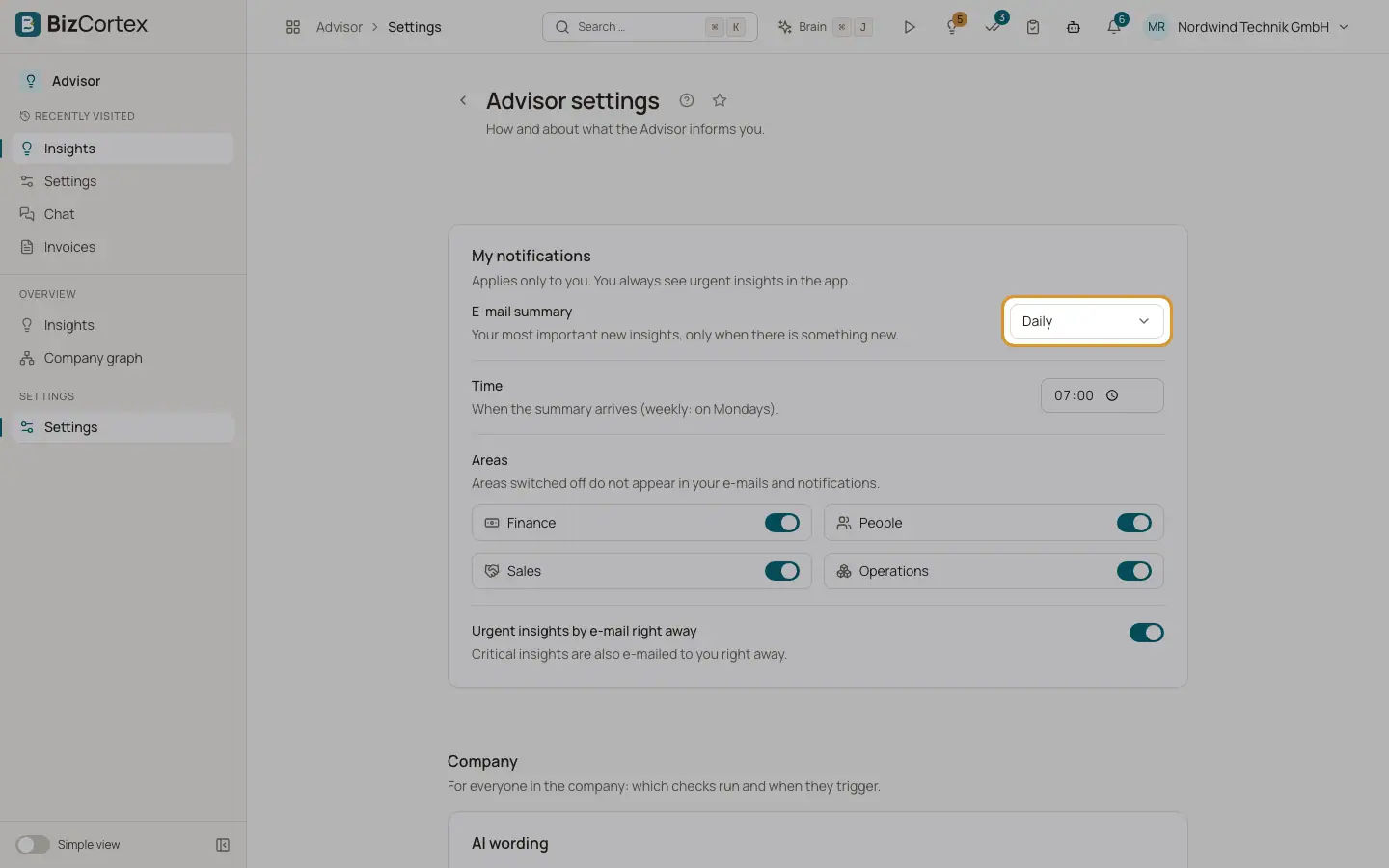
Advisor, Settings, section "My notifications" applies only to you. You always see urgent insights in the app; these settings decide what reaches you by email and which areas you hear about.
Who can use this
- Owner
- Admin
- Accountant
- Sales
- Purchase
- HR Manager
- Viewer
Steps
1. Open your settings
Open Advisor and choose Settings in the sidebar, or click Settings on the Insights page.
2. Choose the email summary
Under "Email summary" choose Daily, Weekly or Off, and set the Time.
3. Choose your areas
Under Areas switch Finance, People, Sales and Operations on or off.
4. Urgent emails
Switch on "Urgent insights by email right away" to get critical insights by email at once.
5. Save
Click Save.
Fields and options
- Email summary
Your most important new insights, up to 10 per email, sent only when there is something new since the last summary. Default: Weekly for Owner and Admin, Off for everybody else.
- Time
When the summary arrives, in German time. Default 07:00. The weekly summary comes on Mondays.
- Areas
Areas you switch off do not appear in your emails and notifications.
- Urgent insights by email right away
Off by default. Critical insights that are new or got worse always create an in app notification; with this switch they are also emailed to you right away.
Good to know
- Before any email is sent, Advisor checks again that you may still see the insight.
Related
- Company settings: checks, thresholds and AI wording
Switch checks on or off, tune thresholds, control AI wording and run a check now.