The insight feed and its filters
Browse, filter and page through your insights.
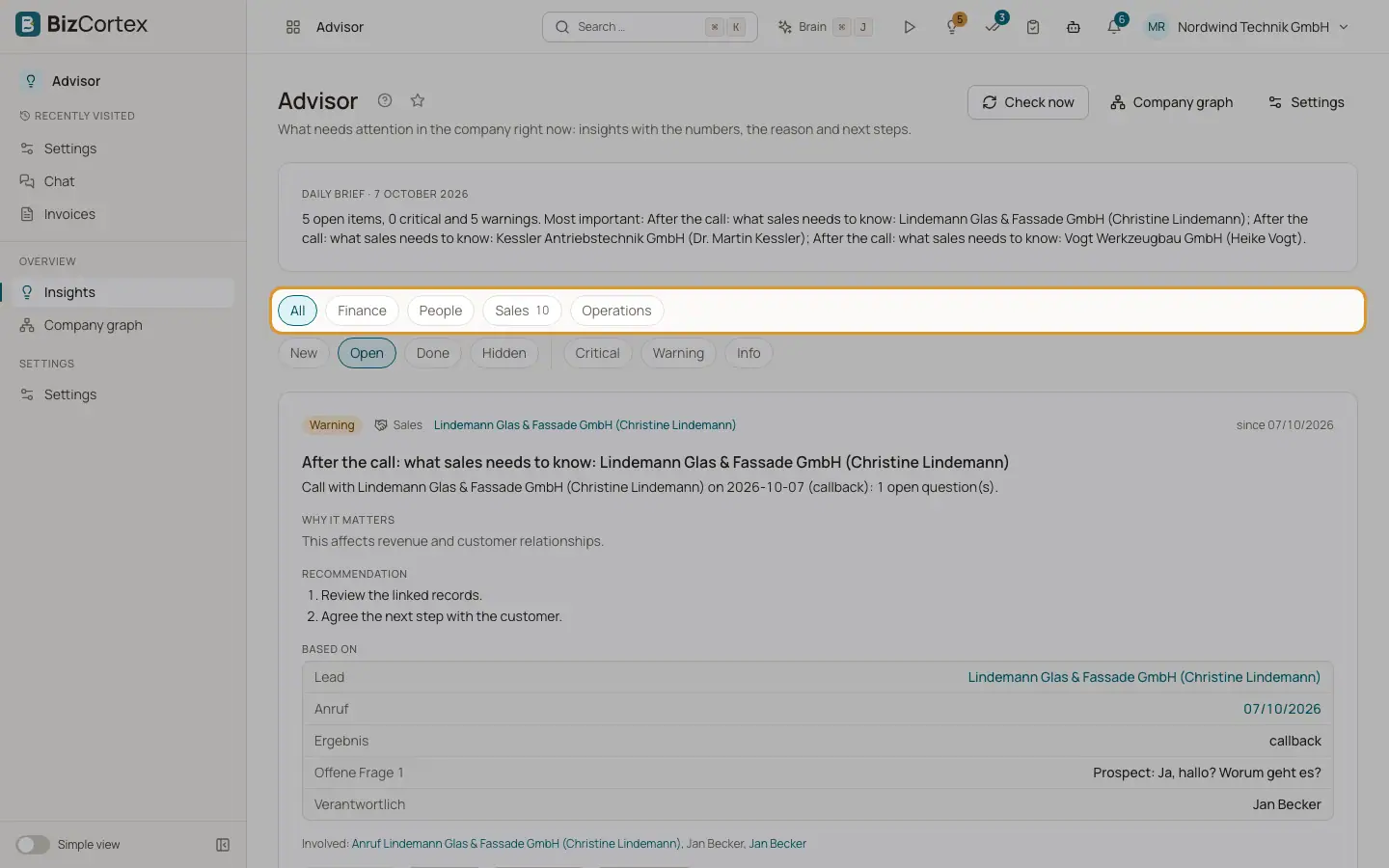
Advisor, Insights shows the daily brief and the feed of insights you may see. The header has the buttons "Check now" (administrators only), "Company graph" and "Settings".
Who can use this
- Owner
- Admin
- Accountant
- Sales
- Purchase
- HR Manager
- Viewer
Steps
1. Choose the side
The feed shows the insights of the side you are on in the Company | Product switch. Switch sides in the header to see the other ones. The daily brief is shown on the Company side only.
2. Filter by area
Click All or an area. On the Company side the areas are Finance, People, Sales and Operations; on the Product side they are Sales and Compliance. Each area chip shows how many open insights it has. Click the active chip again to remove the filter.
3. Filter by status
Click New, Open, Done or Hidden. Open is the default and shows everything that still needs attention.
4. Filter by severity
Click Critical, Warning or Info.
5. Reset
When no insight matches you see "No insights for this selection". Click "Reset filters".
6. Load more
The feed shows 20 insights at a time. Click "Show N more" to load the next ones.
Fields and options
- New
Insights you have not seen yet. A card counts as seen once at least half of it has been on your screen.
- Open
New and seen insights that you have not closed or snoozed.
- Done
Insights you marked as Done.
- Hidden
Insights you hid.
- All clear
Shown when nothing needs your attention right now.
Tips
- The filters are part of the page address, so you can bookmark a filtered view.
- Status is personal. Marking an insight as Done or Hidden changes it only for you, not for your colleagues.
Related
- Insight cards and their actions
What an insight card shows and everything you can do with it.
- The daily brief
A short daily summary of your most important open insights.