Brain at a glance
What Brain is, what it can do and the rules it always follows.
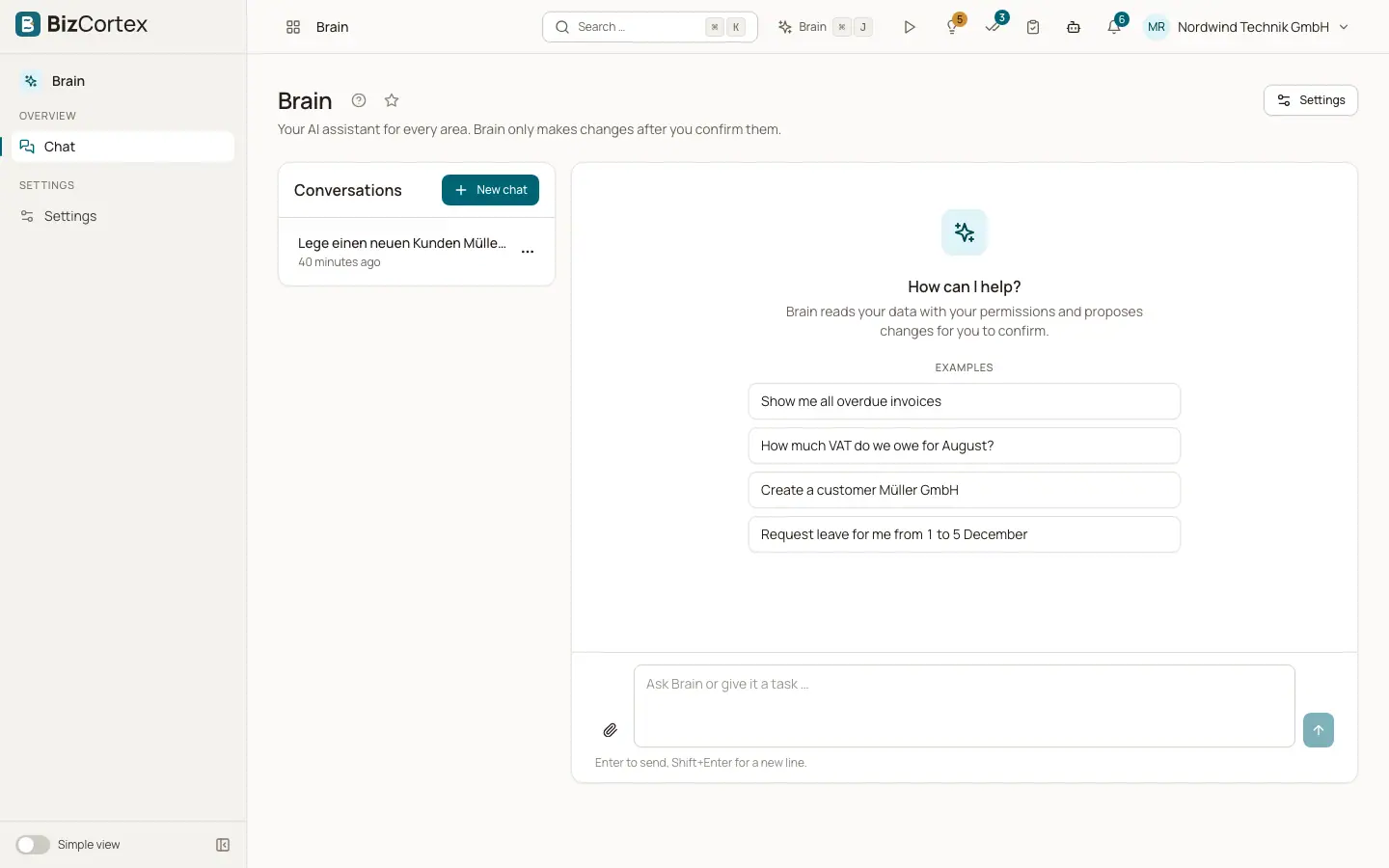
Brain is the AI assistant built into BizCortex. You can ask it questions about your data ("Show me all overdue invoices", "How much VAT do we owe for August?") or give it tasks ("Create a customer Müller GmbH", "Request leave for me from 1 to 5 December"). Brain finds the right feature, reads the data it needs and answers in the chat.
Brain works with your own permissions. It can use every feature that you may use, and nothing more. Every rule of BizCortex still applies: permissions, validation, four eyes approvals, numbering, locked bookings and the audit log. Brain only reads data on its own. Every change it wants to make becomes a proposal that you must confirm with a click. Nothing is confirmed automatically.
Who can use this
- Every member with a built in role: Owner, Admin, Accountant, Sales, Purchase, HR Manager, Employee, Viewer and Compliance
- Members with a custom role only when the role includes the Brain chat permission
Steps
1. Open Brain
Open the Brain app from the app launcher and choose Chat in the sidebar, or click the Brain button in the header on any page. On a keyboard, press Ctrl+J (Cmd+J on a Mac) to open and close the Brain panel.
2. Ask or give a task
Type your question or task in the field "Ask Brain or give it a task …" and press Enter. Press Shift+Enter for a new line. While Brain works you see "Brain is thinking …" and the activities it runs.
3. Check the answer
Brain answers in the chat. Links in the answer open the record inside BizCortex. Lists are shortened when they are long, so ask for a filter if you need a specific part.
4. Confirm or reject changes
When Brain wants to create, change, delete, approve or send something, it shows a confirmation card. Click "Confirm" to run it or "Reject" to drop it.
Fields and options
- Read
Brain may read any data you may read. Reading runs at once without confirmation.
- Navigate
Brain may open a page that you may see. Opening a page changes no data, so it needs no confirmation. The chat shows "Opening … ".
- Fill a form
Brain may fill the form that is open on the page. It never saves the form. You review and save it yourself.
- Change data
Creating, updating, deleting, approving and sending always become a proposal that waits for your confirmation.
Tips
- Be specific: name the customer, the period or the document number. Brain then needs fewer steps.
- You can ask Brain where a feature is ("Where do I set up dunning levels?"). It opens the page for you.
- Brain answers in the language you write in.
Good to know
- Brain is part of the Brain package, which is included in the Pro and Enterprise bundles.
- Some areas are never available to Brain: sign in and security, platform administration, the customer and vendor portals, public pages, API keys and other secrets, file uploads to records, and Brain itself.
- Brain never opens files such as PDF, XML, CSV or ZIP exports. It gives you a download link instead.
- One answer may use at most 12 steps (tool calls). After that Brain must answer with what it has.
- Each person can send up to 20 chat turns per minute (messages, confirmations and rejections together).
Related
- The Brain chat and your conversations
Use the Brain app to hold conversations, rename them and delete them.
- Confirming what Brain proposes
How proposed changes work: confirmation cards, statuses, expiry and the extra safety step.
- Brain, privacy and limits
What Brain can see, what it stores and how long.