Manufacturing orders
Plan production, reserve and consume components, and receive finished goods at production cost.
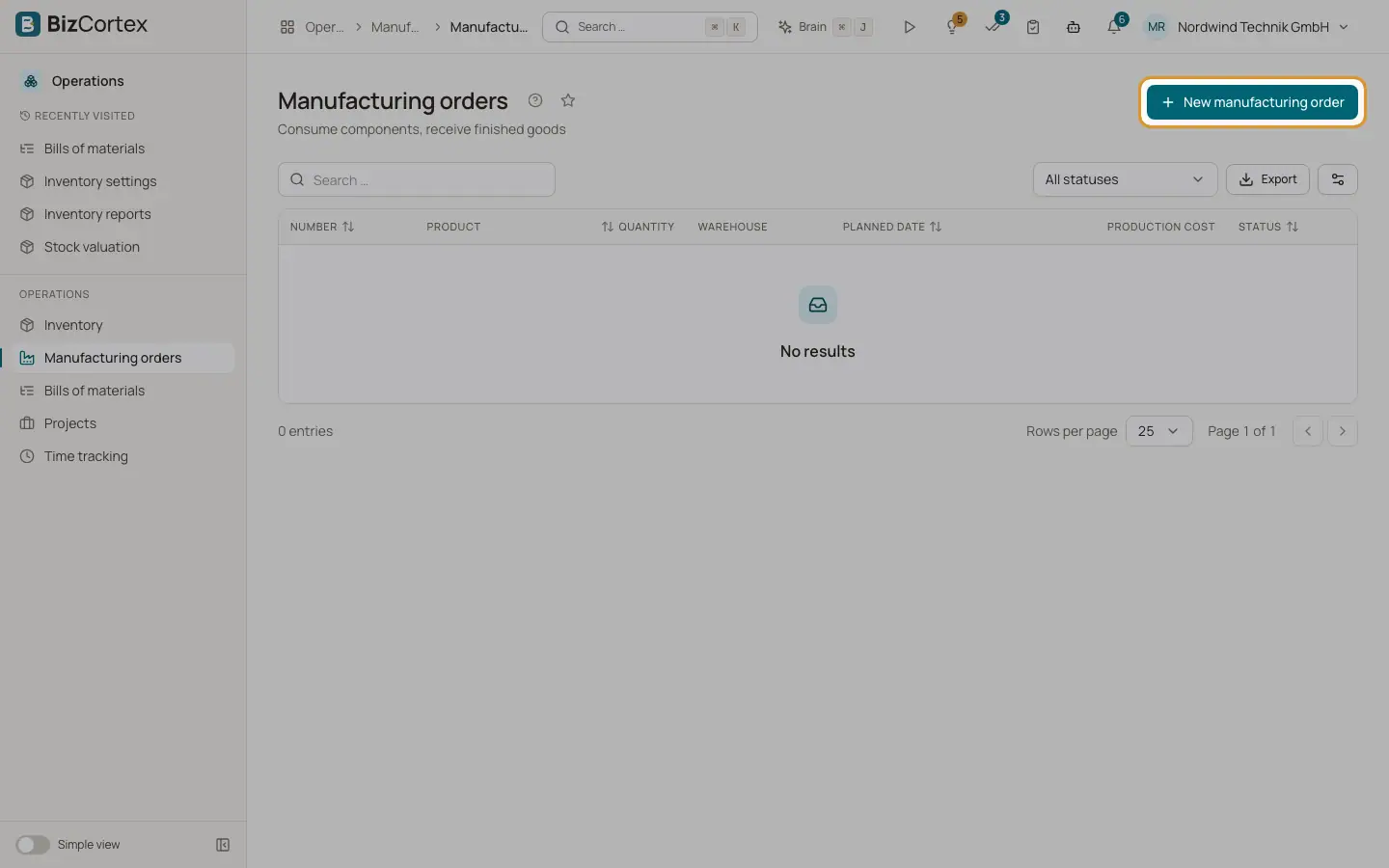
Open Operations, Manufacturing orders. A manufacturing order turns components into a finished product. Orders are numbered like FA 2026 00001. The statuses are Draft, Confirmed, Done and Cancelled.
Who can use this
- Owner and Administrator
- Purchasing (full access)
- Accountant (read only)
Steps
1. Create an order
Click "New manufacturing order". Choose the product, the bill of materials (or "Default bill of materials"), the quantity, the warehouse, a planned date and, for lot tracked products, the "Finished product lot". Switch on "Create sub orders for missing sub assemblies" to create draft child orders for manufactured components that are short. BizCortex calculates the component lines: quantity times BOM factor plus scrap.
2. Confirm and reserve
Click "Confirm & reserve". BizCortex prepares the consumption and production moves and reserves the components if all are available. The page shows "All components available" or "Components missing", and per component the Required, Consumed and Available quantities and the cost.
3. Produce
Click "Produce" and confirm. Components are consumed and valued (FIFO or moving average). The finished product is received at production cost: total component cost divided by quantity. So the total inventory value stays the same. The order shows "Production cost" and "Cost per unit" and becomes Done.
4. Cancel
Click "Cancel". Both groups of moves are reversed with a storno. For a done order the finished goods must still be in stock.
Good to know
- Production is always for the full quantity. Partial production is not available yet.
- Sub assemblies need their own orders. A child order shows its "Parent order".
Related
- Bills of materials
Define which components make a product, explode multi level structures and see costs.
- Stock moves
Post receipts, deliveries, transfers, adjustments and scrap, and reserve stock.