Timeline and milestones
See tasks on a Gantt timeline and invoice milestones when they are reached.
The Timeline tab shows tasks as bars from start to due date, with progress, dependencies and milestones. Zoom with Month, Week and Day. Tasks without dates are listed as "Unscheduled". If no task has dates, you see "No scheduled tasks".
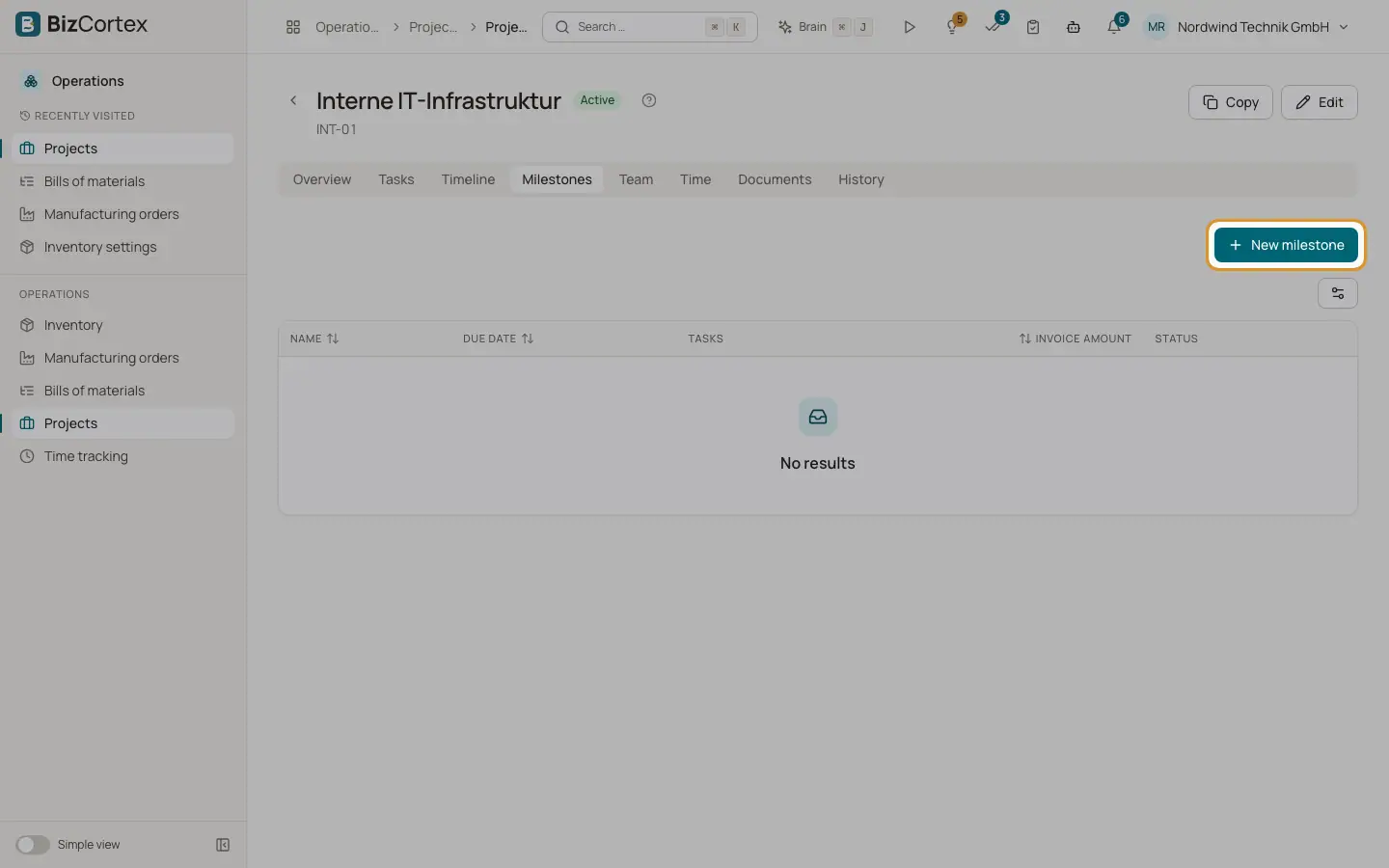
The Milestones tab lists the milestones of the project with due date, number of tasks, invoice amount and status (Open, Reached, Invoiced).
Who can use this
- Anyone with the Projects read permission (view)
- Anyone with the Projects milestone write permission (change)
Steps
1. Create a milestone
Click "New milestone". Enter name, description, due date and, for billing, an "Invoice amount".
2. Mark it as reached
Click "Mark as reached" and confirm. If the milestone has an invoice amount, you see "The milestone amount is now ready to be invoiced." Sales can then invoice it, and the milestone becomes Invoiced.
Good to know
- An invoiced milestone cannot be deleted. A milestone can be marked as reached only once.
Related
- Project tasks and the board
Plan work on a kanban board with subtasks, checklists, dependencies and estimates.
- Project overview and profitability
Revenue, cost, margin, budget and the burn down chart of a project.