Time entries and the timer
Log working time by hand or with the timer, and filter and export your entries.
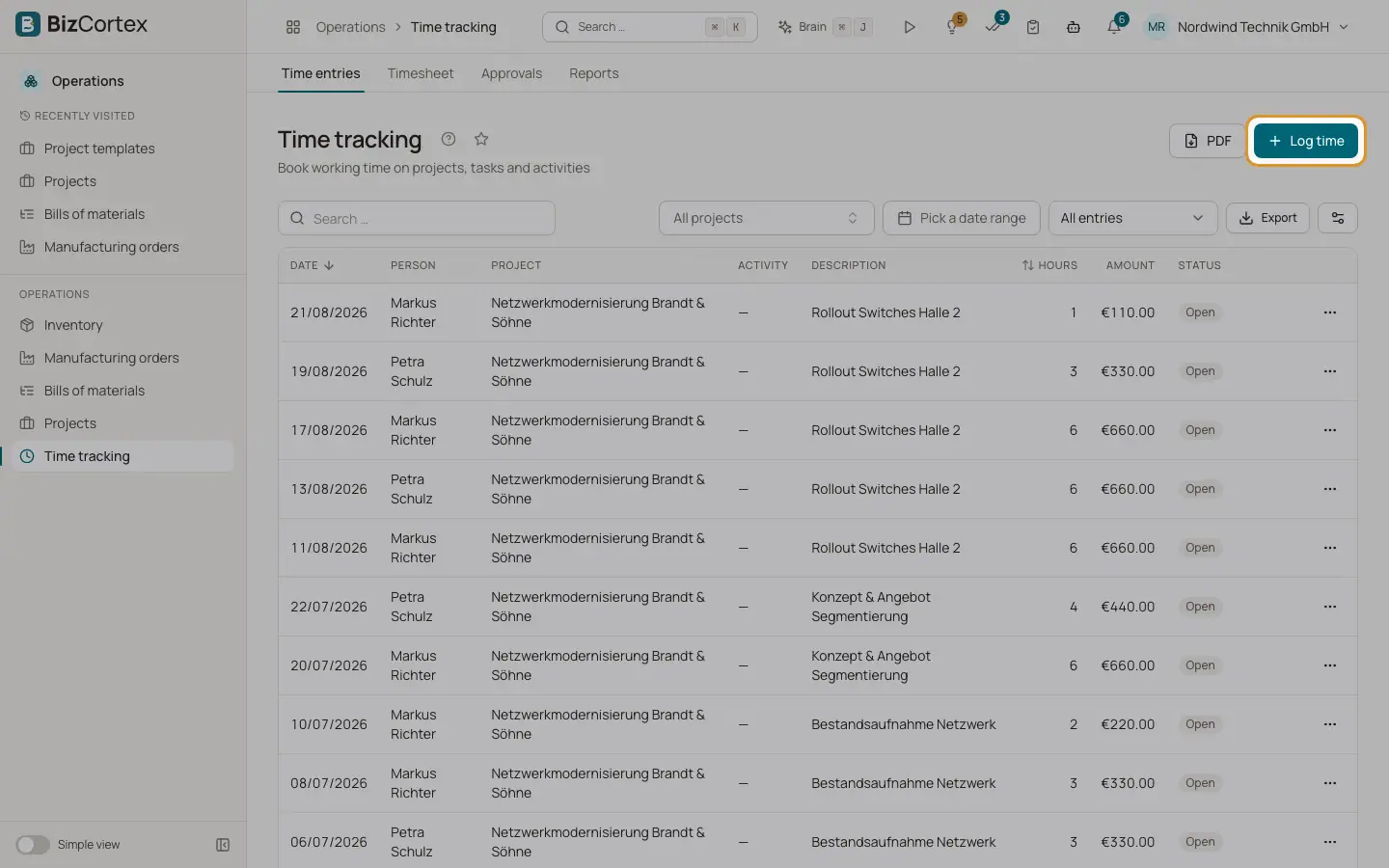
Open Operations, Time tracking, Time entries. You see your own entries. Project managers also see the entries of their projects, read only. People with the entry admin permission see and edit everyone.
Who can use this
- Employee (own entries)
- Owner, Administrator, Sales and HR manager (full access)
- Accountant (read only)
- Anyone with the Time tracking entry admin permission can book for other people
Steps
1. Log time
Click "Log time". Choose the project, and optionally task and activity. Choose the entry type: Duration (date and hours, between 0 and 24) or "From to" (start and end, the end must be after the start). Enter a description and tags, comma separated, for example "remote, meeting". Under Billable choose "Default (project / activity)", Yes or No.
2. Use the timer
Click the stopwatch in the top bar. Choose the project ("Choose project"), task, activity and description, and click "Start timer". The elapsed time runs in the top bar. Click the stop button to stop it. The entry is saved.
3. Filter and export
Filter by "All projects", a date range, and billing: "All entries", "Billable", "Non billable", "Not billed yet", "Billed". Click PDF to download the filtered list.
Fields and options
- Billable default
Time is billable by default if the project is Time & material and the activity is billable. Your own choice wins.
- Running
The entry is the running timer.
- Billed
The entry is on an invoice and can no longer be changed.
Good to know
- You can run only one timer at a time.
- Entries with start and end may not overlap, unless overlaps are allowed in the settings.
- A single entry cannot be longer than 24 hours.
- Entries in a locked period, in a submitted or approved week, or already billed cannot be changed or deleted.
- Time cannot be booked on project templates.
- Durations are rounded according to the settings. The unrounded value is kept as well.
Related
- Weekly timesheet
Enter hours per day for a week and submit the week for approval.
- Time tracking settings
Activities, tags, hourly rates and rules such as rounding, overlaps and period locks.