Product page and its tabs
Overview, variants, prices, suppliers, images, stock and history of one product.
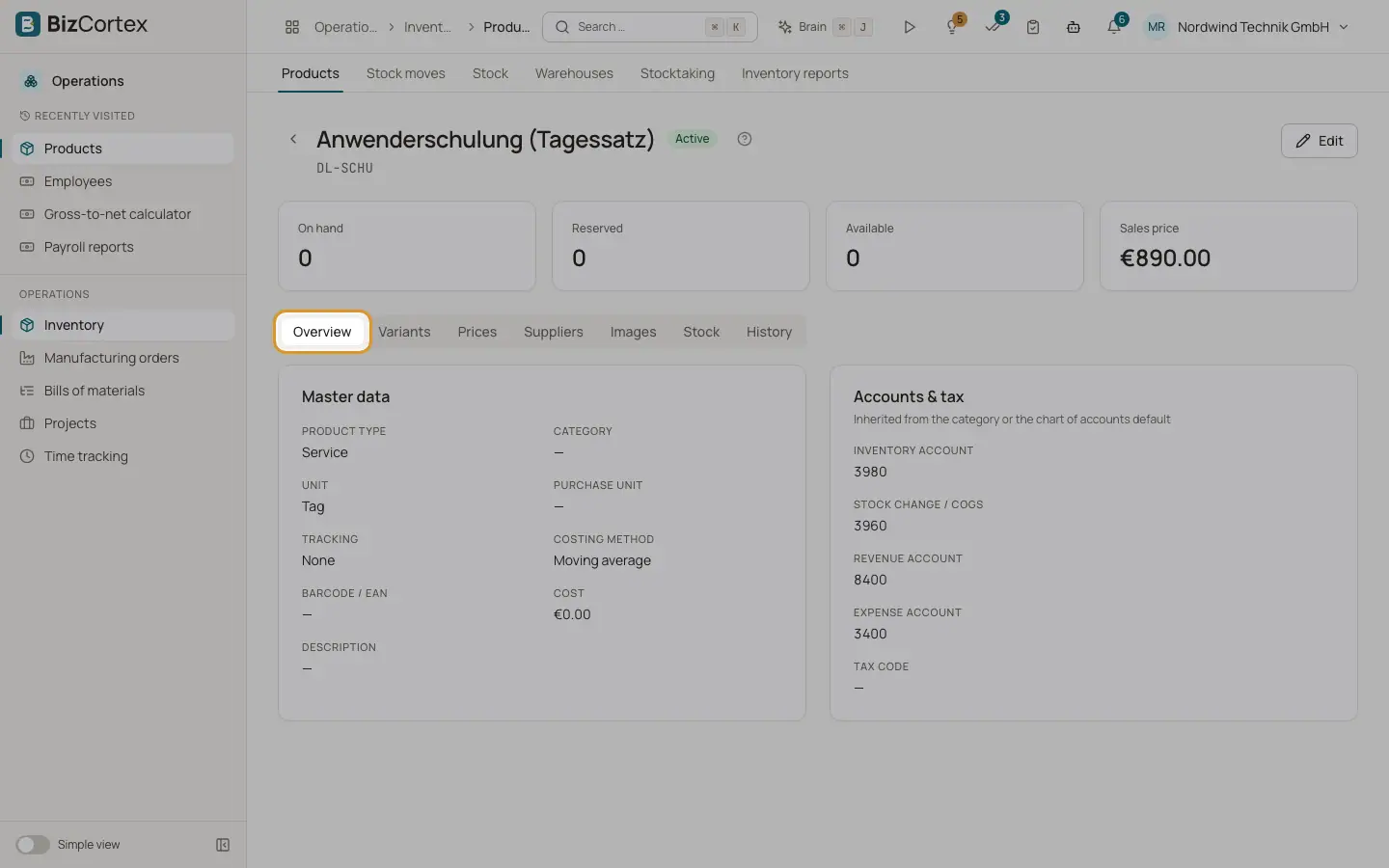
Click a product in the list to open its page. The header shows the name, SKU and, for a variant, the product it is a variant of. The page has the tabs Overview, Variants, Prices, Suppliers, Images, Stock and History.
Who can use this
- Anyone with the Inventory product read permission (view)
- Anyone with the Inventory product write permission (change)
Steps
1. Overview
Shows the master data and the box "Accounts & tax": inventory account, stock change / COGS account, revenue account, expense account and tax code. These are the accounts that actually apply, inherited from the category or from the chart of accounts default.
2. Variants
Click "Generate variants", pick one or more values for each attribute (for example sizes and colours) and confirm. BizCortex creates one product for every combination. The SKU is the parent SKU followed by the value codes. Combinations that already exist are skipped. You see a message such as "6 variants created". If no attributes exist yet, create them under Master data first.
3. Prices
Click "New price" to add a price list entry. Choose the price type Sales or Purchase, the price, an optional unit, the quantity it applies from ("From quantity"), "Valid from", "Valid to" and a label. When a document asks for a price, BizCortex picks the best matching entry for the date, quantity and unit. If none matches, it uses the sales price or the cost of the product, converted to the requested unit. The box "Price lookup" on this tab lets you enter a quantity and see the price per unit and whether it comes from a price list or from the product master.
4. Suppliers
Click "Add supplier" and enter the vendor, the vendor SKU, the vendor product name, the purchase price, the minimum quantity, the lead time in days and a priority. The lowest priority number is the preferred supplier. Replenishment uses the preferred supplier for its suggestions.
5. Images
Click "Upload image" to add product pictures. The first image becomes the main image and is marked with a star. You can download each image again.
6. Stock
Shows the current stock of the product per warehouse, bin and lot, with reserved and available quantities.
7. History
Shows the change history of the product record.
Tips
- Use staggered sales prices (several entries with different "From quantity" values) for volume discounts.
Related
- Product form and product types
Every field of the product form, the four product types and tracking options.
- Categories, units and attributes
Set up product categories with their accounts, units of measure and variant attributes.
- Replenishment
Maintain reorder rules and get purchase suggestions for products that run low.