The Operations app
What the Operations app contains and how its four modules work together.
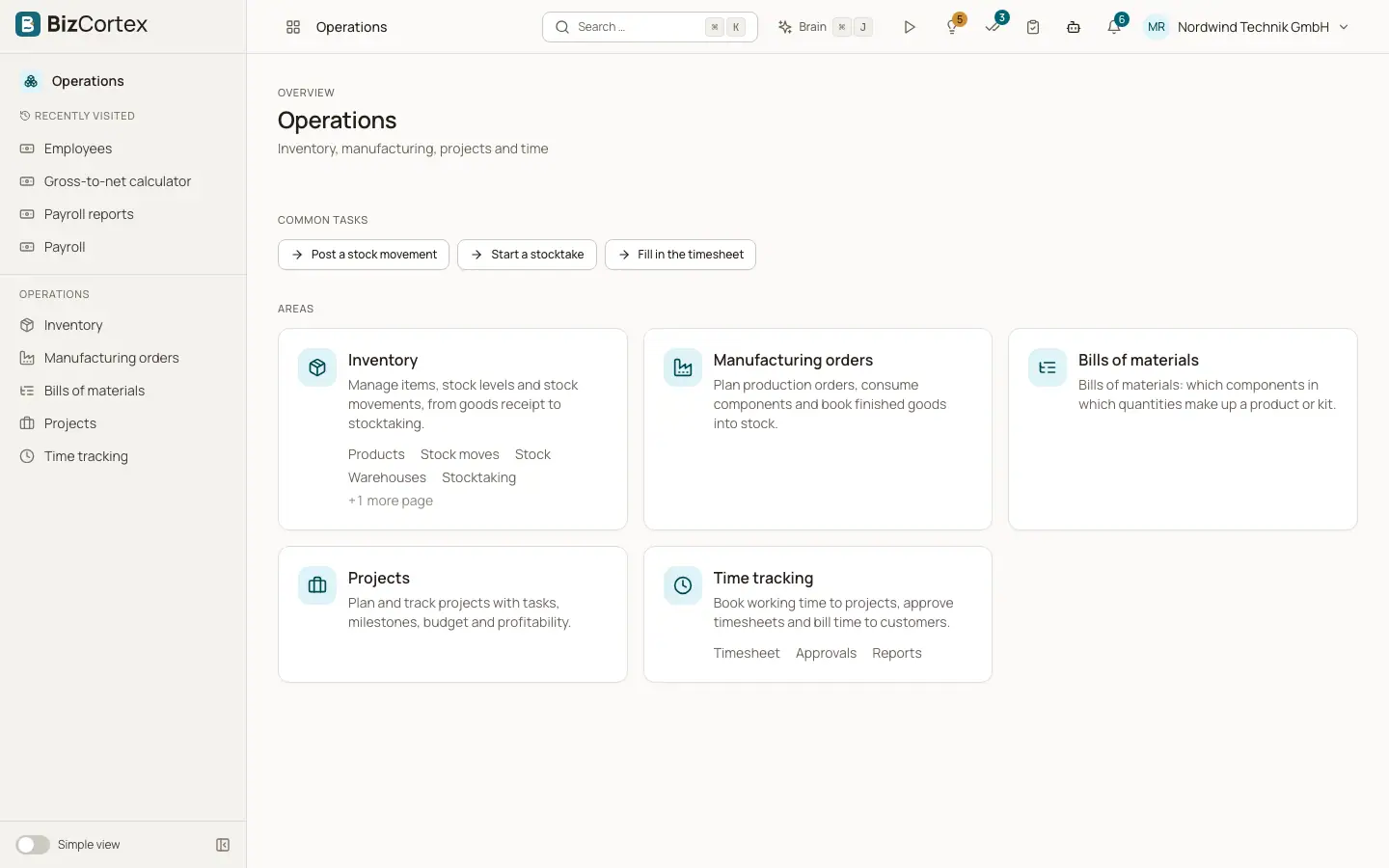
Operations is one app in the BizCortex app launcher. It holds four modules: Inventory, Manufacturing (Manufacturing orders and Bills of materials), Projects and Time tracking. All four belong to the Operations package. If your company has not booked this package, the app does not appear in the launcher.
The modules share data. A manufacturing order consumes components from inventory and receives finished goods into inventory. Time that people book on a project feeds the project budget and profitability. Billable time becomes invoice lines in Sales. Stock movements are valued and posted to the general ledger in Finance, so your inventory value and your books stay in line.
Who can use this
- Every company that has booked the Operations package
Steps
1. Open the app
Click the app launcher and choose Operations. The sidebar shows Inventory, Manufacturing orders, Bills of materials, Projects and Time tracking. Items you have no permission for are hidden.
2. Show advanced items
Some sidebar entries are marked as advanced, for example Lots and serial numbers, Replenishment, Stock valuation, Master data, Project templates, Time billing and the settings pages. They appear when advanced items are shown in your navigation.
3. Use the quick tasks
The Inventory entry offers the quick tasks "Post a stock movement" and "Start a stocktake". The Time tracking entry offers "Fill in the timesheet". They take you straight to the right page.
4. Use the timer in the header
If you may book time, a stopwatch icon sits in the top bar on every page. Use it to start and stop a timer without leaving your current work.
Good to know
- Each page checks your permissions. If you only have read access, buttons such as "New product" or "New move" are not shown.
Related
- Products list
Find, filter, scan and manage your products, variants and services.
- Manufacturing orders
Plan production, reserve and consume components, and receive finished goods at production cost.
- Projects list
Create projects, filter by status, copy them and invoice unbilled time.
- Time entries and the timer
Log working time by hand or with the timer, and filter and export your entries.