Project tasks and the board
Plan work on a kanban board with subtasks, checklists, dependencies and estimates.
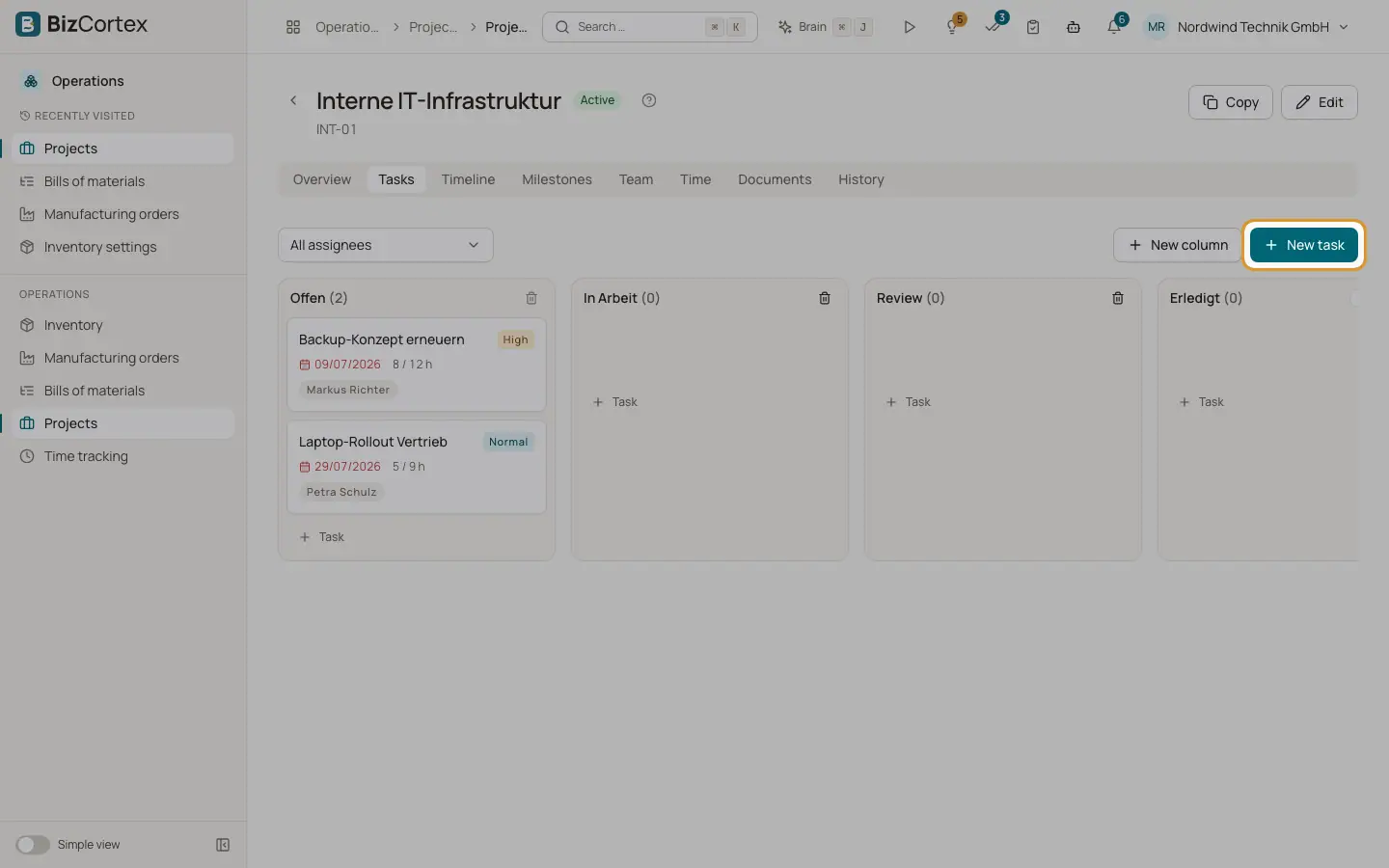
The Tasks tab is a kanban board. Each column is a stage. Cards show priority, assignees, due date and the number of subtasks. Drag a card to another column to move it. A column marked "Done" counts its tasks as done.
Who can use this
- Owner, Administrator and Sales
- Employee (read and write tasks)
- Accountant, HR manager and Viewer (read only)
Steps
1. Add a column
Click "New column", enter a name and switch on "Tasks in this column count as done" if needed. An empty column can be deleted with "Delete column".
2. Add a task
Click "New task", or "Task" under a column.
3. Fill in the task
Enter the Title, Description, Column, Priority (Low, Normal, High, Urgent), Assignees, start and Due date, "Estimate (h)" and an optional milestone. Add checklist items under Checklist. Use "Add dependency" to say that this task can start only when another task is finished. Use "Add subtask" for smaller steps.
4. Track effort
The task shows "Booked" hours against the estimate. Comments can be added to tasks.
5. Filter by person
Use "All assignees" above the board to show only the tasks of one person.
Good to know
- Moving a task into a done column records the completion date. Moving it out removes it.
- Dependencies work within one project only. Loops are refused.
- Tasks with booked time cannot be deleted. A column that still holds tasks cannot be deleted.
Related
- Timeline and milestones
See tasks on a Gantt timeline and invoice milestones when they are reached.
- Project overview and profitability
Revenue, cost, margin, budget and the burn down chart of a project.