Time billing
Turn unbilled time and rebillable expenses into invoice lines and mark them as billed.
Open Operations, Time tracking, Time billing. The page prepares invoice lines from billable time that is not billed yet. It does not create the invoice itself. You create the invoice in Sales and then assign the time to it, so the same time is never billed twice.
Who can use this
- Owner, Administrator, Sales, HR manager and Accountant
- Anyone with the Time tracking billing write permission
Steps
1. Select the time
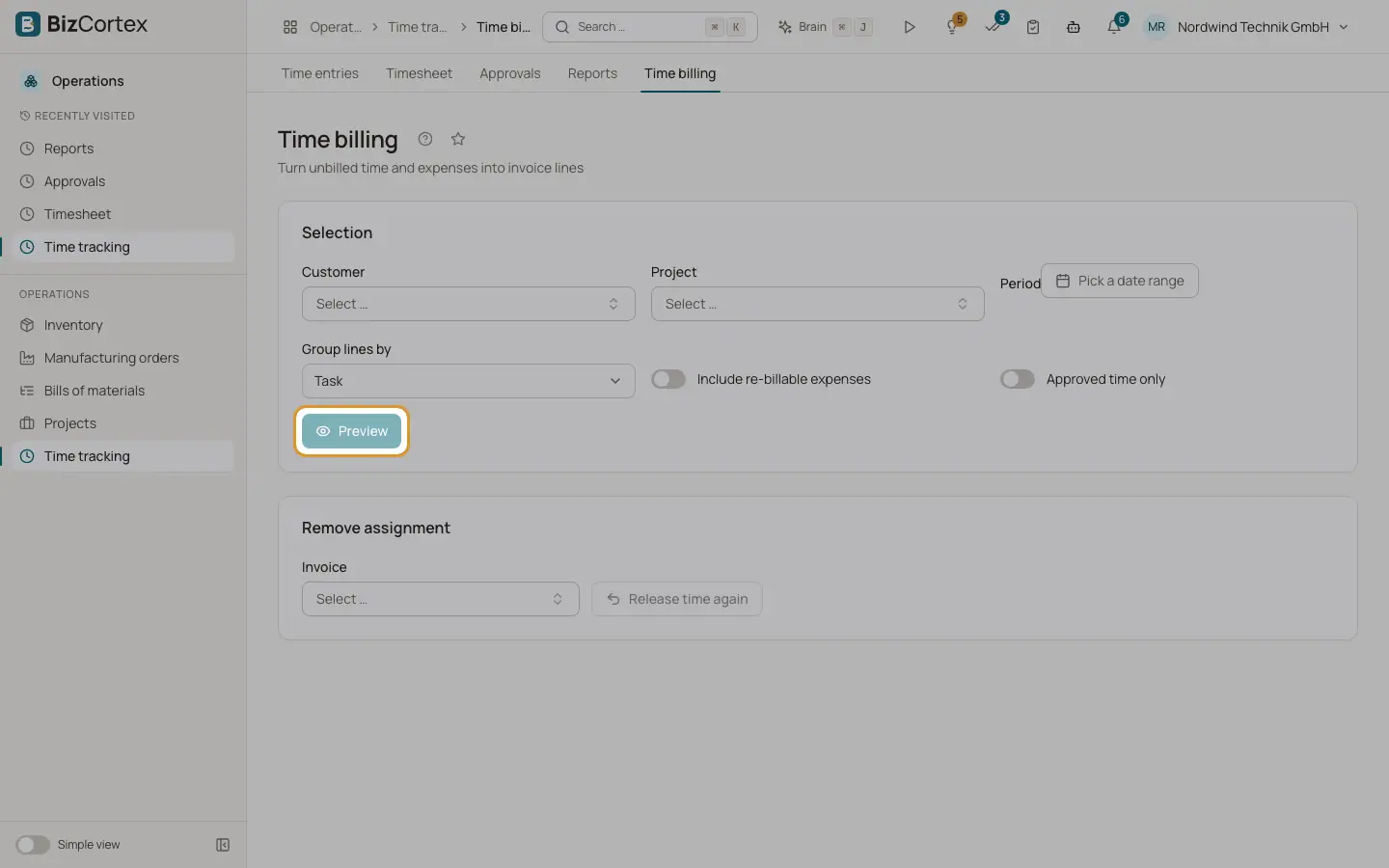
Under Selection choose the customer, the project and the period. Choose "Group lines by": Task, Activity, Day, Project, "Single entries" or "One total". Switch on "Include rebillable expenses" and "Approved time only" if needed. Click Preview.
2. Check the lines
The invoice lines show description, quantity, unit (hours), unit price and amount, with the number of entries per line, the total hours and the total. Lines with different prices are kept apart. If there is nothing to bill you see "No billable time in the selected period".
3. Create the invoice in Sales
Create the invoice in Sales with these lines.
4. Mark as billed
Back on this page choose the Invoice and click "Mark as billed". Confirm. The entries and expenses are linked to the invoice and locked.
5. Release time again
If an invoice is cancelled, choose it under "Remove assignment" and click "Release time again". The entries become unbilled.
Good to know
- Running timers, rejected entries and entries that are already billed are never included.
- If "Only bill approved time" is on in the settings, only approved entries are included.
Related
- Time tracking settings
Activities, tags, hourly rates and rules such as rounding, overlaps and period locks.
- Timesheet approvals
Approve or reject the weekly timesheets of your team.