Time tracking settings
Activities, tags, hourly rates and rules such as rounding, overlaps and period locks.
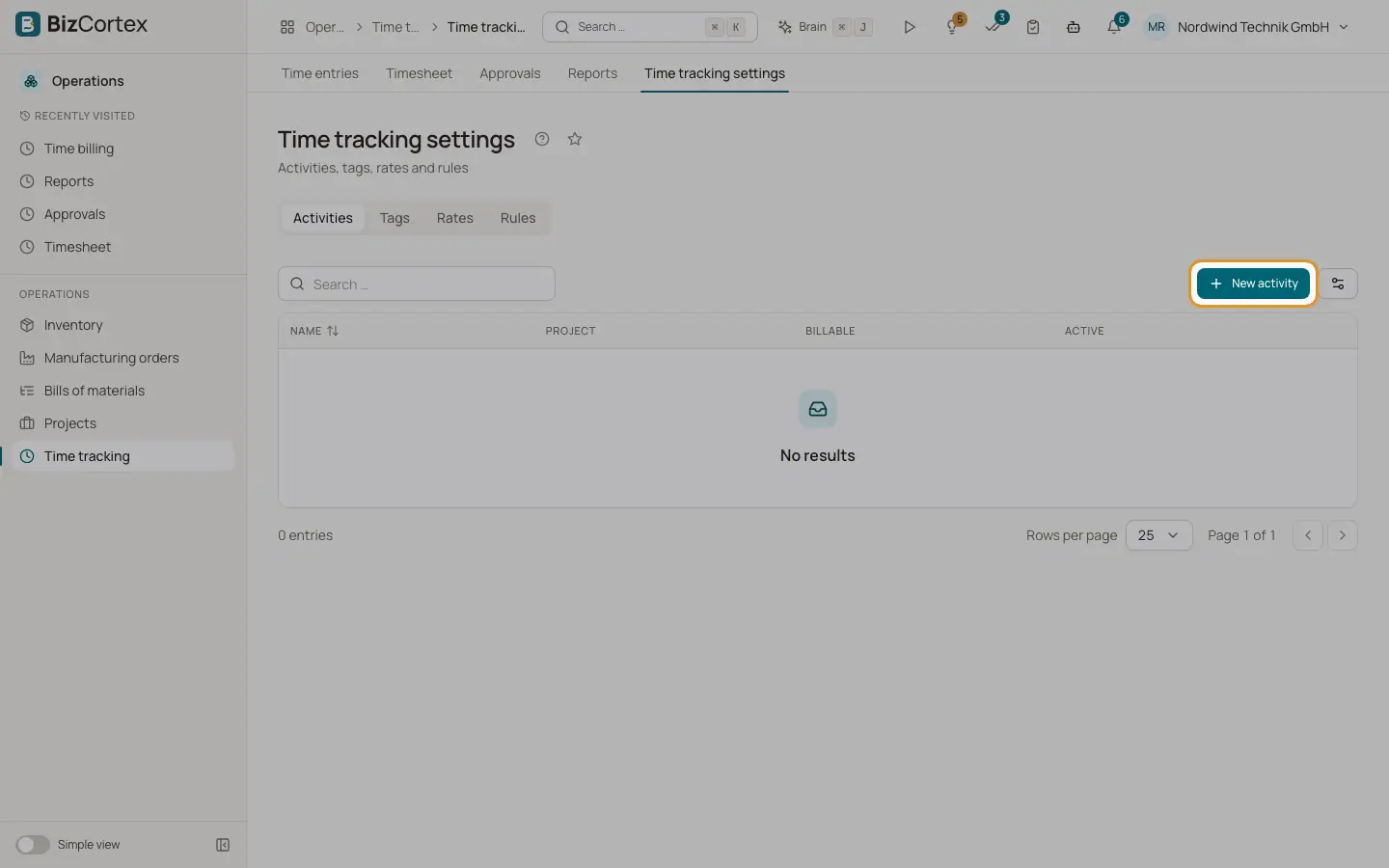
Open Operations, Time tracking, Time tracking settings. The page has the tabs Activities, Tags, Rates and Rules.
Who can use this
- Owner, Administrator, Sales and HR manager
- Rules and locks need the Time tracking settings admin permission
Steps
1. Activities
Click "New activity". Enter the name, colour, description and whether it is billable and active. Under "Project only" choose a project, or leave it empty for all projects. An activity that is used cannot be deleted.
2. Tags
Click "New tag" for name and colour. The list shows how often each tag is used. Renaming a tag also changes it in all entries. Deleting a tag removes it from all entries. Tags typed on entries are created automatically.
3. Rates
Click "New rate". Choose any combination of person, project and activity, or a customer alone, and enter a billing rate and or a cost rate. BizCortex looks for rates in this order: person and project and activity, person and project, project and activity, project, activity, customer, person. Use "Which rate applies?" to test. Click "Rerate open entries" to apply changed rates to unbilled entries.
4. Rules
Set "Rounding (minutes)" (0 means no rounding) and the "Rounding mode" (round up, round down, round to nearest). Switch "Allow overlapping entries". Set "Target hours per day", "Working days" (0 is Monday, 6 is Sunday, comma separated), "Budget alerts (%)" such as 80,100, and "Only bill approved time".
5. Lock a period
Under "Lock period" choose "Lock until" and click Lock. Entries up to and including that date can no longer be created, changed or deleted. Click Unlock to remove the lock.
Good to know
- A customer rate cannot be combined with person, project or activity.
- Each rate needs at least a billing or a cost rate.
- Rates are copied onto each entry when it is booked. Later rate changes do not affect entries until you rerate them.
- Time entry tags are separate from the tags used elsewhere in BizCortex.
- Periods are not locked automatically after a monthly approval. Lock them here or approve the weeks.
Related
- Time entries and the timer
Log working time by hand or with the timer, and filter and export your entries.
- Time billing
Turn unbilled time and rebillable expenses into invoice lines and mark them as billed.