Products list
Find, filter, scan and manage your products, variants and services.
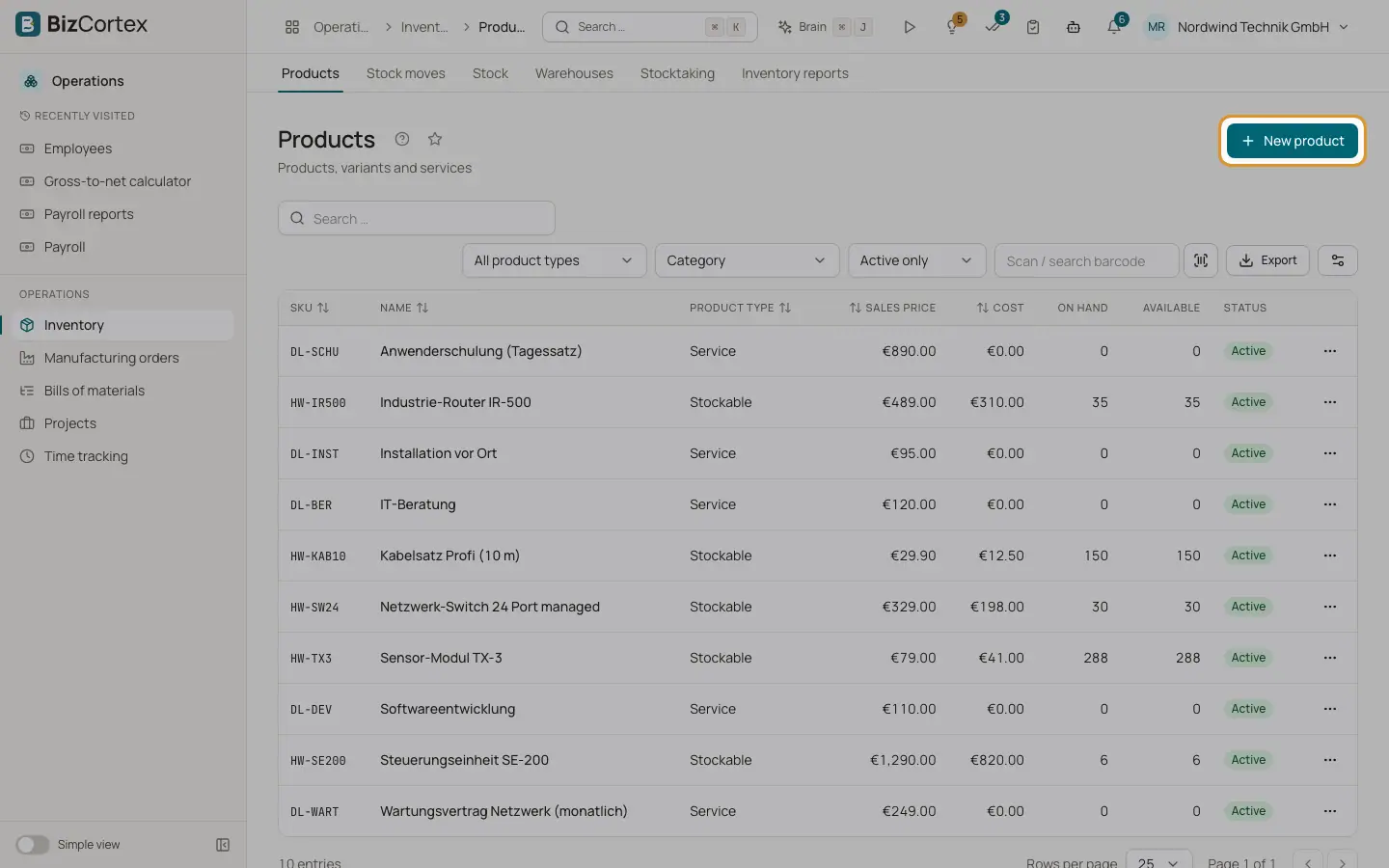
Open Operations, Inventory, Products. The list shows every product, variant and service of your company with SKU, name, product type, sales price, cost, on hand quantity, available quantity and status (Active or Archived). Available means on hand minus the quantity that is reserved for open stock moves.
When you have no products yet, the page shows "No items yet" with a button to create your first product and a link "Set up categories and units".
Who can use this
- Owner and Administrator
- Purchasing (full access)
- Accountant, Sales and Viewer (read only)
- Anyone with the Inventory product write permission can create and edit products
Steps
1. Filter the list
Use the filters above the table: "All product types" (Stockable, Consumable, Service, Kit / bundle), Category, and the status filter with "All", "Active only" and "Archived only". You can also search by text and sort by SKU, name, type, price and cost.
2. Scan or search a barcode
Type or scan a code into the field "Scan / search barcode" and press Enter. BizCortex opens the matching product. If the code belongs to a lot, the product of that lot is found. If nothing matches, you see "No product for this code".
3. Create a product
Click "New product", fill in the form and save. See the page Product form and product types for every field.
4. Row actions
Each row has the actions View, Edit and Delete. View opens the product page with all tabs. Delete removes the product only if it has no stock history.
Tips
- Archive a product instead of deleting it. Archived products stay in old documents and reports but cannot be moved any more.
Good to know
- A product that has stock history cannot be deleted. Set it to inactive (archived) instead.
Related
- Product form and product types
Every field of the product form, the four product types and tracking options.
- Product page and its tabs
Overview, variants, prices, suppliers, images, stock and history of one product.
- Categories, units and attributes
Set up product categories with their accounts, units of measure and variant attributes.