Weekly timesheet
Enter hours per day for a week and submit the week for approval.
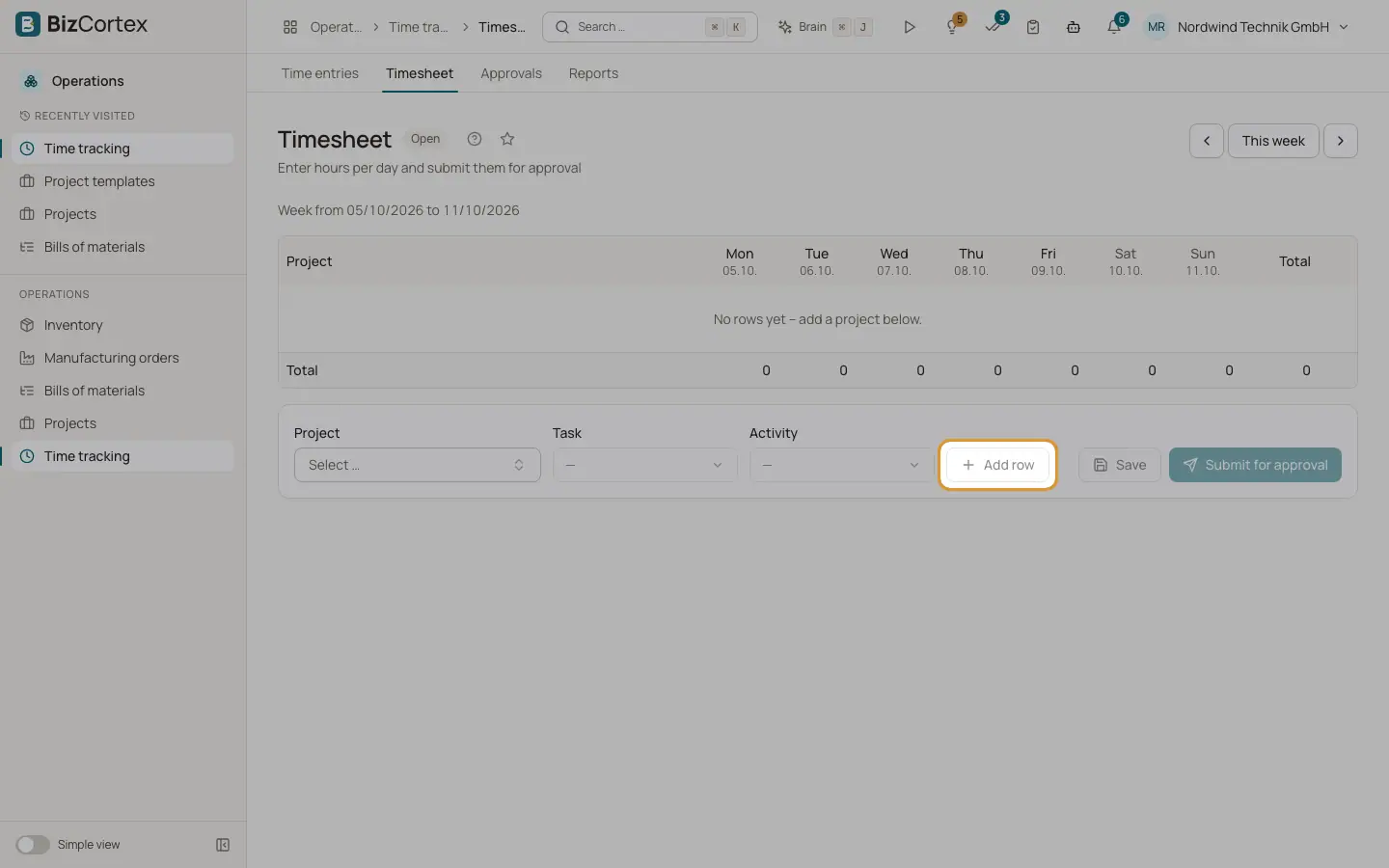
Open Operations, Time tracking, Timesheet. The page shows one week from Monday to Sunday. Each row is a project, with optional task and activity, and has one cell per day. The status of the week (Open, Submitted, Approved, Rejected) is shown next to the title.
Who can use this
- Employee and everyone with the Time tracking timesheet write permission
Steps
1. Pick the week
Use "Previous week", "This week" and "Next week".
2. Add rows
Choose a project, optionally a task and an activity, and click "Add row". If the sheet is empty you see "No rows yet".
3. Enter hours
Type the hours in the day cells. Day totals and the week total update. Use "Remove row" to delete a row.
4. Save
Click Save. Rows you removed are cleared.
5. Submit
Click "Submit for approval". Save first, otherwise you see "Please save first". The week and its entries become Submitted and are locked, and the managers are notified.
Good to know
- Rows marked "contains timed entries" hold entries with start and end time. A cell cannot be set below these entries.
- If the week is rejected, its entries can be edited again and resubmitted.
Related
- Timesheet approvals
Approve or reject the weekly timesheets of your team.
- Time entries and the timer
Log working time by hand or with the timer, and filter and export your entries.