Project overview and profitability
Revenue, cost, margin, budget and the burn down chart of a project.
Click a project to open it. The header has Edit, Copy and "Book time". The tabs are Overview, Tasks, Timeline, Milestones, Team, Time, Documents and History.
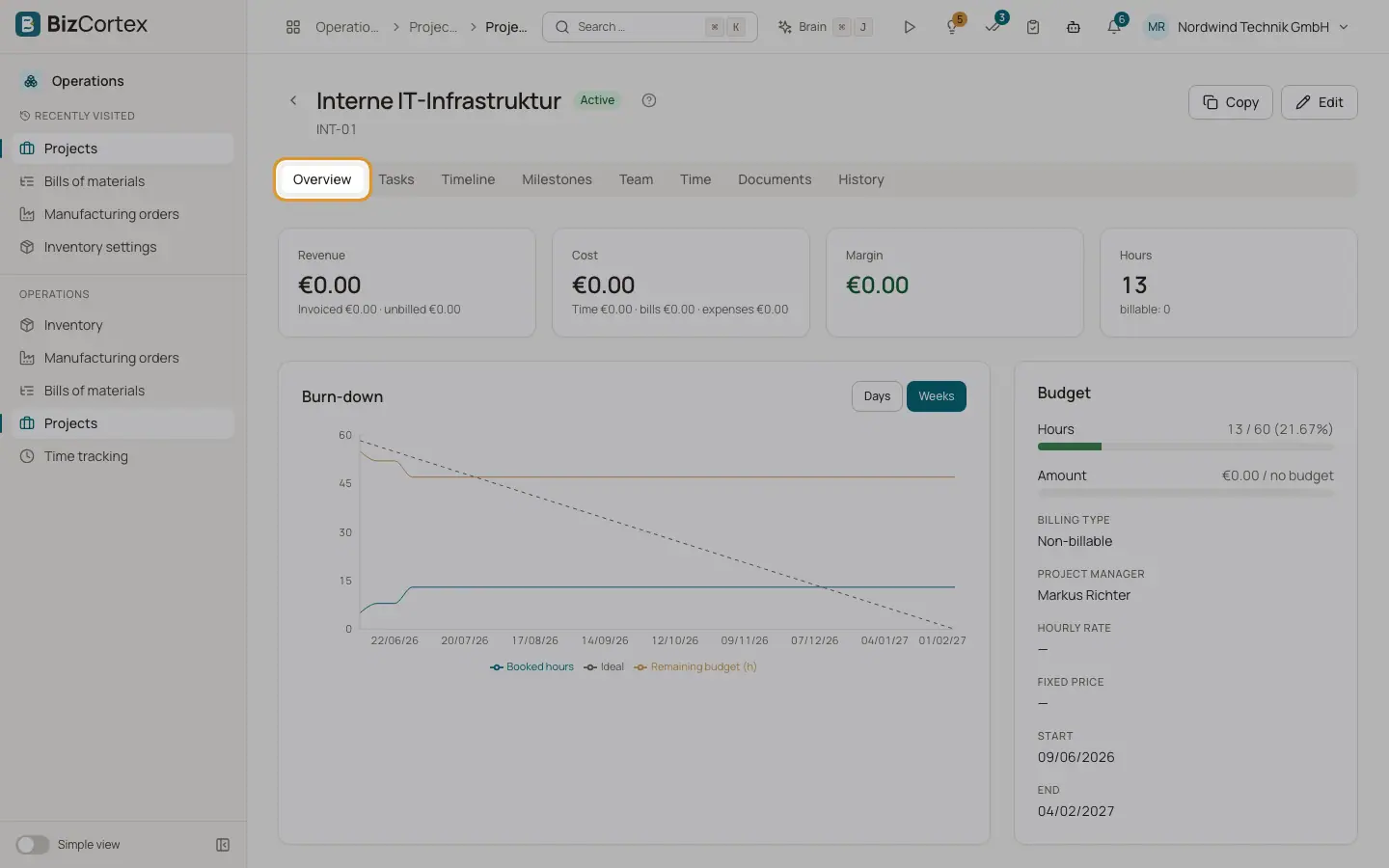
The Overview tab shows the project data and three key figures. Revenue is the net amount of invoices linked to the project plus the value of unbilled billable time. Draft and cancelled invoices are left out, credit notes count negative. For fixed price projects revenue is the fixed price or the invoiced amount, whichever is higher. Cost is time at cost rate plus linked bills and expenses. Margin is revenue minus cost.
Who can use this
- Anyone with the Projects read permission
- Profitability needs the Projects report read permission
Steps
1. Read the figures
Below Revenue you see "Invoiced" and "unbilled". Below Cost you see time, bills and expenses. Hours show the total and the billable hours.
2. Use the burn down chart
The Burn down chart shows "Booked hours", "Remaining budget (h)" and the "Ideal" line. Switch between Days and Weeks.
3. Check the budget
The Budget box shows used hours and amount against the budget, or "no budget".
4. Book time
Click "Book time" to log time directly on this project. The Time tab lists all entries of the project.
Good to know
- Budget alerts: when booked hours or amount reach 80 percent and 100 percent of the budget (adjustable in Time tracking settings), the project managers get an in app notification once per threshold.
Related
- Project tasks and the board
Plan work on a kanban board with subtasks, checklists, dependencies and estimates.
- Project team and documents
Add people with roles and rates, and link invoices, bills and expenses to the project.
- Time tracking settings
Activities, tags, hourly rates and rules such as rounding, overlaps and period locks.